

Option 1: Endpoint registration (recommended)
The endpoint registers to the device gateway with an account, so the platform can see whether it’s online and dialing needs only the meeting ID.1. Create an account in the admin console
Open Device management in the admin console, choose the SIP (or H323) tab → Endpoint registration → Add account: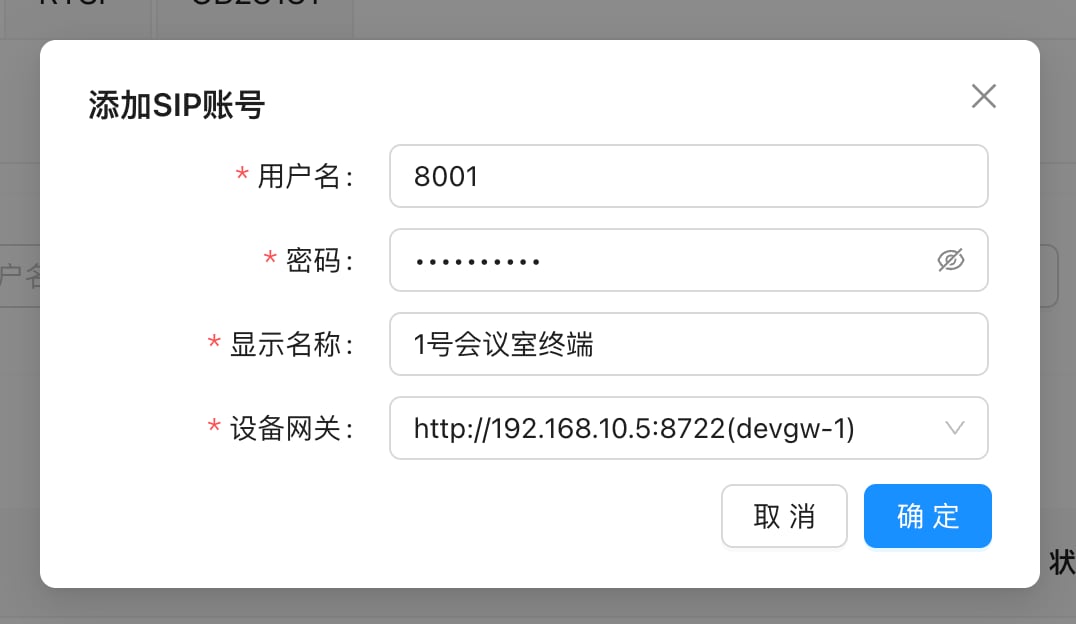
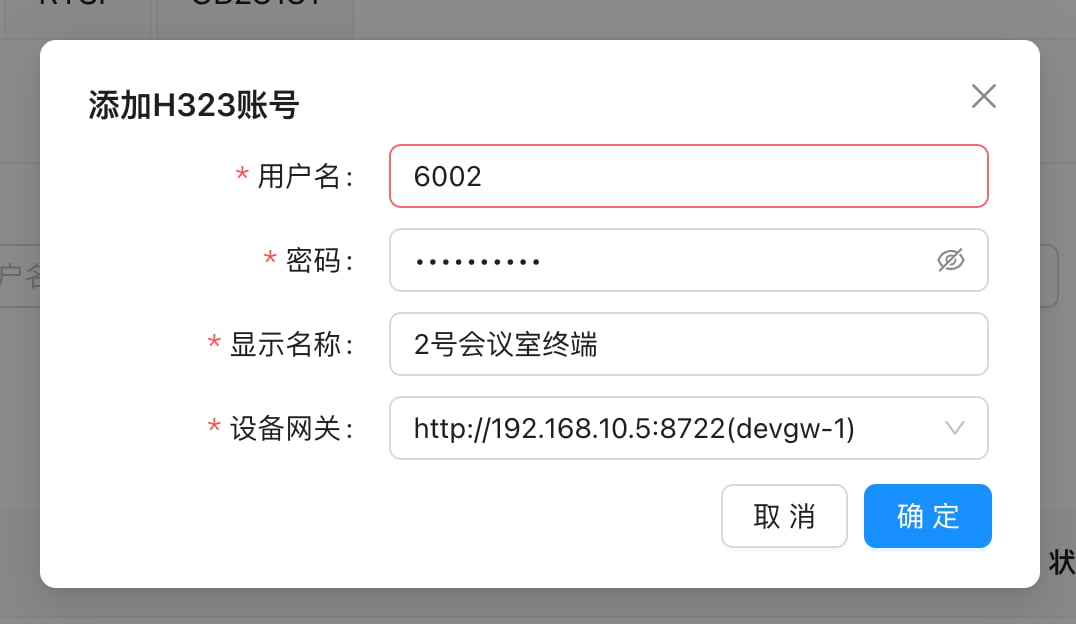
The H.323 dialog has the same fields:
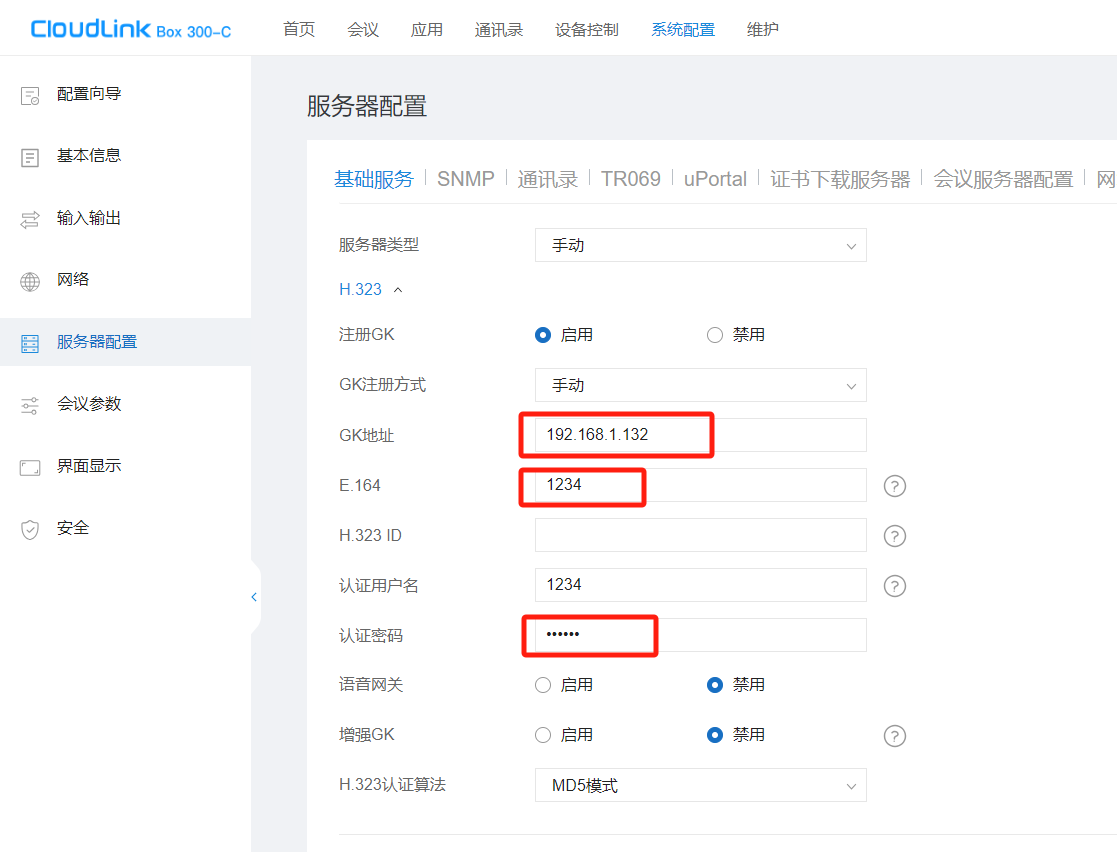
2. Enter the registration details on the endpoint
SIP endpoint: find the SIP server (registrar) settings, enable registration, and enter: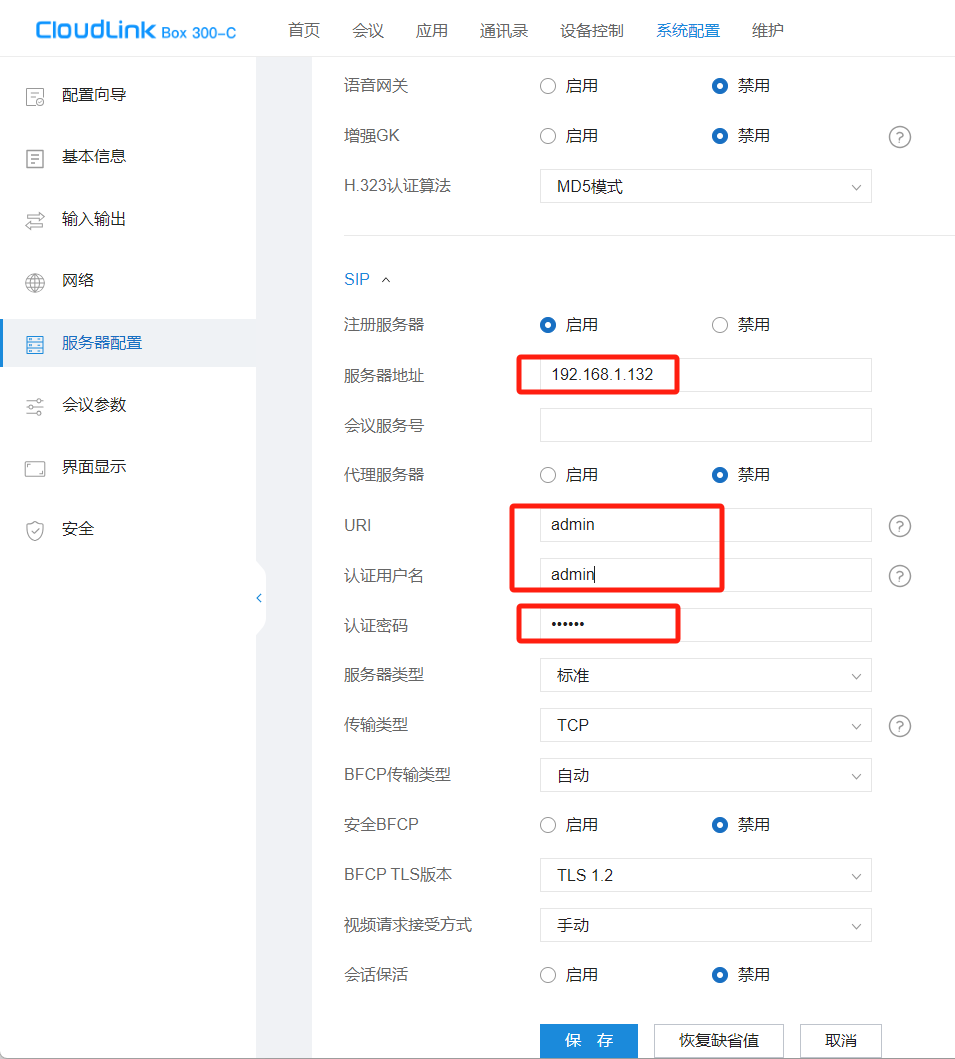
3. Confirm it’s online
The endpoint usually shows “Registered”. Back in the admin console, when the account status changes to Online, registration has succeeded: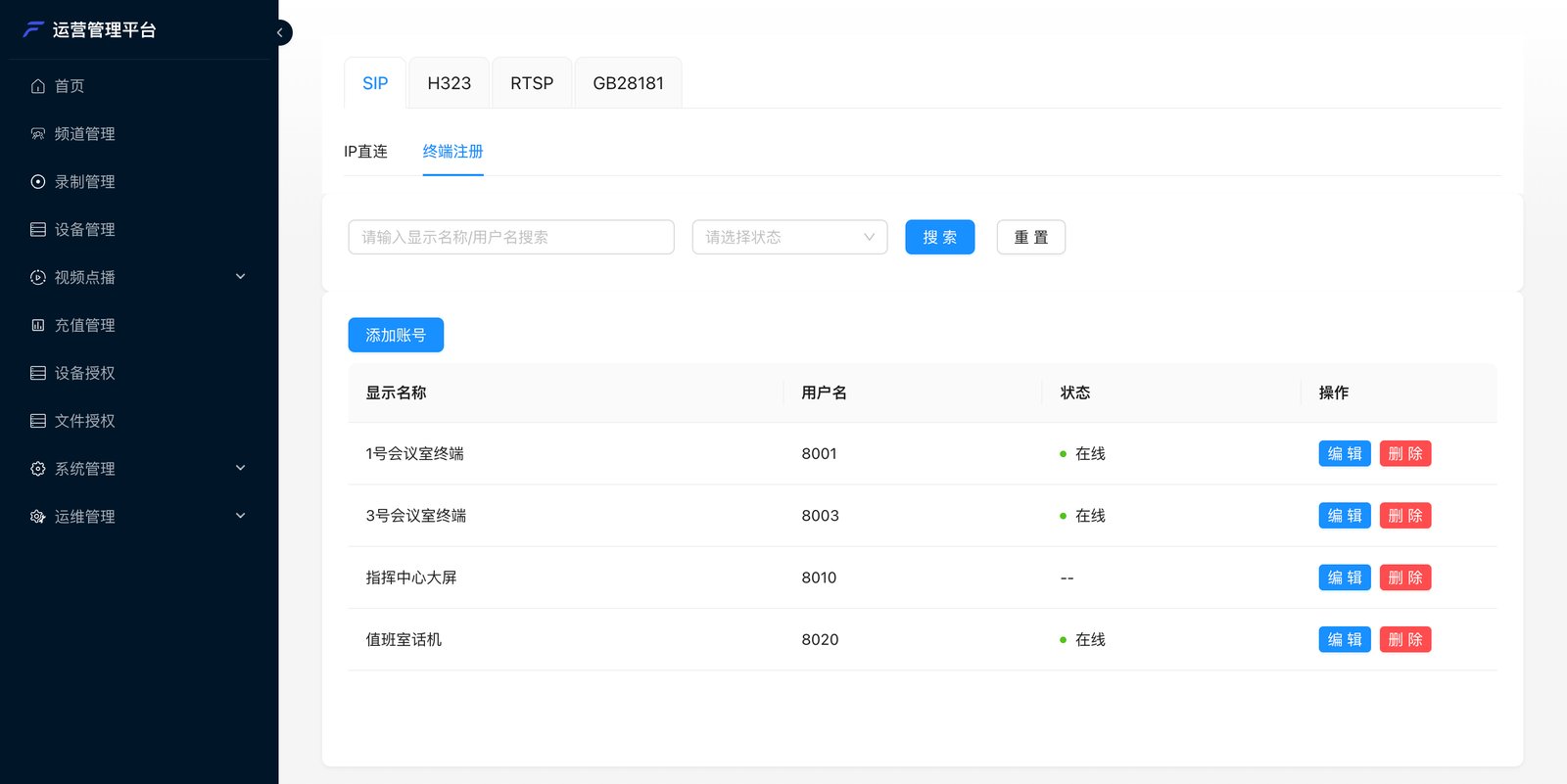
Option 2: Direct IP
Use this when the endpoint doesn’t support registration or has a fixed IP. The platform must be able to reach the endpoint’s IP directly. Go to Device management → SIP (or H323) → Direct IP → Add device: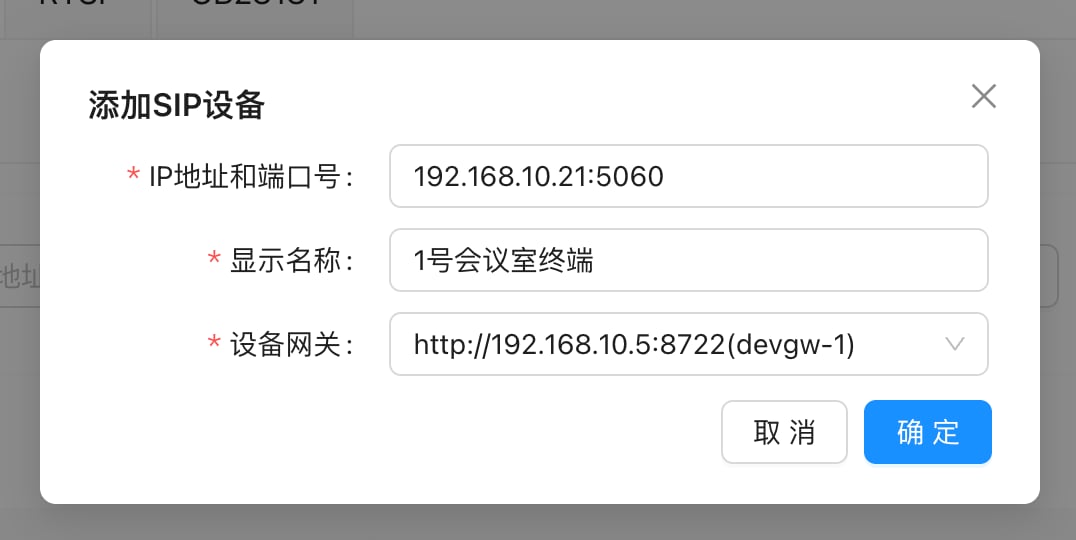
Direct IP devices have no online status, so
-- in the list is normal.
Bring the endpoint into the meeting
The endpoint dials in
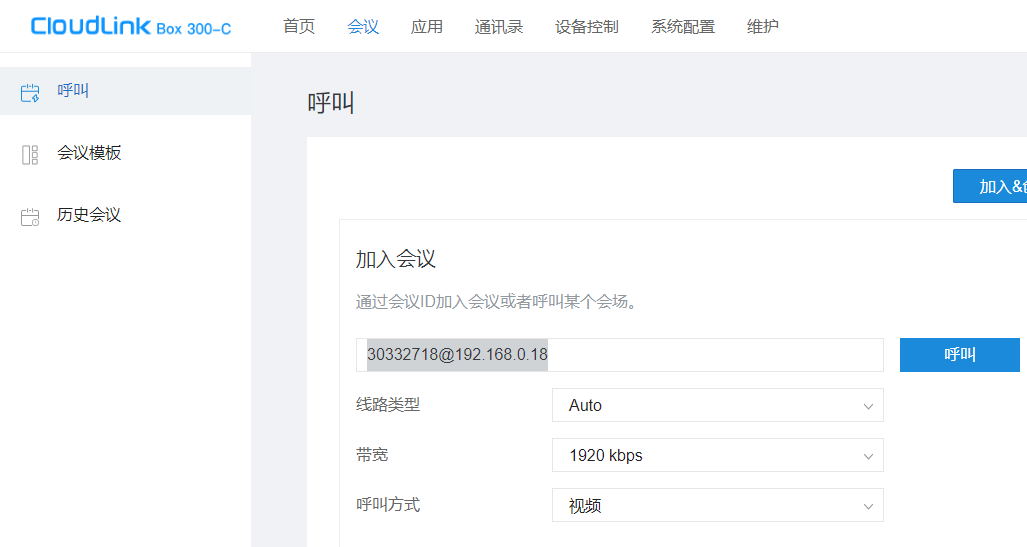
On the endpoint’s call screen, enter the number and call it like a phone call: Registered endpoints: dial only the meeting ID.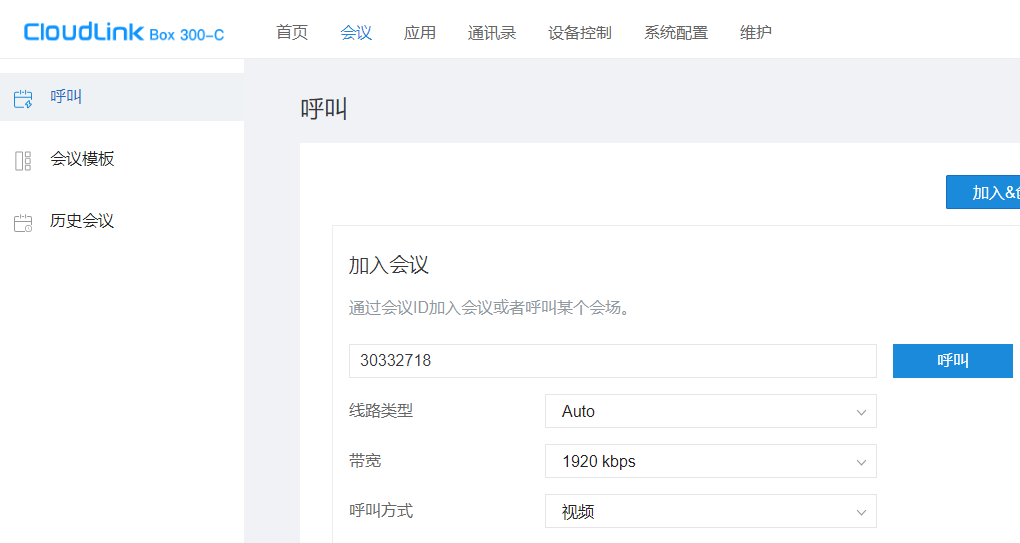
meetingID@deviceGatewayAddress.
The device gateway can enable an incoming-call IP allowlist; when it’s on, only endpoints on the list can dial in. It’s configured at deployment as needed. If dial-in is rejected, first ask the deployment team whether the allowlist is on.
The platform invites the endpoint
The endpoint receives an incoming call and enters the meeting when answered (or directly, if the endpoint is set to auto-answer). There are three entry points: Admin console: Meeting management → open the meeting details → Invite → Invite device → Conferencing endpoints, select the endpoints, and confirm.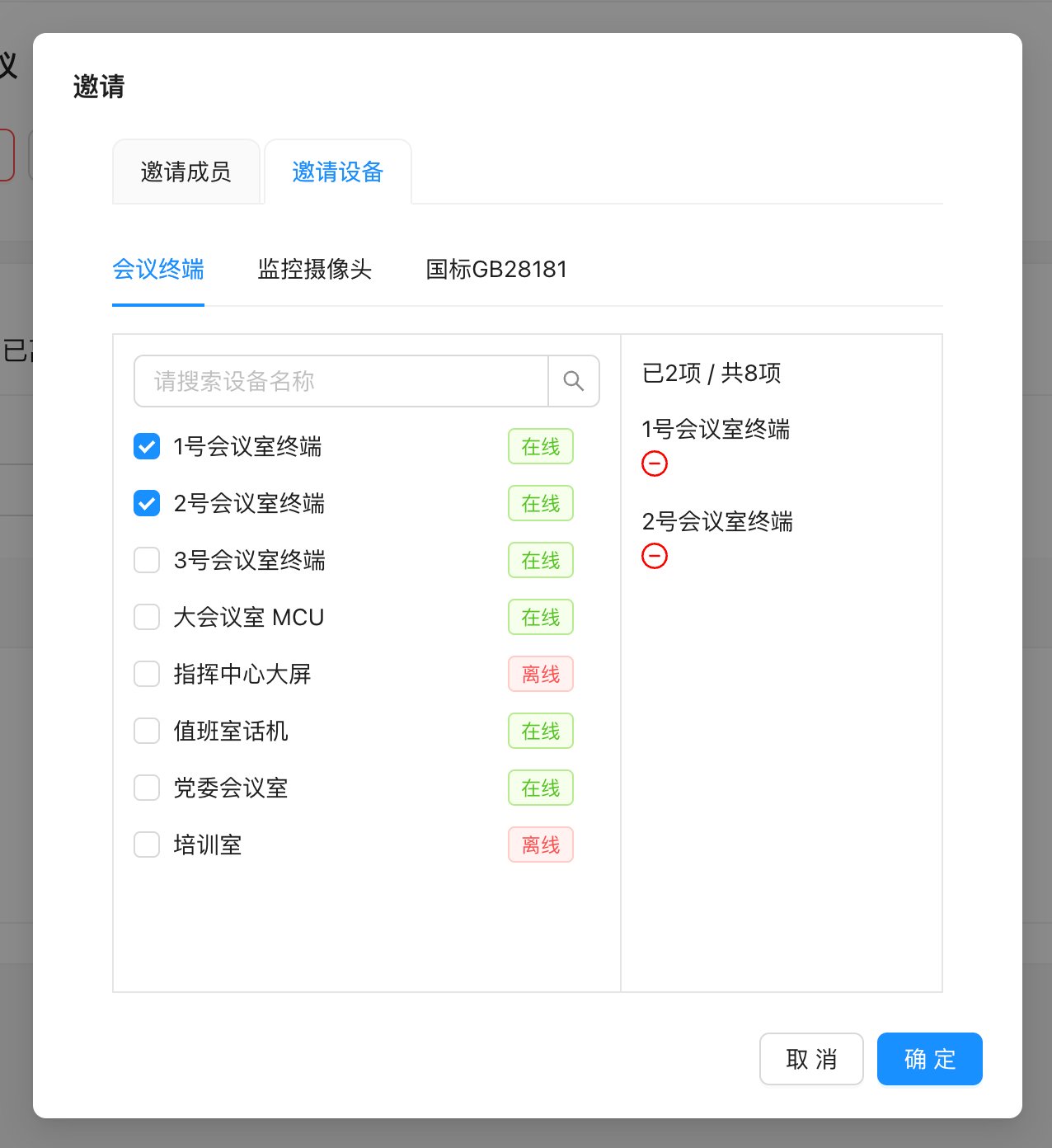
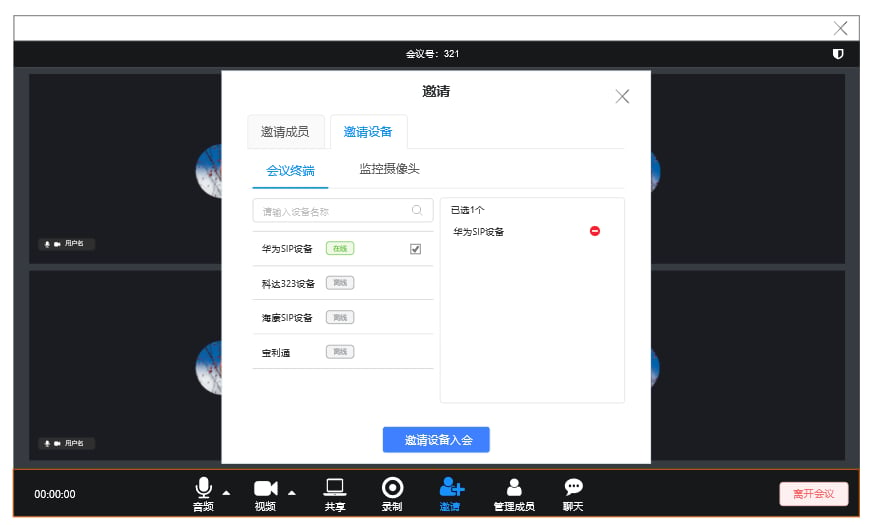
adminInviteAgent on Web).
During the meeting
- The endpoint is a member of the meeting, named by its “Display name”
- The endpoint sees the whole meeting composited by the MCU and hears the mixed audio of the whole meeting
- The host can turn the endpoint’s microphone and camera on or off and remove the endpoint from the meeting from the meeting client or the console; removing it hangs up the endpoint
- If the endpoint hangs up, it exits the meeting