https://<your-domain>/admin/). Administrators can manage apps,
meetings, recording, devices, and servers without writing code. Switch the app in the lower-left corner: audio and video apps (SRTC) and meeting apps (SMeeting) show slightly different menus.
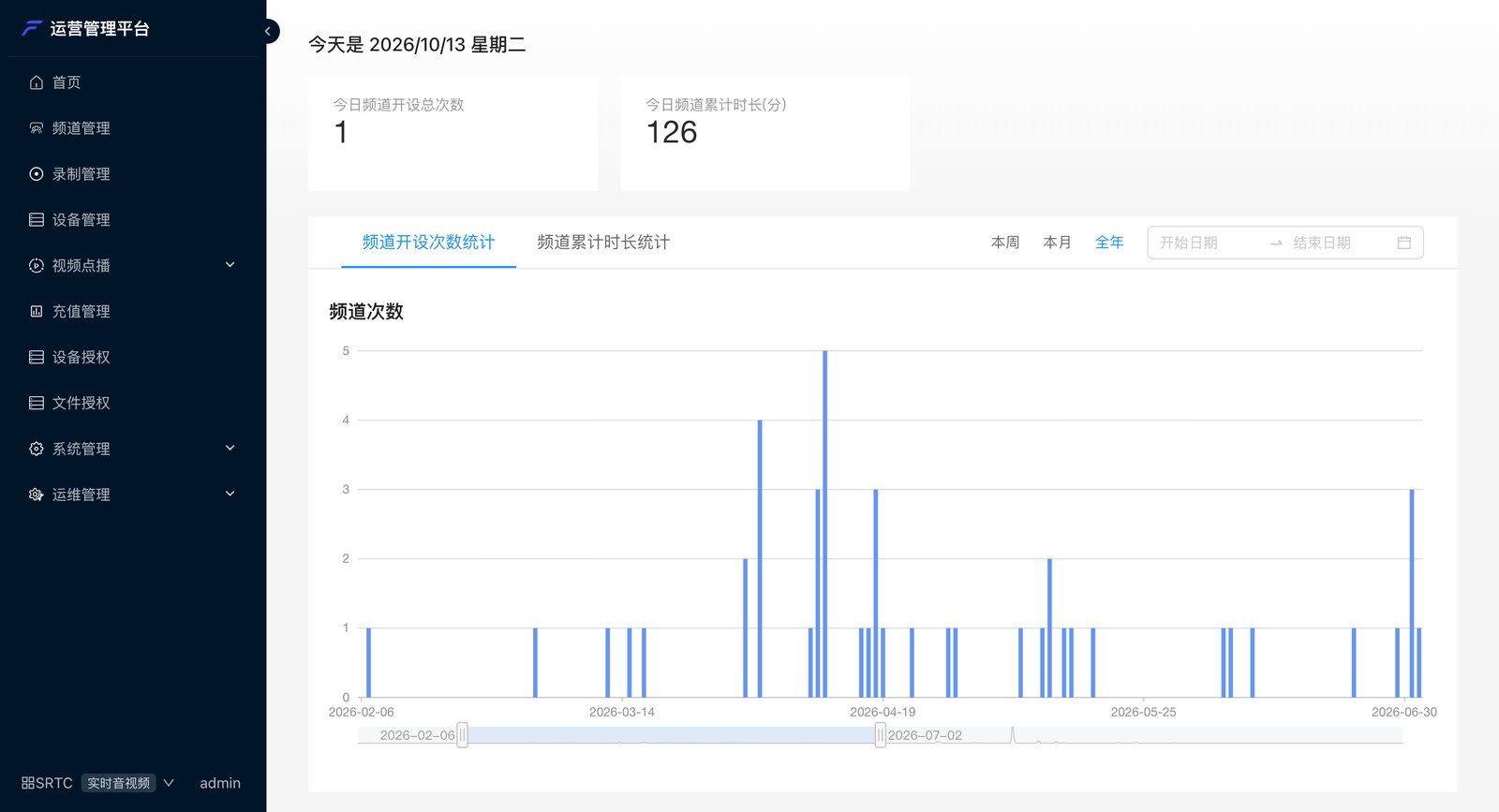
Menus at a glance
Menus are shown according to the account’s role permissions. If you can’t see a menu, ask your administrator to grant the permission.
Meeting management and in-meeting controls
You can control meetings in progress directly from the console: mute all / unmute all, lock the meeting, start recording, invite members or devices, view meeting monitoring, and end the meeting. Below that, you can view and export in-meeting members, members who have exited, members who haven’t entered, sign-in records, and chat history.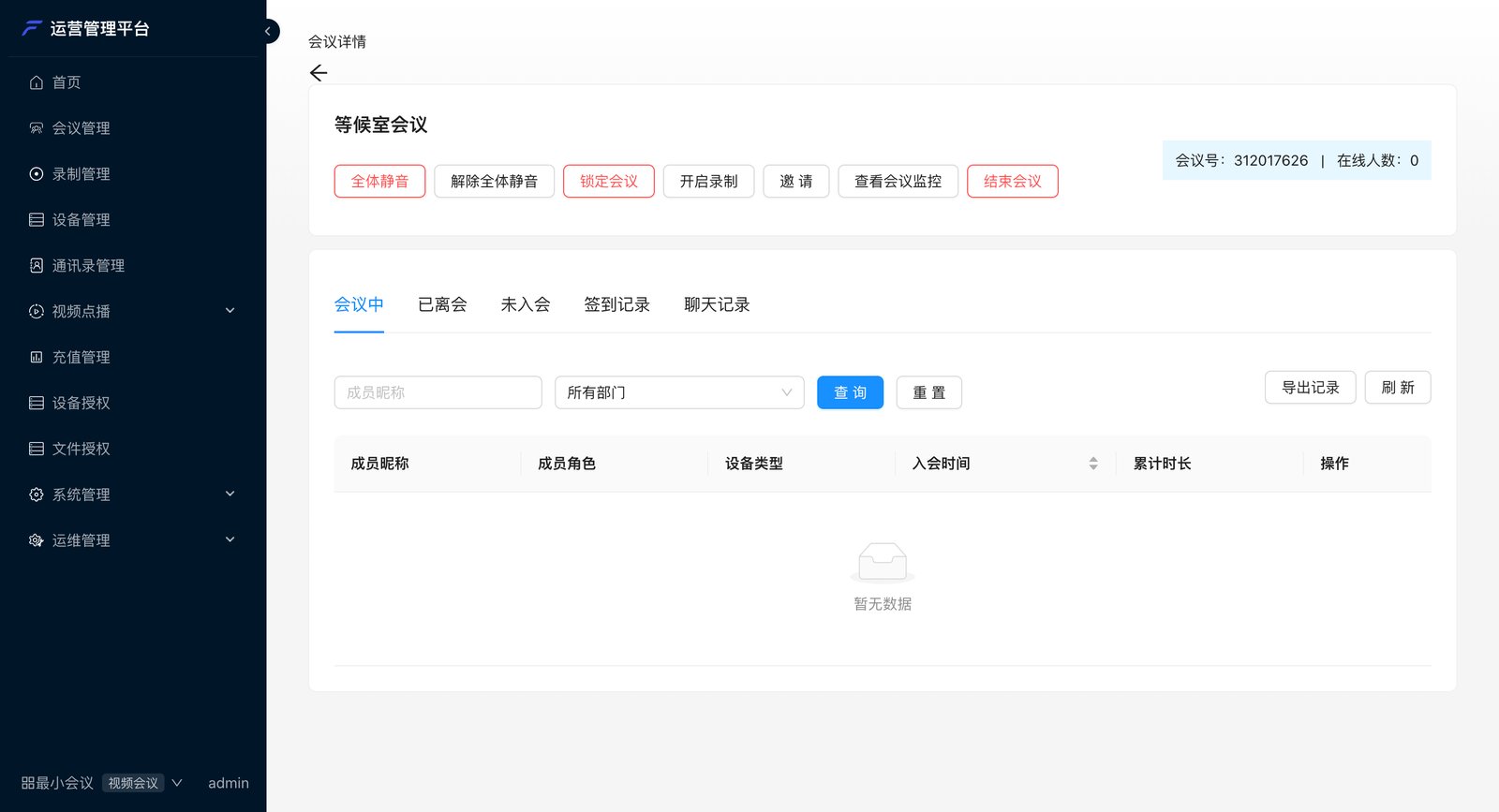
Recording management
Set the default video layout for cloud recording (auto grid, or a custom layout with specified members, up to 25 tiles), the recording watermark, and window labels; play back and download recordings under Recording files; and view per-speaker audio segments under Voice recording.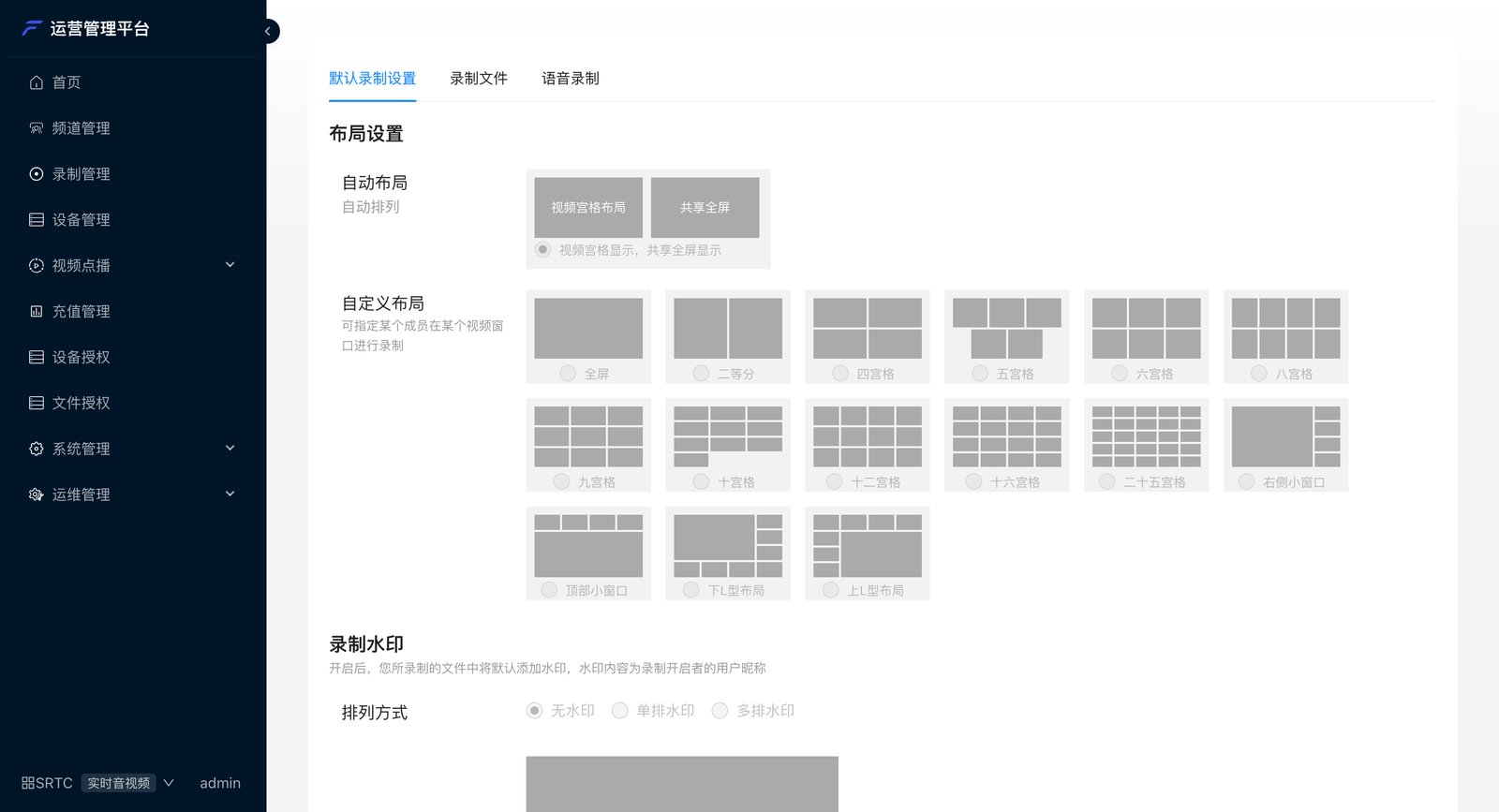
Operations management
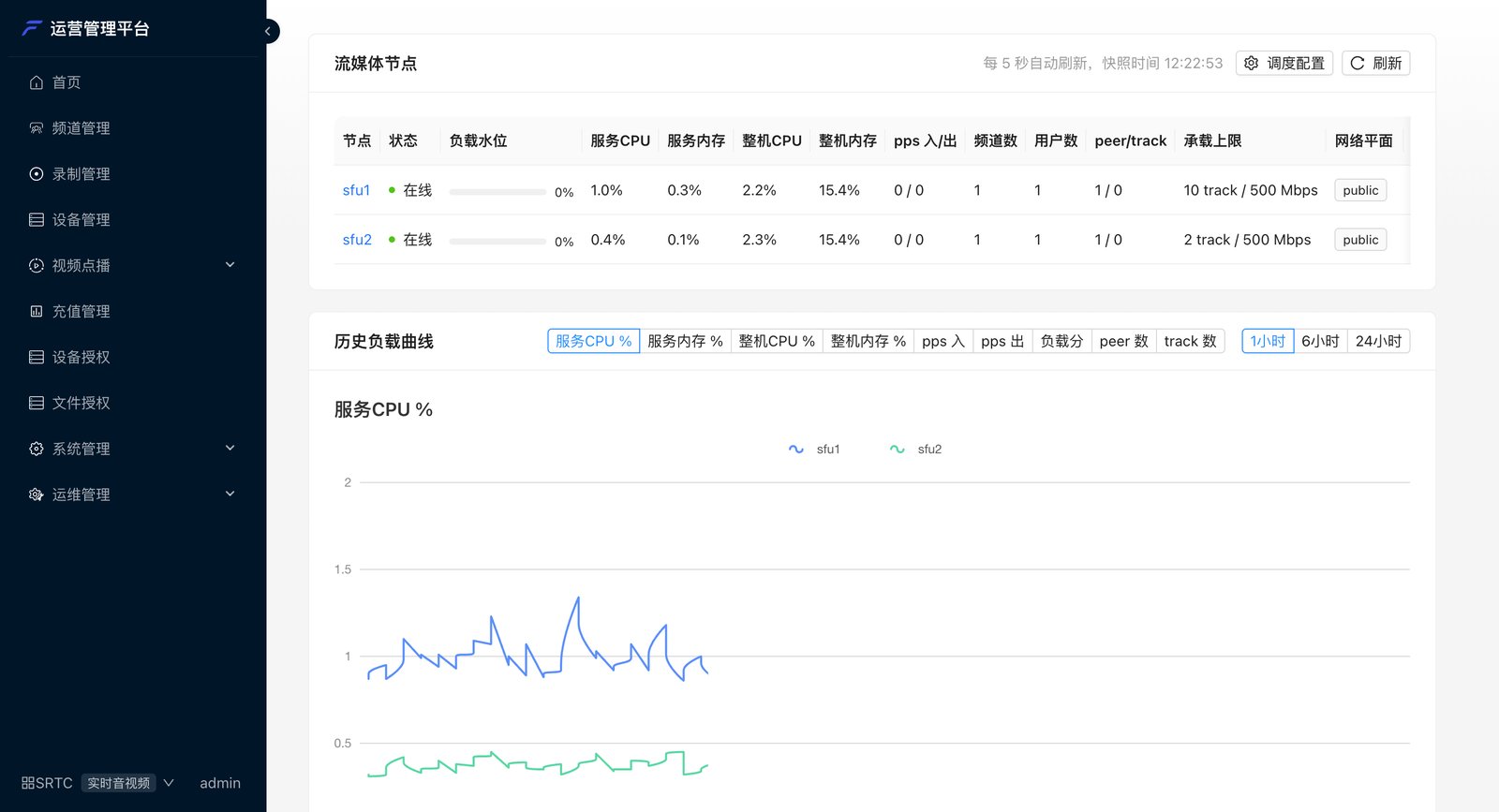
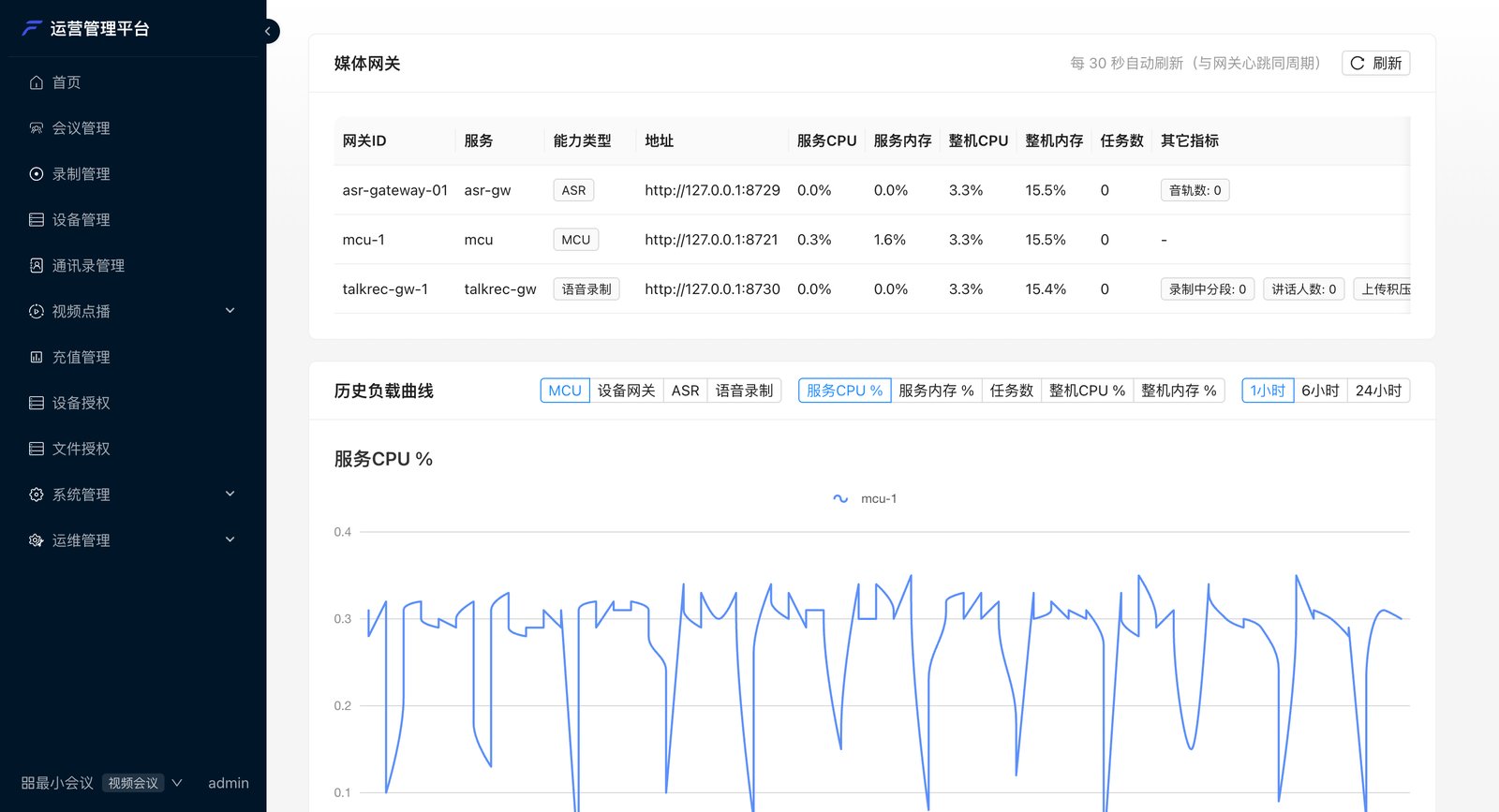
Media nodes: each media forwarding node’s online status, load level, CPU / memory, channel and user counts, network line, and historical load curve. For multi-node deployments, you also adjust the scheduling policy here.