> ## Documentation Index
> Fetch the complete documentation index at: https://docs.stmlink.com/llms.txt
> Use this file to discover all available pages before exploring further.
# 屏幕录制
> iOS SRTC 音视频 SDK 屏幕录制功能配置指南
## 开发环境准备
Xcode 10及以上的版本,手机也必须升级至 iOS 12 以上,否则无法使用录屏特性。
#### 创建扩展程序
在现有工程选择【New】->【Target…】,选择【Broadcast Upload Extension】,如图所示:
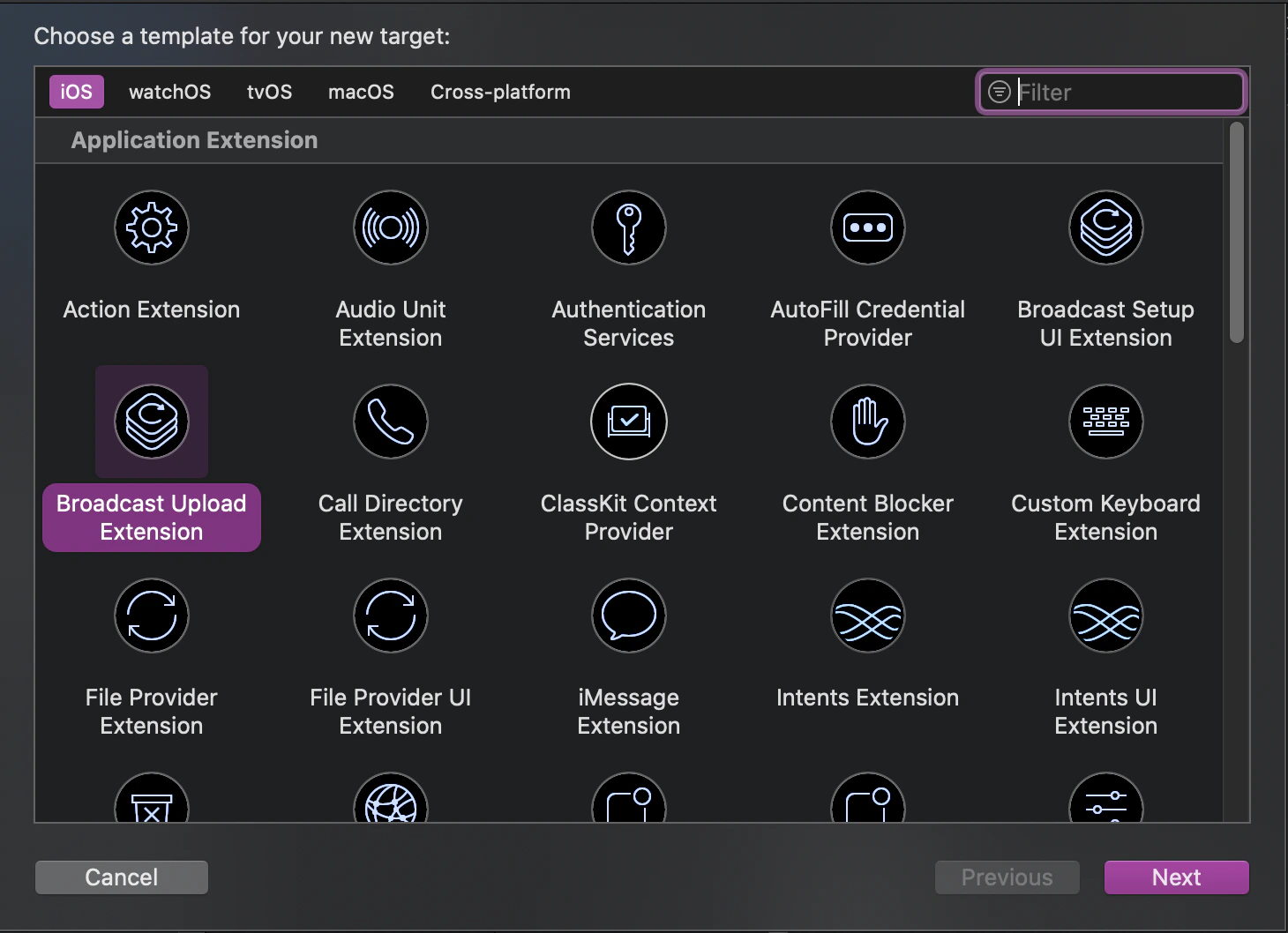 配置好 Product Name。单击【Finish】后可以看到,工程多了所输 Product Name 的目录,目录下有个系统自动生成的 SampleHandler类,这个类负责录屏的相关处理;以及对应的Product Name SetupUI 的目录,目录下有个系统自动生成的 `BroadcastSetupViewController`类,这个类负责录屏的UI相关处理。
#### 为扩展添加SDK依赖
1. 手动集成方式需要将`RTCEngineKit.frameworknl`导入上述Product Name 的工程目录,并配置依赖的系统库;
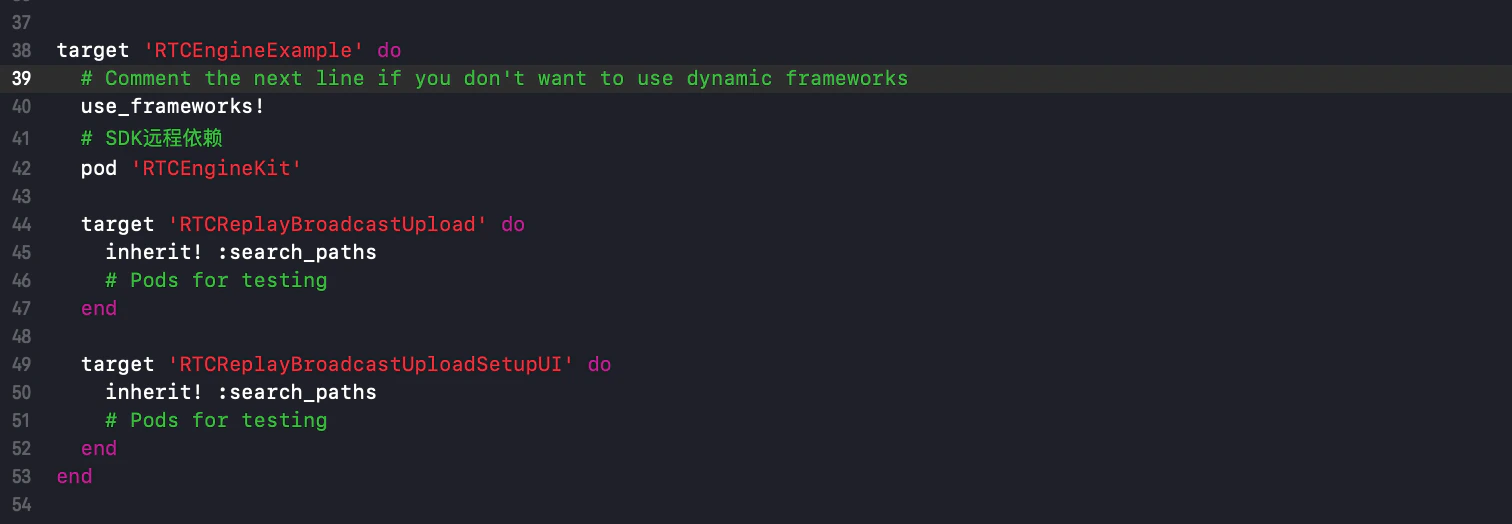
2. 自动集成方式需更改`Podfile`文件,并执行`pod install`,如下图所示:
配置好 Product Name。单击【Finish】后可以看到,工程多了所输 Product Name 的目录,目录下有个系统自动生成的 SampleHandler类,这个类负责录屏的相关处理;以及对应的Product Name SetupUI 的目录,目录下有个系统自动生成的 `BroadcastSetupViewController`类,这个类负责录屏的UI相关处理。
#### 为扩展添加SDK依赖
1. 手动集成方式需要将`RTCEngineKit.frameworknl`导入上述Product Name 的工程目录,并配置依赖的系统库;
2. 自动集成方式需更改`Podfile`文件,并执行`pod install`,如下图所示:
 #### 为宿主添加后台权限
工程宿主【TARGETS】->【Signing & Capabilities】->【Capability】,选择【Background Modes】,如图所示:
#### 为宿主添加后台权限
工程宿主【TARGETS】->【Signing & Capabilities】->【Capability】,选择【Background Modes】,如图所示:
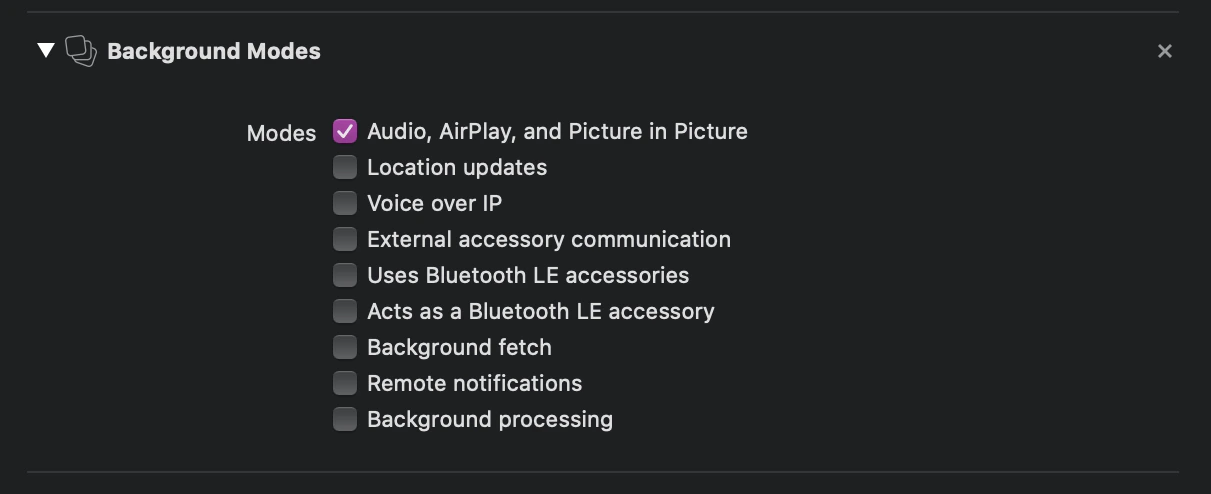
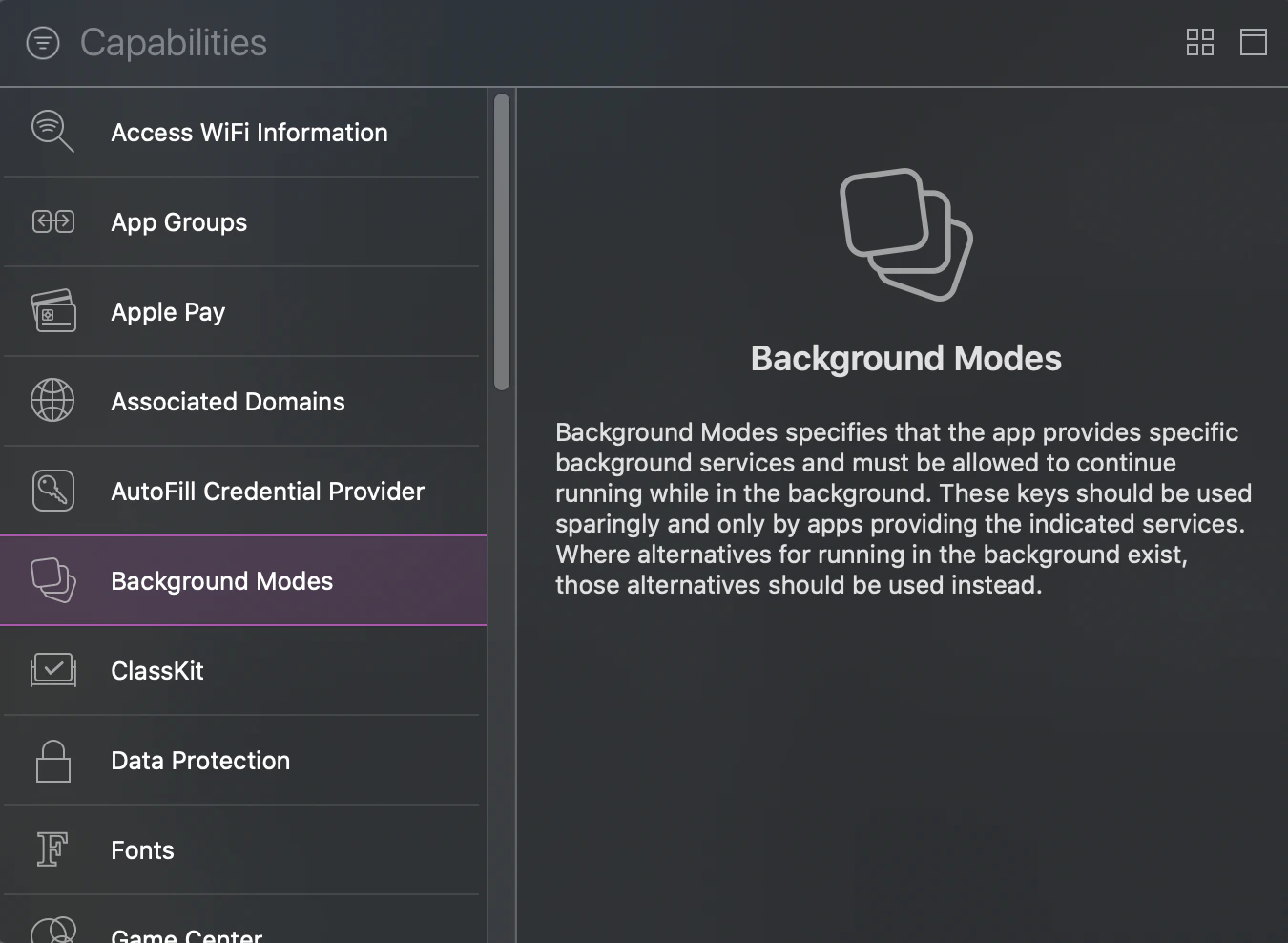 双击添加后勾选【Audio, AirPlay, and Picture in Picture】选项,如下图所示:
 ## 对接流程
1、在需要使用录制服务的位置引入 `#import ` 并创建`RPSystemBroadcastPickerView`对象,如下图:
## 对接流程
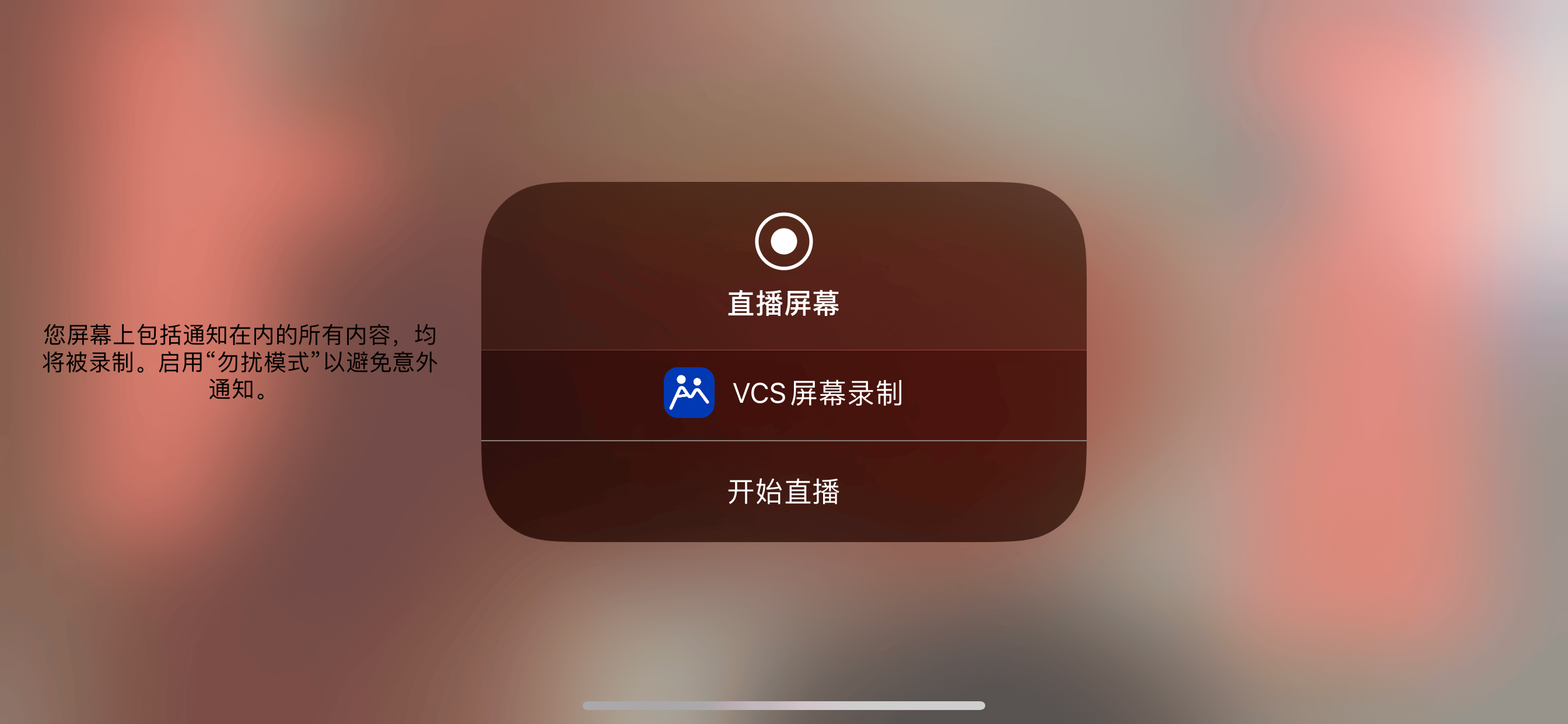
1、在需要使用录制服务的位置引入 `#import ` 并创建`RPSystemBroadcastPickerView`对象,如下图: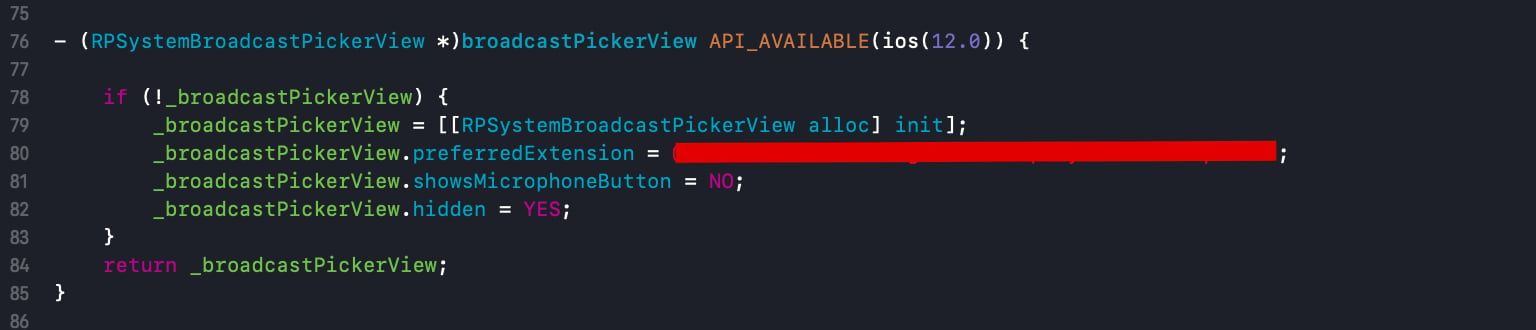 2、为实现业务细节,采用如下方式替换`RPSystemBroadcastPickerView`按钮,`broadcastButton`按钮事件后出现以下页面说明扩展集成成功: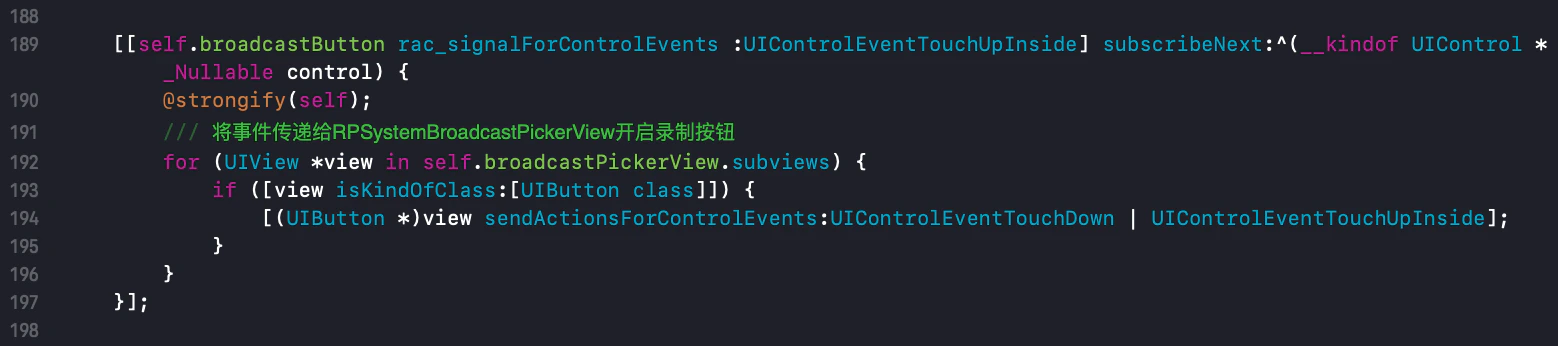
 3、宿主工程在初始化`RTCEngineKit`之后,实现屏幕共享状态回调:
```objectivec theme={null}
/// 屏幕共享状态回调
/// @param status 状态码
- (void)onScreenRecordStatus:(RTCScreenRecordStatus)status {
/// 提示操作信息
NSString *toastStr = @"屏幕共享连接错误";
switch (status) {
case RTCScreenRecordStatusError:
toastStr = @"屏幕共享连接错误";
break;
case RTCScreenRecordStatusStop:
toastStr = @"屏幕共享已经停止";
break;
case RTCScreenRecordStatusStart:
toastStr = @"屏幕共享已经开始";
break;
default:
break;
}
[FWToastBridge showToastAction:toastStr];
SGLOG(@"%@", toastStr);
}
```
4、屏幕扩展`SampleHandler`中实现`RTCScreenDelegate`代理:
```objectivec theme={null}
@interface SampleHandler : NSObject
/// 根据需要,在此处添加以下任何回调函数。
```
```objectivec theme={null}
/// 录屏完成回调
/// @param engine 回调实例
/// @param reason 结束原因
- (void)broadcastFinished:(RTCEngineKit *)engine reason:(NSString *)reason {
/// 声明描述
NSString *describe = @"屏幕录制已结束";
/// 构建Error信息
NSError *error = [NSError errorWithDomain:NSStringFromClass(self.class) code:0 userInfo:@{NSLocalizedFailureReasonErrorKey : describe}];
/// 完成屏幕录制
[self finishBroadcastWithError:error];
}
```
5、屏幕扩展`SampleHandler`中实现开启屏幕录制功能:
```objectivec theme={null}
- (void)broadcastStartedWithSetupInfo:(NSDictionary *)setupInfo {
/// User has requested to start the broadcast. Setup info from the UI extension can be supplied but optional.
[[RTCEngineKit sharedEngine] broadcastStartedWithAppGroup:@"Application Group Identifier" delegate:self];
}
```
6、屏幕扩展`SampleHandler`中实现发送共享屏幕帧数据:
```objectivec theme={null}
- (void)processSampleBuffer:(CMSampleBufferRef)sampleBuffer withType:(RPSampleBufferType)sampleBufferType {
/// 媒体数据(音视频)发送
[[RTCEngineKit sharedEngine] sendSampleBuffer:sampleBuffer withType:sampleBufferType];
}
```
3、宿主工程在初始化`RTCEngineKit`之后,实现屏幕共享状态回调:
```objectivec theme={null}
/// 屏幕共享状态回调
/// @param status 状态码
- (void)onScreenRecordStatus:(RTCScreenRecordStatus)status {
/// 提示操作信息
NSString *toastStr = @"屏幕共享连接错误";
switch (status) {
case RTCScreenRecordStatusError:
toastStr = @"屏幕共享连接错误";
break;
case RTCScreenRecordStatusStop:
toastStr = @"屏幕共享已经停止";
break;
case RTCScreenRecordStatusStart:
toastStr = @"屏幕共享已经开始";
break;
default:
break;
}
[FWToastBridge showToastAction:toastStr];
SGLOG(@"%@", toastStr);
}
```
4、屏幕扩展`SampleHandler`中实现`RTCScreenDelegate`代理:
```objectivec theme={null}
@interface SampleHandler : NSObject
/// 根据需要,在此处添加以下任何回调函数。
```
```objectivec theme={null}
/// 录屏完成回调
/// @param engine 回调实例
/// @param reason 结束原因
- (void)broadcastFinished:(RTCEngineKit *)engine reason:(NSString *)reason {
/// 声明描述
NSString *describe = @"屏幕录制已结束";
/// 构建Error信息
NSError *error = [NSError errorWithDomain:NSStringFromClass(self.class) code:0 userInfo:@{NSLocalizedFailureReasonErrorKey : describe}];
/// 完成屏幕录制
[self finishBroadcastWithError:error];
}
```
5、屏幕扩展`SampleHandler`中实现开启屏幕录制功能:
```objectivec theme={null}
- (void)broadcastStartedWithSetupInfo:(NSDictionary *)setupInfo {
/// User has requested to start the broadcast. Setup info from the UI extension can be supplied but optional.
[[RTCEngineKit sharedEngine] broadcastStartedWithAppGroup:@"Application Group Identifier" delegate:self];
}
```
6、屏幕扩展`SampleHandler`中实现发送共享屏幕帧数据:
```objectivec theme={null}
- (void)processSampleBuffer:(CMSampleBufferRef)sampleBuffer withType:(RPSampleBufferType)sampleBufferType {
/// 媒体数据(音视频)发送
[[RTCEngineKit sharedEngine] sendSampleBuffer:sampleBuffer withType:sampleBufferType];
}
```