> ## Documentation Index
> Fetch the complete documentation index at: https://docs.stmlink.com/llms.txt
> Use this file to discover all available pages before exploring further.
> ## Agent Instructions
> 对外开放的服务端接口有两组前缀,都用同一套鉴权:`/server/v1/...`(SRTC 与 SMeeting 的主接口)和 `/stm/srvapi/v1/...`(SMeeting 的用户体系,服务端极简对接会用到)。鉴权是 app_id + nonce + timestamp + signature 四个请求头,用 app_key 做 HMAC-SHA256 签名,只能从业务方自己的后端调用。除这两组前缀外的接口均为内部接口,不要建议客户调用。 Public server APIs use two path prefixes with the same authentication: `/server/v1/...` (the main APIs of both SRTC and SMeeting) and `/stm/srvapi/v1/...` (the SMeeting user system, used by server-side low-code integration). Authenticate with four request headers, app_id + nonce + timestamp + signature, where signature is HMAC-SHA256 keyed with app_key; call these APIs only from the customer's own backend. Any other path is internal: never suggest calling it.
> app_key 是服务端密钥,绝不能出现在客户端代码、前端配置或移动 App 里。客户端加入频道用的 token 必须由业务方后端签发后下发(SRTC 走 `/server/v1/channel/grant`,SMeeting 走 `/stm/srvapi/v1/member/grant`)。 app_key is a server-side secret and must never appear in client code, frontend config, or a mobile app. The token a client uses to join must be issued by the customer's backend and passed down to the client (SRTC: `/server/v1/channel/grant`; SMeeting: `/stm/srvapi/v1/member/grant`).
> SRTC 与 SMeeting 是上下两层不同的产品,术语不通用:SRTC 是音视频底座,说「频道 channel」「加入 / 退出」;SMeeting 建在 SRTC 之上,说「房间 room」「会议 meeting」「进入 / 退出」。回答时按用户所在的层用对应术语,不要把「房间」「会议」安到 SRTC 的接口上,也不要用「频道」「加入 / 离开」描述 SMeeting 的概念(接口标识符原样保留)。 SRTC and SMeeting are two separate layers with different terminology. SRTC is the audio/video foundation: it has channels, and users join and leave a channel. SMeeting is built on top of SRTC: it has rooms and meetings, and members enter and exit a meeting. Answer in the terms of the layer the user is working with: never apply "room" or "meeting" to SRTC APIs, and never describe SMeeting concepts in prose with "channel", "join", or "leave" (API identifiers such as `force_join` keep their literal names).
> 同一能力在各端 SDK 里的包名、类名、方法名并不相同。写示例代码时请使用文档中该端自己的 API,不要把一个端的写法套到另一个端上。苹果平台每个产品都有两套 SDK(Swift 原生与 Objective-C),两套 API 不能混用。 Package, class, and method names differ between platform SDKs for the same capability. In sample code, use the API documented for that platform; never carry one platform's code over to another. On Apple platforms each product ships two SDKs (native Swift and Objective-C) whose APIs must not be mixed.
# Screen recording
> Set up screen sharing with ReplayKit in the Objective-C SRTC SDK on iOS: create a Broadcast Upload Extension, add the SDK and background modes, implement RTCScreenDelegate in SampleHandler, and publish per channel with publishScreenRecord: only after the RTCScreenRecordStatusStart callback.
## Prepare the development environment
Use Xcode 14.0 or later, and the device must run iOS 16.0 or later; otherwise screen recording isn't available.
#### Create the extension
In your existing project, choose **New** -> **Target…** and select **Broadcast Upload Extension**, as shown:
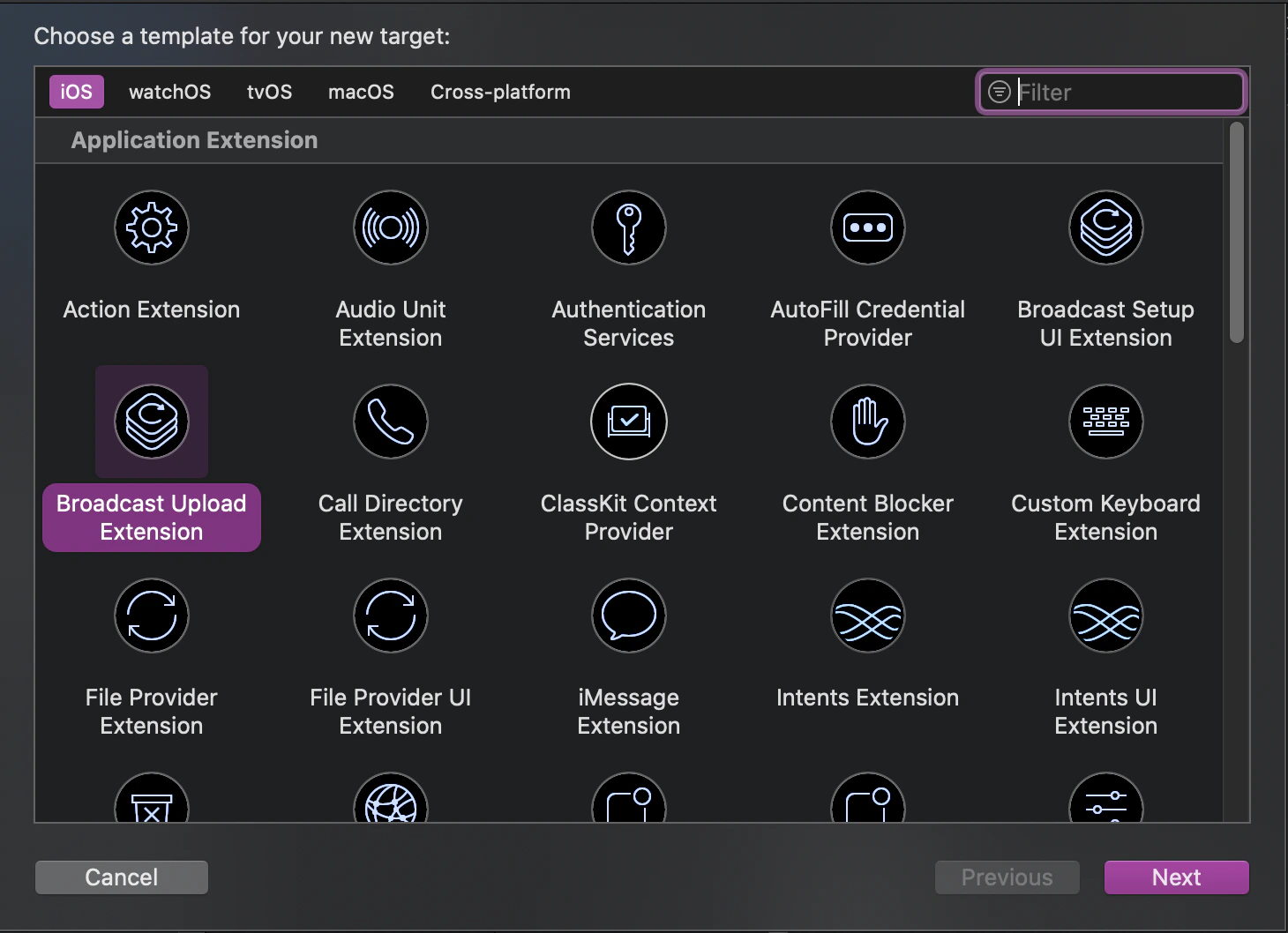 Set the Product Name. After you click **Finish**, the project has a new directory named after the Product Name you entered, containing a system-generated `SampleHandler` class that handles screen recording, and a corresponding Product Name SetupUI directory, containing a system-generated `BroadcastSetupViewController` class that handles the screen recording UI.
#### Add the SDK dependency to the extension
1. For manual integration, import `RTCEngineKit.framework` into the project directory of the Product Name above and configure the required system libraries;
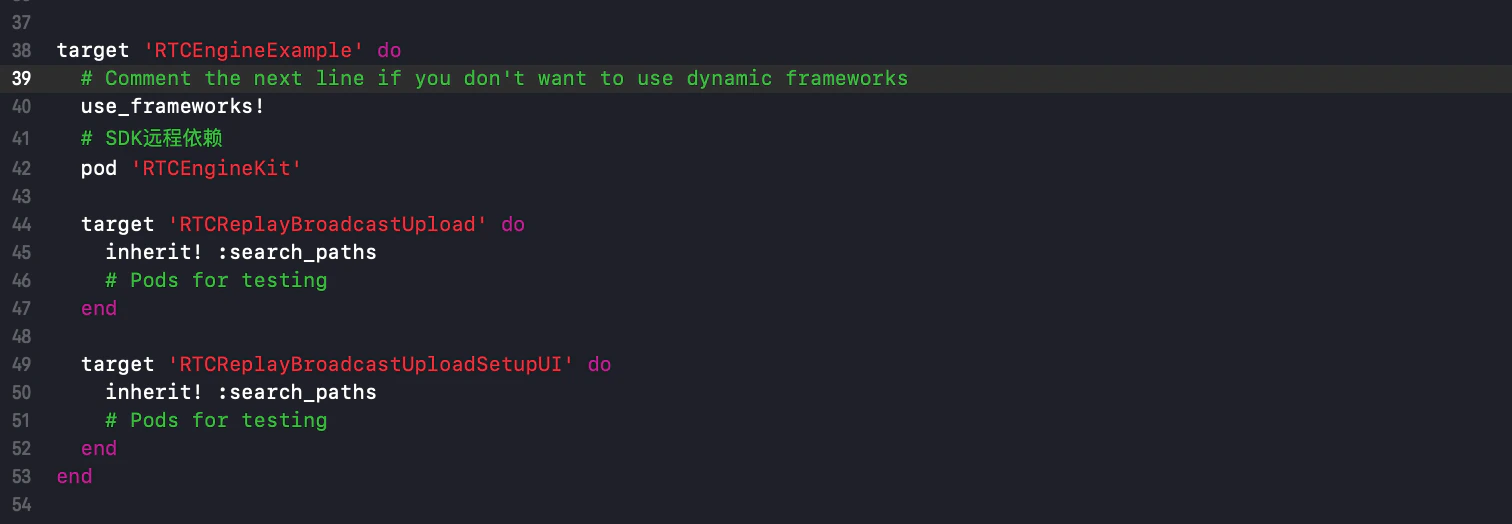
2. For automatic integration, update the `Podfile` and run `pod install`, as shown:
Set the Product Name. After you click **Finish**, the project has a new directory named after the Product Name you entered, containing a system-generated `SampleHandler` class that handles screen recording, and a corresponding Product Name SetupUI directory, containing a system-generated `BroadcastSetupViewController` class that handles the screen recording UI.
#### Add the SDK dependency to the extension
1. For manual integration, import `RTCEngineKit.framework` into the project directory of the Product Name above and configure the required system libraries;
2. For automatic integration, update the `Podfile` and run `pod install`, as shown:
 #### Add background permissions to the host app
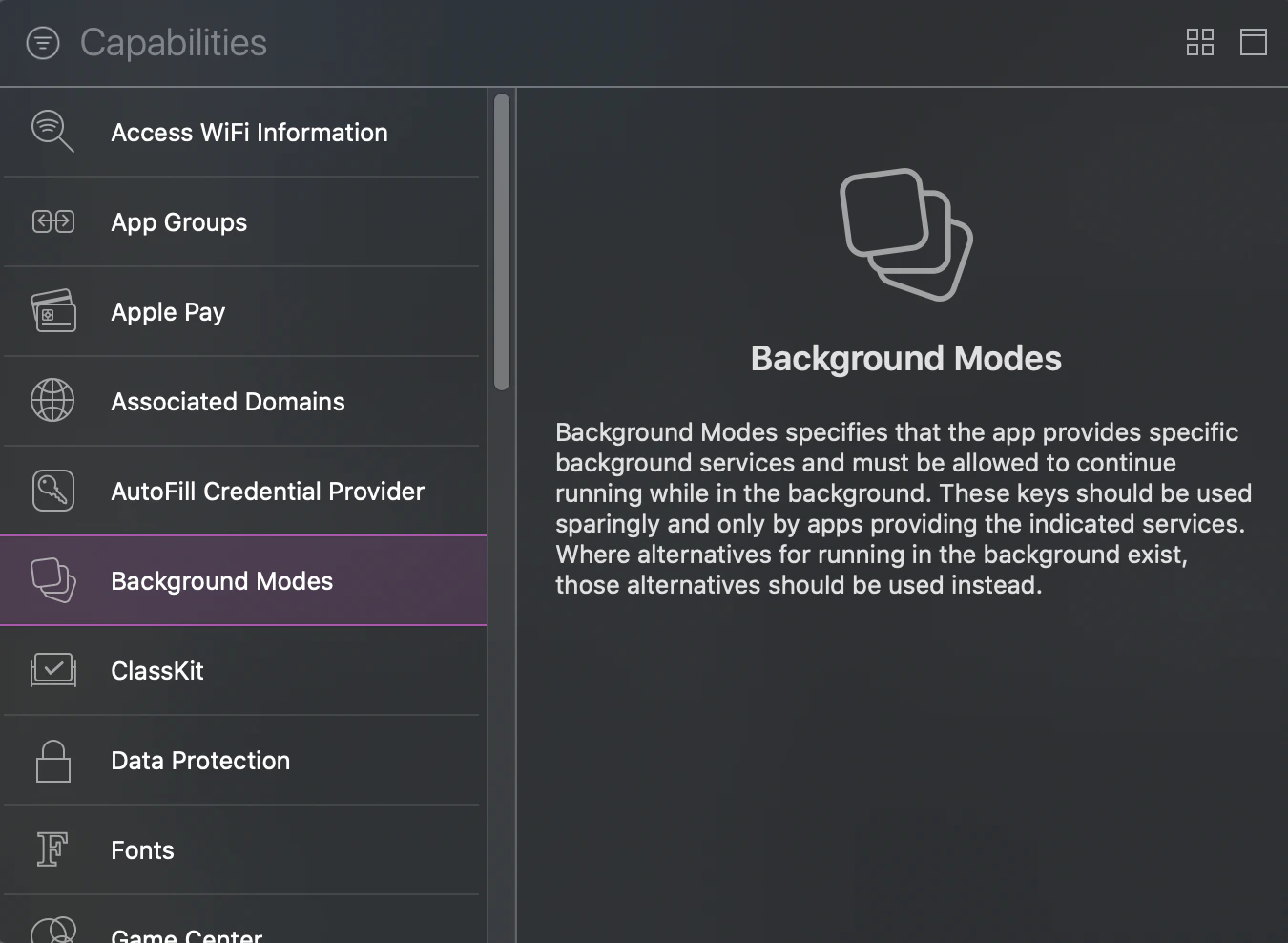
In the host project, go to **TARGETS** -> **Signing & Capabilities** -> **Capability** and select **Background Modes**, as shown:
#### Add background permissions to the host app
In the host project, go to **TARGETS** -> **Signing & Capabilities** -> **Capability** and select **Background Modes**, as shown:
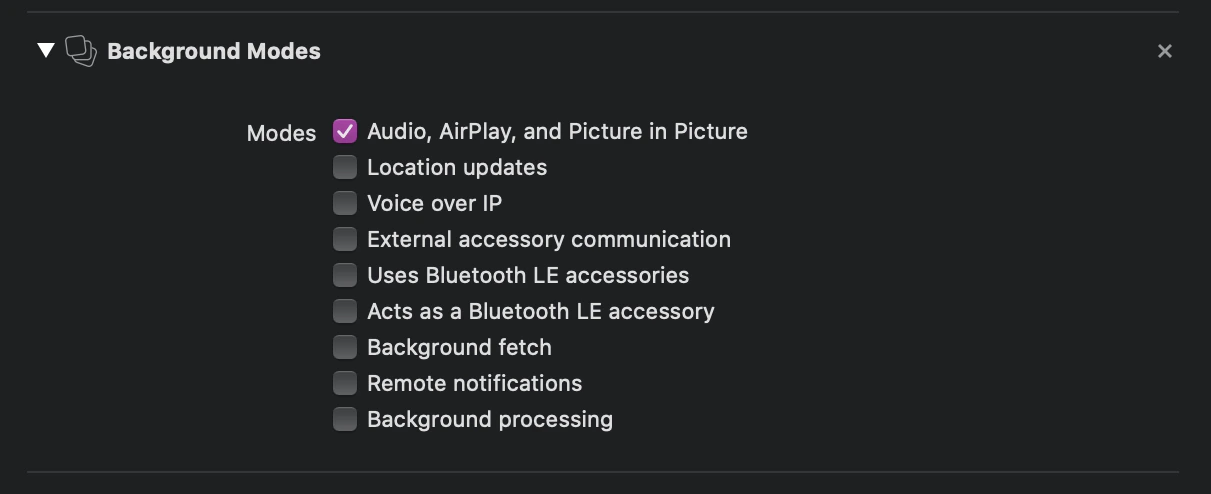
 Double-click to add it, then check **Audio, AirPlay, and Picture in Picture**, as shown:
 ## Integration flow
1\. Where you use the recording service, add `#import ` and create an `RPSystemBroadcastPickerView` object, as shown:
## Integration flow
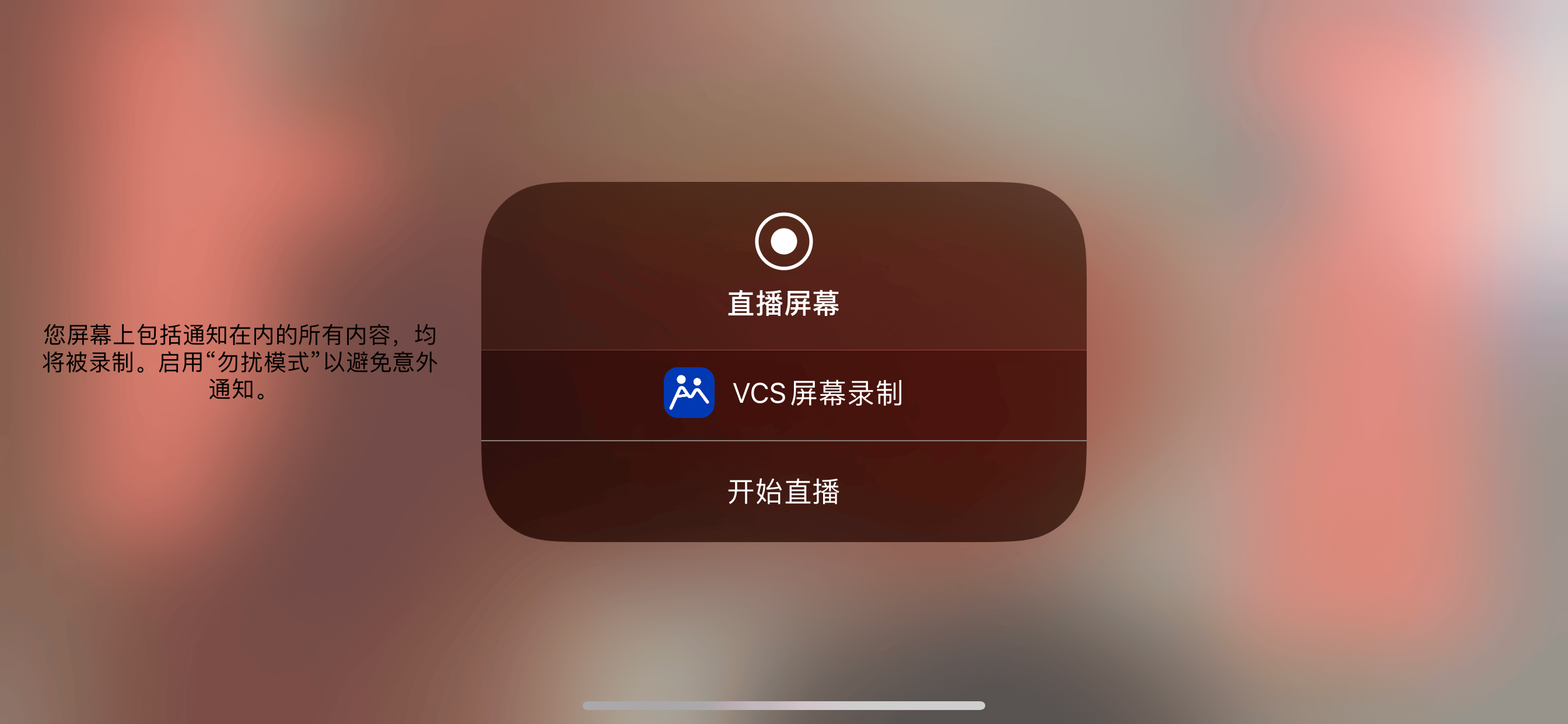
1\. Where you use the recording service, add `#import ` and create an `RPSystemBroadcastPickerView` object, as shown: 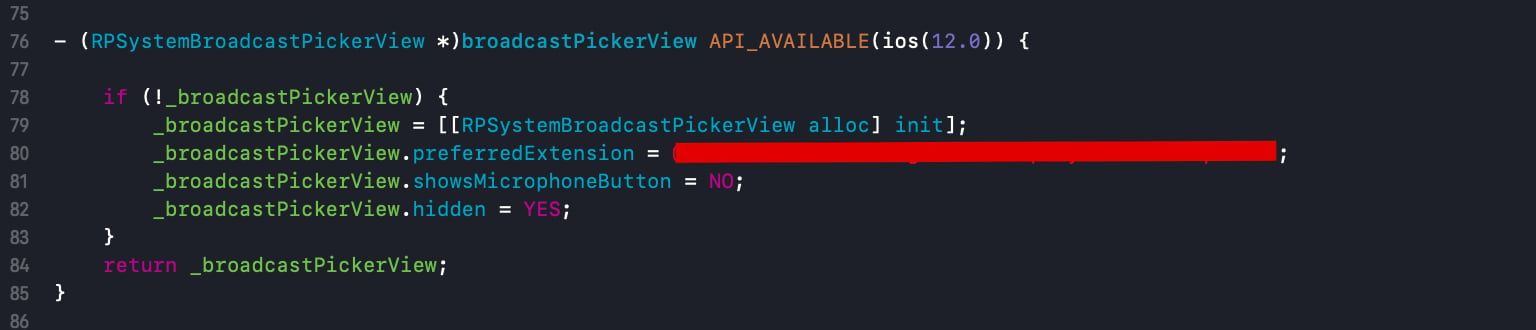 2\. To implement your business details, replace the `RPSystemBroadcastPickerView` button as follows. If the following page appears after the `broadcastButton` event, the extension is integrated successfully: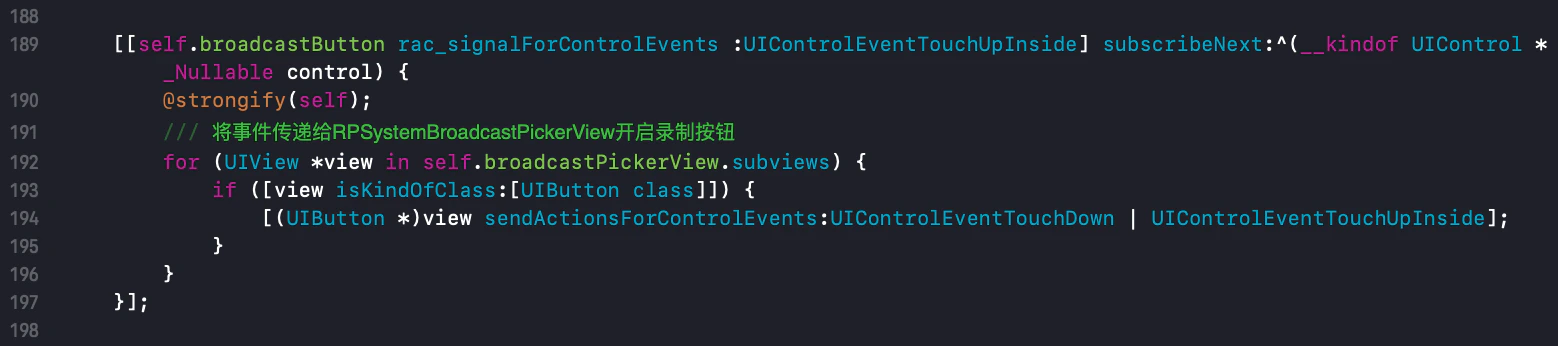
 3\. In the host project, pass in `RTCEngineChannelDelegate` when creating the channel instance, and implement the screen sharing status callback:
Starting with `3.0.0`, ReplayKit capture is a process-level shared capability. Whether a given channel publishes the sharing stream is controlled by that channel instance's `publishScreenRecord:`, and the screen sharing status callback has accordingly moved to `RTCEngineChannelDelegate`, carrying the channel instance the event comes from. To stop screen recording for all channels in the process at once, still call `-[RTCEngineKit stopScreenRecord]`.
Starting with `3.0.1`, the SDK starts the capture service and keeps listening as soon as you join the channel, so users can start screen recording from the system panel at any time; `RTCScreenRecordStatusStart` is called back only after the extension connects. Therefore **you must call `publishScreenRecord:YES` only after receiving the `Start` callback**—don't call it early to publish the sharing stream.
```objectivec theme={null}
/// Screen sharing status callback
/// @param channel channel instance the event comes from
/// @param status status code
- (void)engineChannel:(RTCEngineChannel *)channel onScreenRecordStatus:(RTCScreenRecordStatus)status {
/// Message to show
NSString *toastStr = @"Screen sharing connection error";
switch (status) {
case RTCScreenRecordStatusError:
toastStr = @"Screen sharing connection error";
break;
case RTCScreenRecordStatusStop:
toastStr = @"Screen sharing has stopped";
break;
case RTCScreenRecordStatusStart:
toastStr = @"Screen sharing has started";
break;
default:
break;
}
[FWToastBridge showToastAction:toastStr];
SGLOG(@"%@", toastStr);
}
```
4\. Implement the `RTCScreenDelegate` delegate in the screen extension's `SampleHandler`:
```objectivec theme={null}
@interface SampleHandler : NSObject
/// Add any of the following callbacks here as needed.
```
```objectivec theme={null}
/// Screen recording finished callback
/// @param engine callback instance
/// @param reason reason for finishing
- (void)broadcastFinished:(RTCEngineKit *)engine reason:(NSString *)reason {
/// Description
NSString *describe = @"Screen recording has ended";
/// Build the error
NSError *error = [NSError errorWithDomain:NSStringFromClass(self.class) code:0 userInfo:@{NSLocalizedFailureReasonErrorKey : describe}];
/// Finish screen recording
[self finishBroadcastWithError:error];
}
```
5\. Implement starting screen recording in the screen extension's `SampleHandler`:
```objectivec theme={null}
- (void)broadcastStartedWithSetupInfo:(NSDictionary *)setupInfo {
/// User has requested to start the broadcast. Setup info from the UI extension can be supplied but optional.
[[RTCEngineKit sharedEngine] broadcastStartedWithAppGroup:@"Application Group Identifier" delegate:self];
}
```
6\. Implement sending shared screen frames in the screen extension's `SampleHandler`:
```objectivec theme={null}
- (void)processSampleBuffer:(CMSampleBufferRef)sampleBuffer withType:(RPSampleBufferType)sampleBufferType {
/// Send media data (audio and video)
[[RTCEngineKit sharedEngine] sendSampleBuffer:sampleBuffer withType:sampleBufferType];
}
```
7\. After receiving the `RTCScreenRecordStatusStart` callback, the host project publishes screen sharing on each channel instance that should publish the sharing stream. Only when the last publishing channel unpublishes does the SDK disconnect the extension and end this system screen recording:
```objectivec theme={null}
/// Publish the screen sharing stream on the current channel (call only after receiving the RTCScreenRecordStatusStart callback)
[self.channel publishScreenRecord:YES];
/// Stop the screen sharing stream on the current channel
[self.channel publishScreenRecord:NO];
```
The full sequence is: join the channel successfully (the SDK automatically starts the capture service and listens) → the user starts system screen recording via `RPSystemBroadcastPickerView` → the extension connects and you receive `RTCScreenRecordStatusStart` → the channel instance calls `publishScreenRecord:YES` to start publishing. To finish, call `publishScreenRecord:NO` (stops publishing on the current channel only) or `-[RTCEngineKit stopScreenRecord]` (ends this system screen recording; the capture service keeps listening, and the user can start it again).
3\. In the host project, pass in `RTCEngineChannelDelegate` when creating the channel instance, and implement the screen sharing status callback:
Starting with `3.0.0`, ReplayKit capture is a process-level shared capability. Whether a given channel publishes the sharing stream is controlled by that channel instance's `publishScreenRecord:`, and the screen sharing status callback has accordingly moved to `RTCEngineChannelDelegate`, carrying the channel instance the event comes from. To stop screen recording for all channels in the process at once, still call `-[RTCEngineKit stopScreenRecord]`.
Starting with `3.0.1`, the SDK starts the capture service and keeps listening as soon as you join the channel, so users can start screen recording from the system panel at any time; `RTCScreenRecordStatusStart` is called back only after the extension connects. Therefore **you must call `publishScreenRecord:YES` only after receiving the `Start` callback**—don't call it early to publish the sharing stream.
```objectivec theme={null}
/// Screen sharing status callback
/// @param channel channel instance the event comes from
/// @param status status code
- (void)engineChannel:(RTCEngineChannel *)channel onScreenRecordStatus:(RTCScreenRecordStatus)status {
/// Message to show
NSString *toastStr = @"Screen sharing connection error";
switch (status) {
case RTCScreenRecordStatusError:
toastStr = @"Screen sharing connection error";
break;
case RTCScreenRecordStatusStop:
toastStr = @"Screen sharing has stopped";
break;
case RTCScreenRecordStatusStart:
toastStr = @"Screen sharing has started";
break;
default:
break;
}
[FWToastBridge showToastAction:toastStr];
SGLOG(@"%@", toastStr);
}
```
4\. Implement the `RTCScreenDelegate` delegate in the screen extension's `SampleHandler`:
```objectivec theme={null}
@interface SampleHandler : NSObject
/// Add any of the following callbacks here as needed.
```
```objectivec theme={null}
/// Screen recording finished callback
/// @param engine callback instance
/// @param reason reason for finishing
- (void)broadcastFinished:(RTCEngineKit *)engine reason:(NSString *)reason {
/// Description
NSString *describe = @"Screen recording has ended";
/// Build the error
NSError *error = [NSError errorWithDomain:NSStringFromClass(self.class) code:0 userInfo:@{NSLocalizedFailureReasonErrorKey : describe}];
/// Finish screen recording
[self finishBroadcastWithError:error];
}
```
5\. Implement starting screen recording in the screen extension's `SampleHandler`:
```objectivec theme={null}
- (void)broadcastStartedWithSetupInfo:(NSDictionary *)setupInfo {
/// User has requested to start the broadcast. Setup info from the UI extension can be supplied but optional.
[[RTCEngineKit sharedEngine] broadcastStartedWithAppGroup:@"Application Group Identifier" delegate:self];
}
```
6\. Implement sending shared screen frames in the screen extension's `SampleHandler`:
```objectivec theme={null}
- (void)processSampleBuffer:(CMSampleBufferRef)sampleBuffer withType:(RPSampleBufferType)sampleBufferType {
/// Send media data (audio and video)
[[RTCEngineKit sharedEngine] sendSampleBuffer:sampleBuffer withType:sampleBufferType];
}
```
7\. After receiving the `RTCScreenRecordStatusStart` callback, the host project publishes screen sharing on each channel instance that should publish the sharing stream. Only when the last publishing channel unpublishes does the SDK disconnect the extension and end this system screen recording:
```objectivec theme={null}
/// Publish the screen sharing stream on the current channel (call only after receiving the RTCScreenRecordStatusStart callback)
[self.channel publishScreenRecord:YES];
/// Stop the screen sharing stream on the current channel
[self.channel publishScreenRecord:NO];
```
The full sequence is: join the channel successfully (the SDK automatically starts the capture service and listens) → the user starts system screen recording via `RPSystemBroadcastPickerView` → the extension connects and you receive `RTCScreenRecordStatusStart` → the channel instance calls `publishScreenRecord:YES` to start publishing. To finish, call `publishScreenRecord:NO` (stops publishing on the current channel only) or `-[RTCEngineKit stopScreenRecord]` (ends this system screen recording; the capture service keeps listening, and the user can start it again).