> ## Documentation Index
> Fetch the complete documentation index at: https://docs.stmlink.com/llms.txt
> Use this file to discover all available pages before exploring further.
> ## Agent Instructions
> 对外开放的服务端接口有两组前缀,都用同一套鉴权:`/server/v1/...`(SRTC 与 SMeeting 的主接口)和 `/stm/srvapi/v1/...`(SMeeting 的用户体系,服务端极简对接会用到)。鉴权是 app_id + nonce + timestamp + signature 四个请求头,用 app_key 做 HMAC-SHA256 签名,只能从业务方自己的后端调用。除这两组前缀外的接口均为内部接口,不要建议客户调用。 Public server APIs use two path prefixes with the same authentication: `/server/v1/...` (the main APIs of both SRTC and SMeeting) and `/stm/srvapi/v1/...` (the SMeeting user system, used by server-side low-code integration). Authenticate with four request headers, app_id + nonce + timestamp + signature, where signature is HMAC-SHA256 keyed with app_key; call these APIs only from the customer's own backend. Any other path is internal: never suggest calling it.
> app_key 是服务端密钥,绝不能出现在客户端代码、前端配置或移动 App 里。客户端加入频道用的 token 必须由业务方后端签发后下发(SRTC 走 `/server/v1/channel/grant`,SMeeting 走 `/stm/srvapi/v1/member/grant`)。 app_key is a server-side secret and must never appear in client code, frontend config, or a mobile app. The token a client uses to join must be issued by the customer's backend and passed down to the client (SRTC: `/server/v1/channel/grant`; SMeeting: `/stm/srvapi/v1/member/grant`).
> SRTC 与 SMeeting 是上下两层不同的产品,术语不通用:SRTC 是音视频底座,说「频道 channel」「加入 / 退出」;SMeeting 建在 SRTC 之上,说「房间 room」「会议 meeting」「进入 / 退出」。回答时按用户所在的层用对应术语,不要把「房间」「会议」安到 SRTC 的接口上,也不要用「频道」「加入 / 离开」描述 SMeeting 的概念(接口标识符原样保留)。 SRTC and SMeeting are two separate layers with different terminology. SRTC is the audio/video foundation: it has channels, and users join and leave a channel. SMeeting is built on top of SRTC: it has rooms and meetings, and members enter and exit a meeting. Answer in the terms of the layer the user is working with: never apply "room" or "meeting" to SRTC APIs, and never describe SMeeting concepts in prose with "channel", "join", or "leave" (API identifiers such as `force_join` keep their literal names).
> 同一能力在各端 SDK 里的包名、类名、方法名并不相同。写示例代码时请使用文档中该端自己的 API,不要把一个端的写法套到另一个端上。苹果平台每个产品都有两套 SDK(Swift 原生与 Objective-C),两套 API 不能混用。 Package, class, and method names differ between platform SDKs for the same capability. In sample code, use the API documented for that platform; never carry one platform's code over to another. On Apple platforms each product ships two SDKs (native Swift and Objective-C) whose APIs must not be mixed.
# iOS UI SDK integration
> Low-code integration with UI for iOS (Objective-C): run the open-source MeetingKit demo, open the meeting UI to host or enter meetings, schedule meetings, use meeting controls, add screen sharing via a Broadcast Upload Extension, and customize chat. Read this to add a ready-made meeting UI to an Objective-C app.
The video conferencing SDK provides an open-source upper-layer UI kit. On iOS it currently supports only Objective-C, and you can bring up the meeting UI with a few simple API calls.
> Note: if you have your own UI design and want to build on the meeting features yourself, we also provide the more flexible and full-featured MeetingKit SDK. See our [MeetingKit API](/zh/meeting/ios/api-reference/MeetingKit) (Chinese) documentation to learn more.
## Features
The kit provides a rich set of interactions—scheduled meetings, audio and video control, screen sharing, meeting recording, member management, meeting controls, in-meeting chat, and more—and supports a variety of business scenarios.
| **Feature** | **Description** |
| - | - |
| Multi-party audio and video | Supports large meetings, with many members turning on audio and video at the same time. |
| Standard meeting UI | Contains the UI components a standard meeting needs, covering the features of basic audio and video meeting scenarios. |
| Custom UI | Because the kit is open source, you can also customize the UI for your own business scenarios. |
| Scheduled meetings | Supports scheduling meetings and shows scheduled meetings in the meeting list. |
| Screen sharing | Supports screen sharing, so members in the meeting can all watch what is shown on the shared screen. |
| Meeting controls | Meeting controls are split into before-the-meeting controls and in-meeting controls:
+ Before the meeting, when creating and entering a meeting, you can preset meeting parameters to decide whether the microphone, camera, and speaker are on, as well as the meeting mode, type, and entry method (password, invitees only, etc.).
+ During the meeting, all members can be managed: mute all / camera off for everyone, rename, remove from the room, transfer host, ask to unmute / mute, lock, and more. |
| In-meeting chat | Members can send messages in the chat area in real time, and the host or a co-host can also disable chat for members in the meeting. |
| Cloud recording | Supports recording and video compositing in video meeting scenarios. |
| Multi-device meeting login | Supports logging in on multiple devices. |
| Raise hand to speak | When mute all is on, members can send a request to speak to the host. |
| Room password | Supports creating password-protected rooms and scheduling password-protected rooms. |
| Set nickname and avatar | Supports changing the user's in-meeting nickname during the meeting. |
## Run the demo
### Prerequisites
* iOS 12.0 or later
### Download the demo
#### 1. Download the source code
* Option 1: download the [MeetingKit Demo](https://github.com/seastart/meeting-iOS-demo) source code from GitHub.
* Option 2: run the following command directly in the terminal:
```objectivec theme={null}
git clone https://github.com/seastart/meeting-iOS-demo.git
```
#### 2. Add the dependency
```objectivec theme={null}
pod 'MeetingKit', :git => "https://github.com/seastart/meeting-ios-cocoapods.git"
```
#### 3. Install the dependency
```objectivec theme={null}
pod install
```
### Run the demo
#### 1. Generate your own certificate
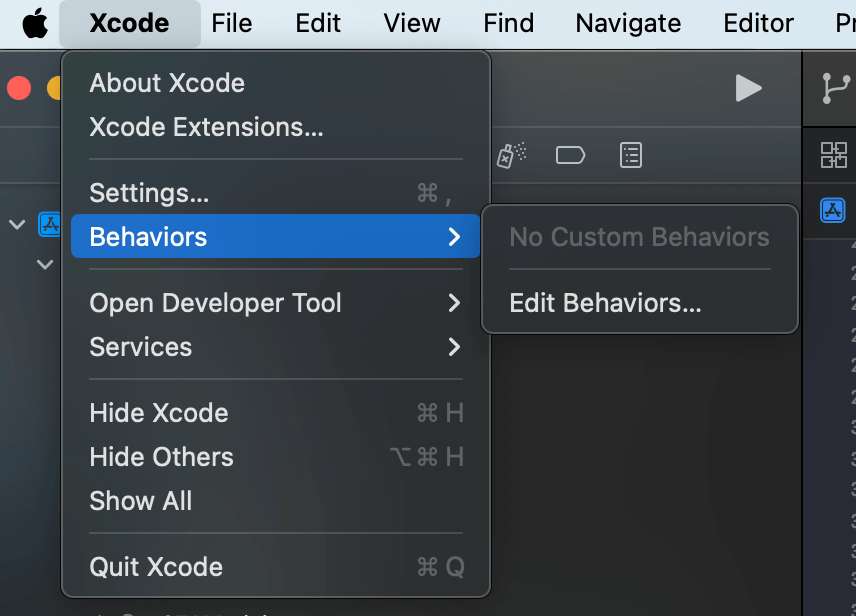
##### 1.1. In Xcode, find Edit Behaviors.
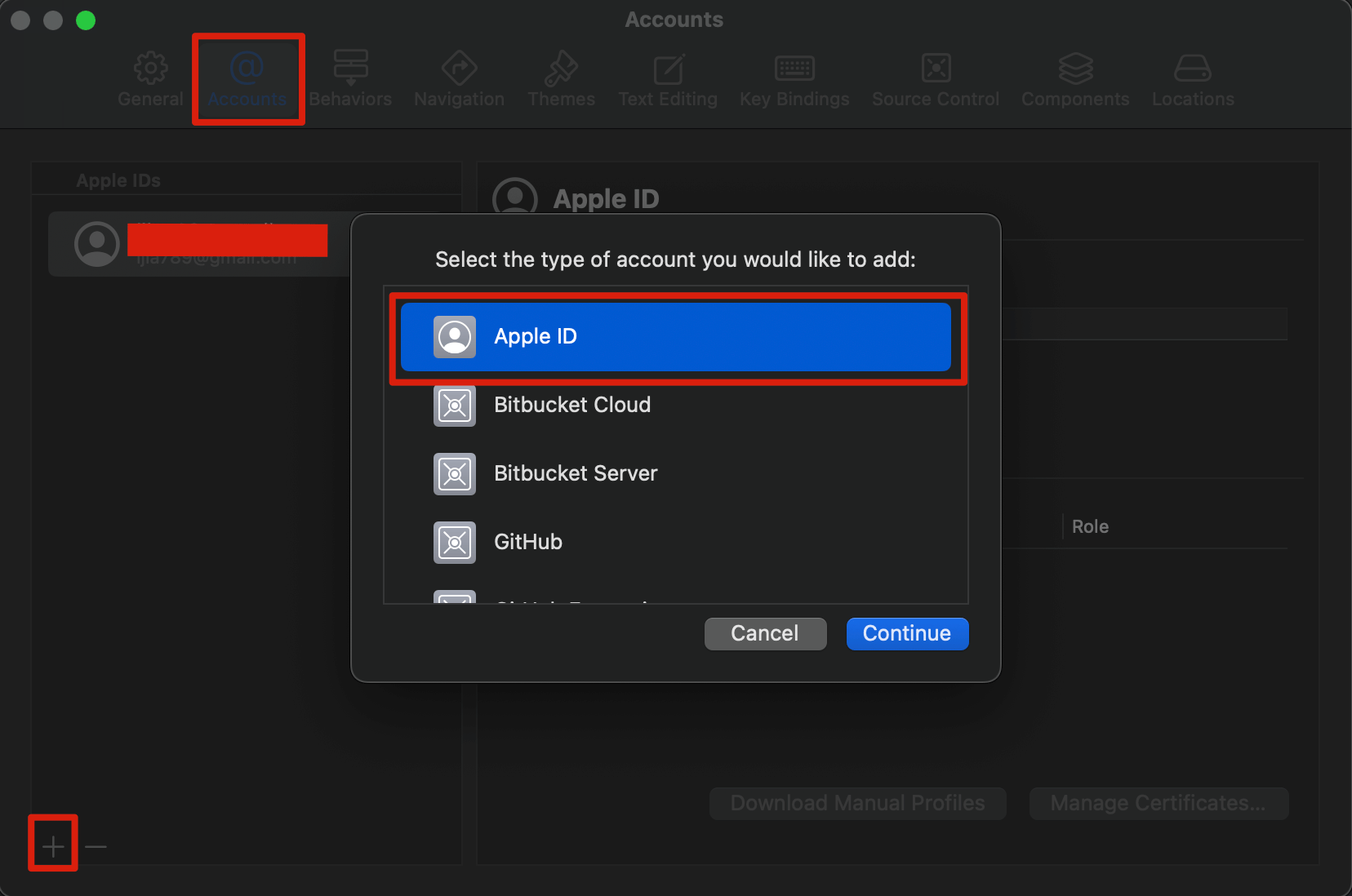
 ##### 1.2. Click the Account tab, click the + button in the lower-left corner, choose to add an Apple ID, and click Continue.
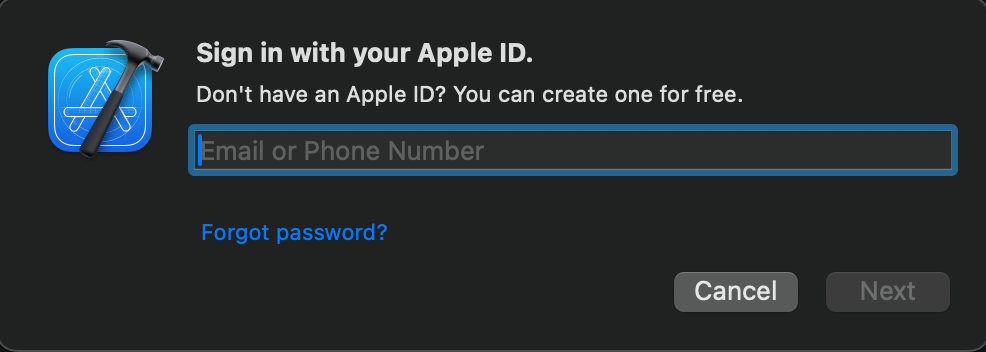
 ##### 1.3. Enter your Apple ID and password to log in.
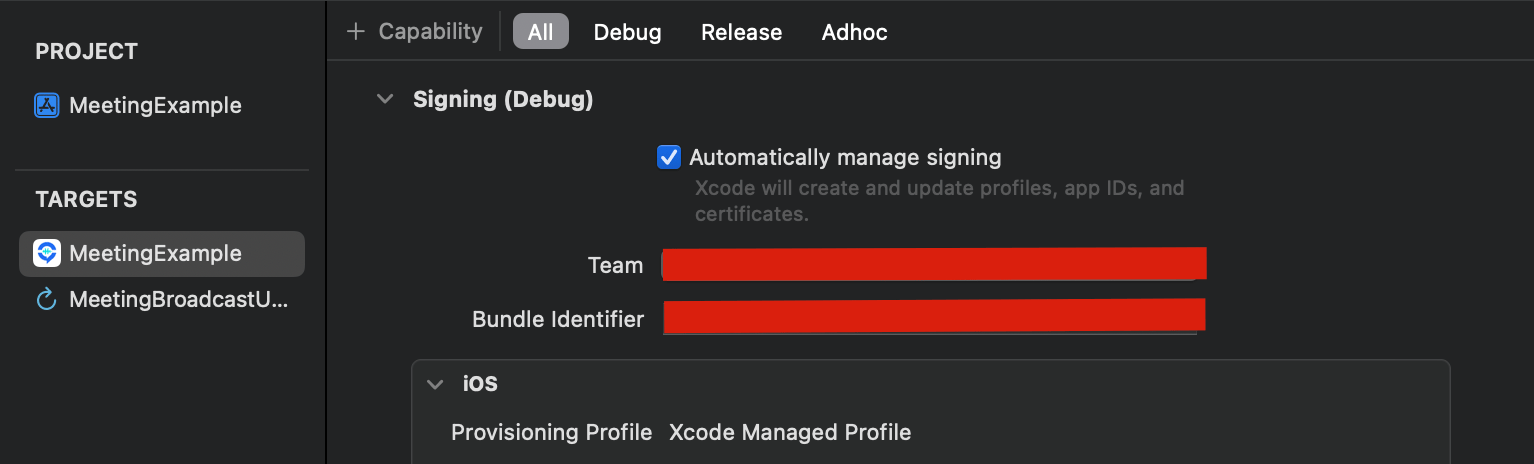
 #### 2. Open the Signing & Capabilities tab under the project's TARGETS and select your own developer certificate in Team
 #### 3. Run the project
##### 3.1. First turn on Developer Mode on the iOS device under Settings > Privacy & Security > Developer Mode. Connect the device to your computer and select it as the run destination for the demo in Xcode.
#### 3. Run the project
##### 3.1. First turn on Developer Mode on the iOS device under Settings > Privacy & Security > Developer Mode. Connect the device to your computer and select it as the run destination for the demo in Xcode.
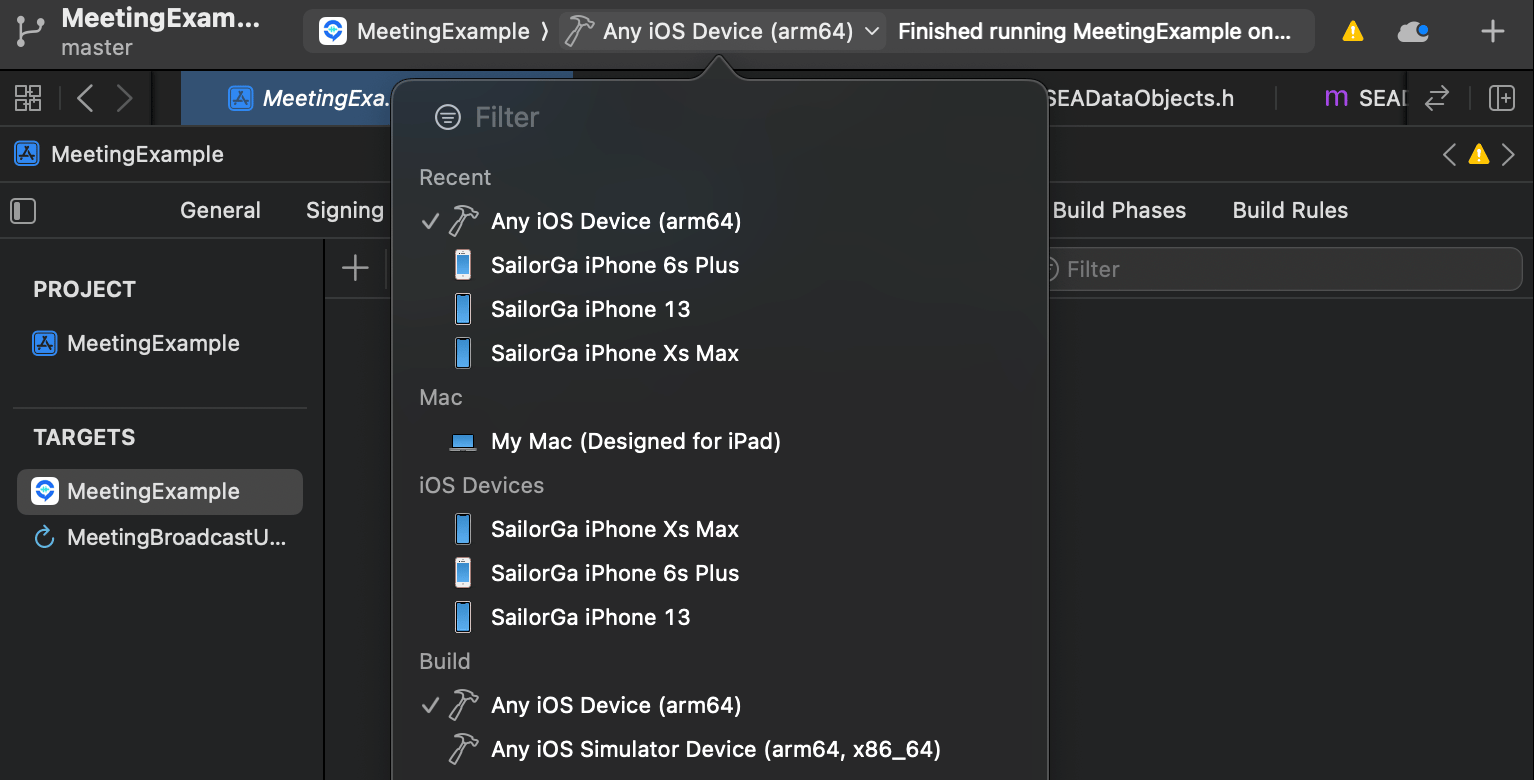 ##### 3.2. Click Run to run the MeetingKit iOS Demo on the target device.
| **Login screen** | **Main screen** | **Create meeting screen** |
| - | - | - |
|
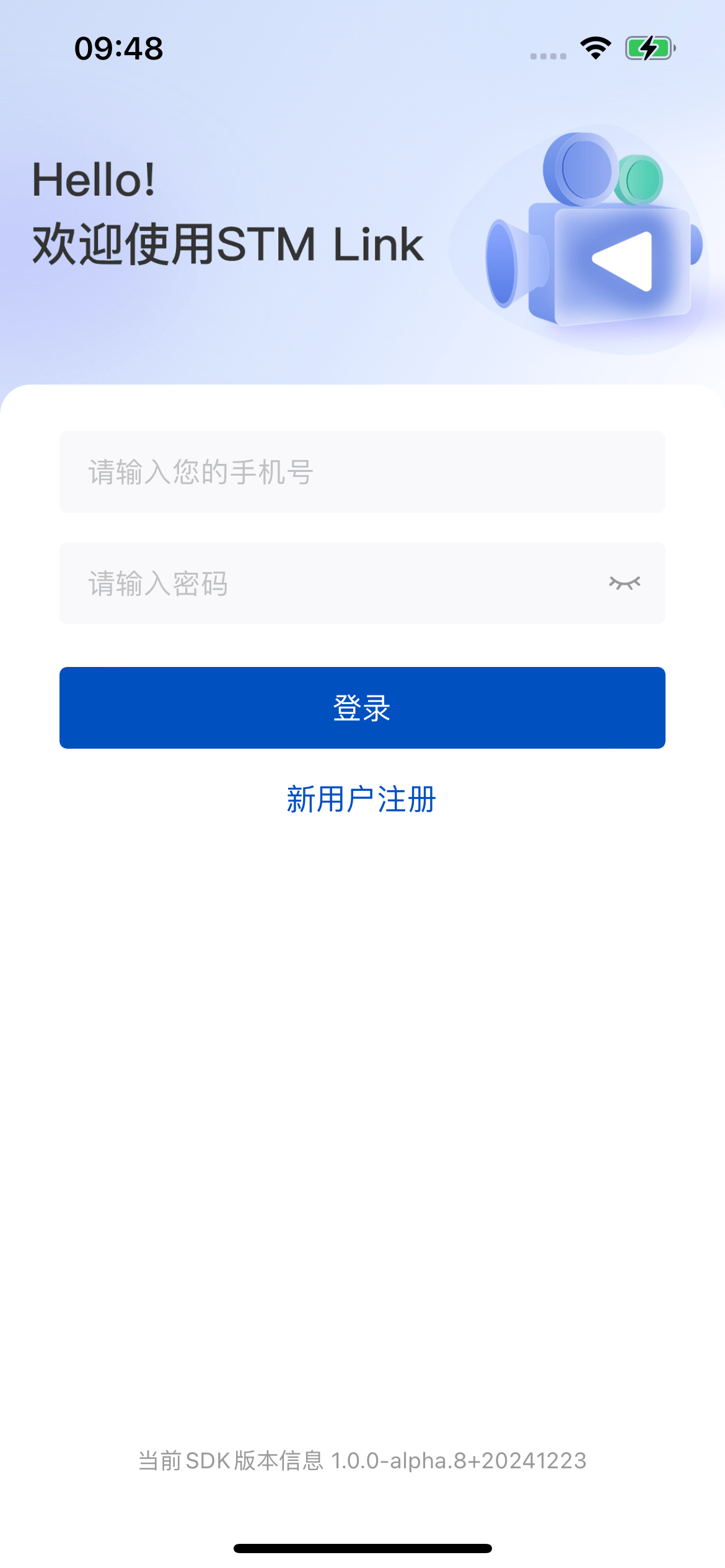
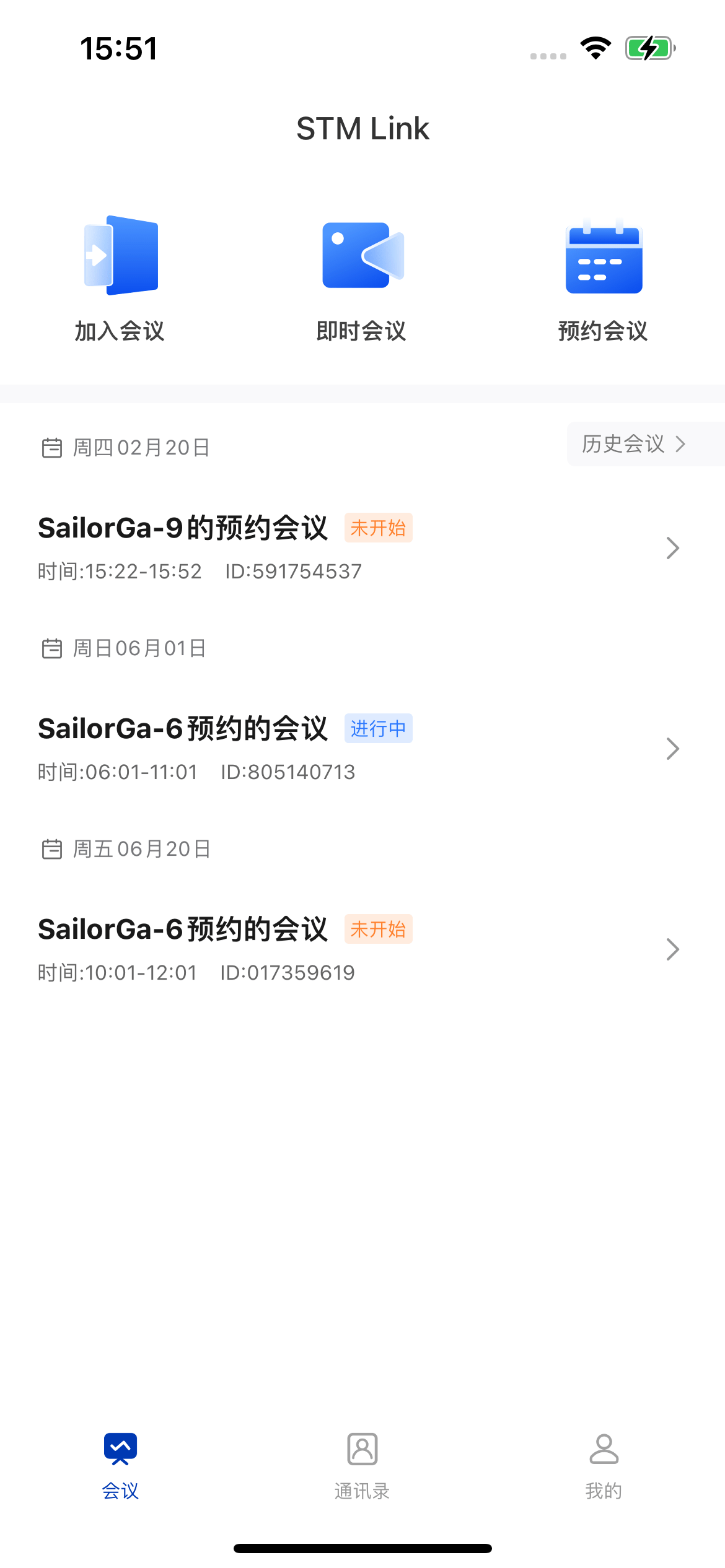
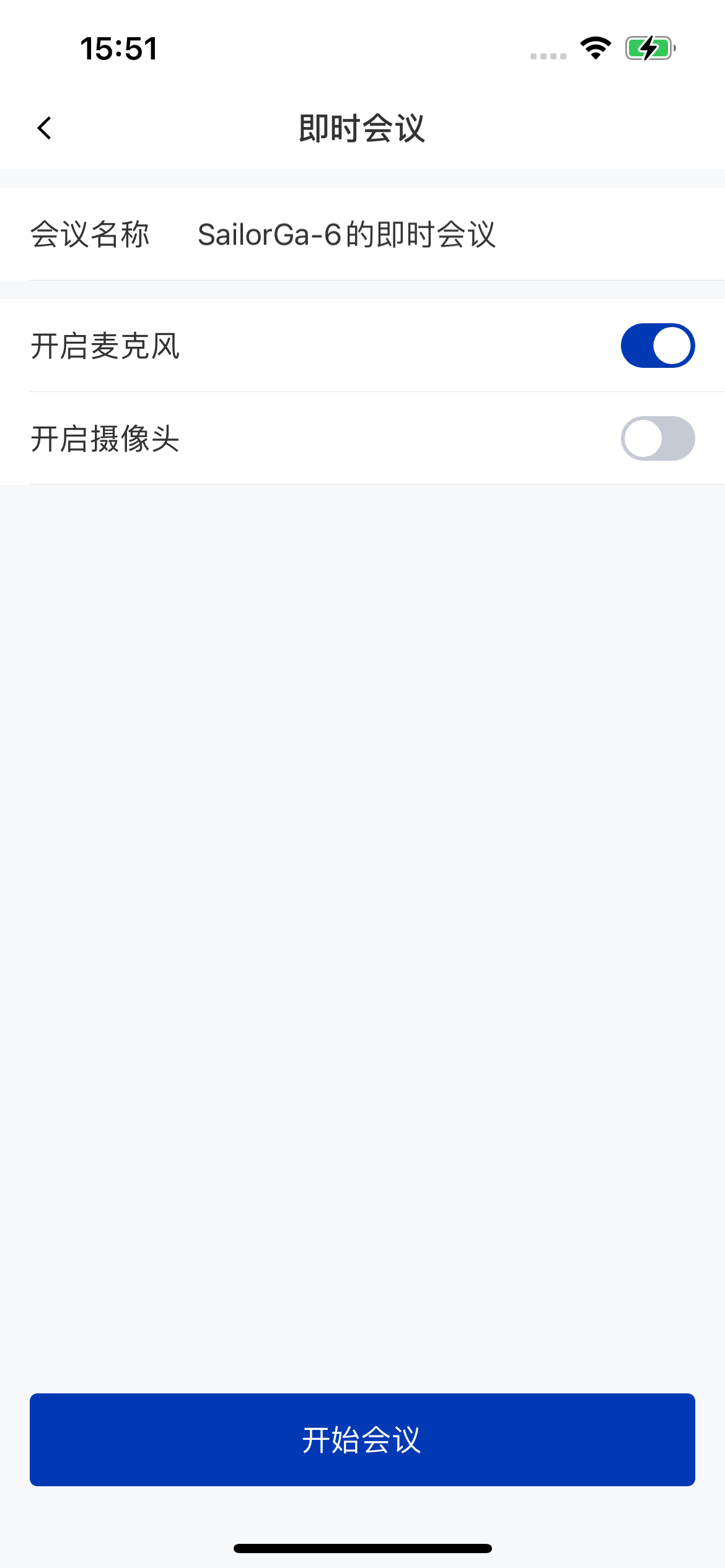
##### 3.2. Click Run to run the MeetingKit iOS Demo on the target device.
| **Login screen** | **Main screen** | **Create meeting screen** |
| - | - | - |
|  |
|  |
|  |
### Host starts a meeting
The meeting main screen is `FWRoomViewController`. After creating a room with the MeetingKit API, create and navigate to `FWRoomViewController` as in the example below to start a quick meeting.
#### Create a room
##### Build meeting parameters
Meeting parameters consist of many fields, but you usually only need a few of them. See [SEAMeetingParam](/zh/meeting/ios/types#seameetingparam) (Chinese) for details.
```objectivec theme={null}
SEAMeetingParam *meetingParam = [[SEAMeetingParam alloc] init];
meetingParam.title = @"Meeting Title";
```
##### Create the room
```objectivec theme={null}
[[MeetingKit sharedInstance] createRoom:meetingParam onSuccess:^(id _Nullable data) {
NSString *roomNo = (NSString *)data;
NSLog(@"Room created, room number: %@", roomNo);
} onFailed:^(SEAError code, NSString * _Nonnull message) {
NSLog(@"Failed to create room, code = %ld, message = %@", code, message);
}];
```
#### Enter a room
##### Build meeting entry parameters
```objectivec theme={null}
/// Create the meeting entry object
FWMeetingEnterModel *enterModel = [[FWMeetingEnterModel alloc] init];
enterModel.roomNo = @"Your Room No";
enterModel.nickname = @"Your Nickname";
enterModel.audioState = YES;
enterModel.videoState = NO;
enterModel.avatar = @"Your Avatar";
```
##### Navigate to the meeting main screen
```objectivec theme={null}
/// Enter the meeting main screen
[self push:@"FWRoomViewController" info:enterModel block:nil];
```
| **In-meeting screen** | **Meeting controls screen** |
| - | - |
|
|
### Host starts a meeting
The meeting main screen is `FWRoomViewController`. After creating a room with the MeetingKit API, create and navigate to `FWRoomViewController` as in the example below to start a quick meeting.
#### Create a room
##### Build meeting parameters
Meeting parameters consist of many fields, but you usually only need a few of them. See [SEAMeetingParam](/zh/meeting/ios/types#seameetingparam) (Chinese) for details.
```objectivec theme={null}
SEAMeetingParam *meetingParam = [[SEAMeetingParam alloc] init];
meetingParam.title = @"Meeting Title";
```
##### Create the room
```objectivec theme={null}
[[MeetingKit sharedInstance] createRoom:meetingParam onSuccess:^(id _Nullable data) {
NSString *roomNo = (NSString *)data;
NSLog(@"Room created, room number: %@", roomNo);
} onFailed:^(SEAError code, NSString * _Nonnull message) {
NSLog(@"Failed to create room, code = %ld, message = %@", code, message);
}];
```
#### Enter a room
##### Build meeting entry parameters
```objectivec theme={null}
/// Create the meeting entry object
FWMeetingEnterModel *enterModel = [[FWMeetingEnterModel alloc] init];
enterModel.roomNo = @"Your Room No";
enterModel.nickname = @"Your Nickname";
enterModel.audioState = YES;
enterModel.videoState = NO;
enterModel.avatar = @"Your Avatar";
```
##### Navigate to the meeting main screen
```objectivec theme={null}
/// Enter the meeting main screen
[self push:@"FWRoomViewController" info:enterModel block:nil];
```
| **In-meeting screen** | **Meeting controls screen** |
| - | - |
| 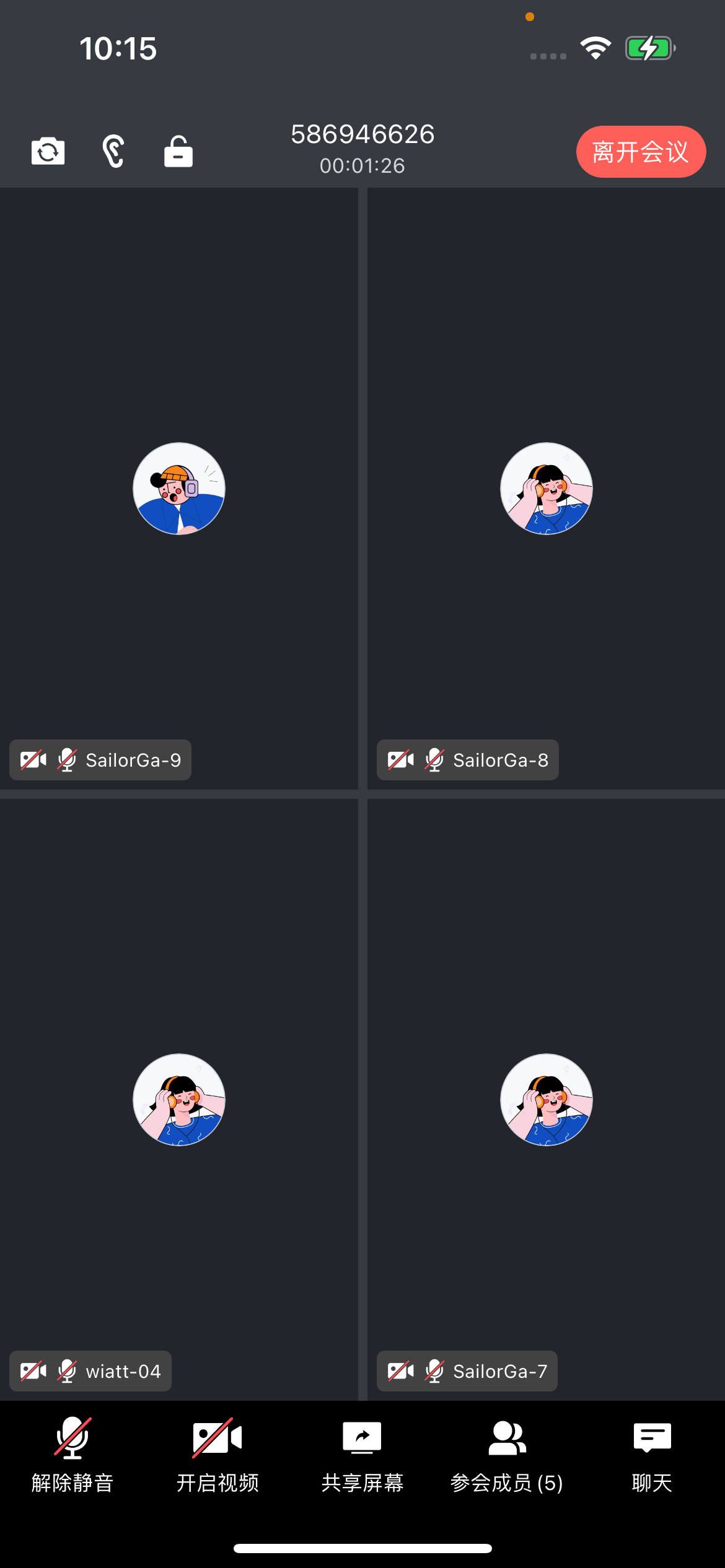 |
| 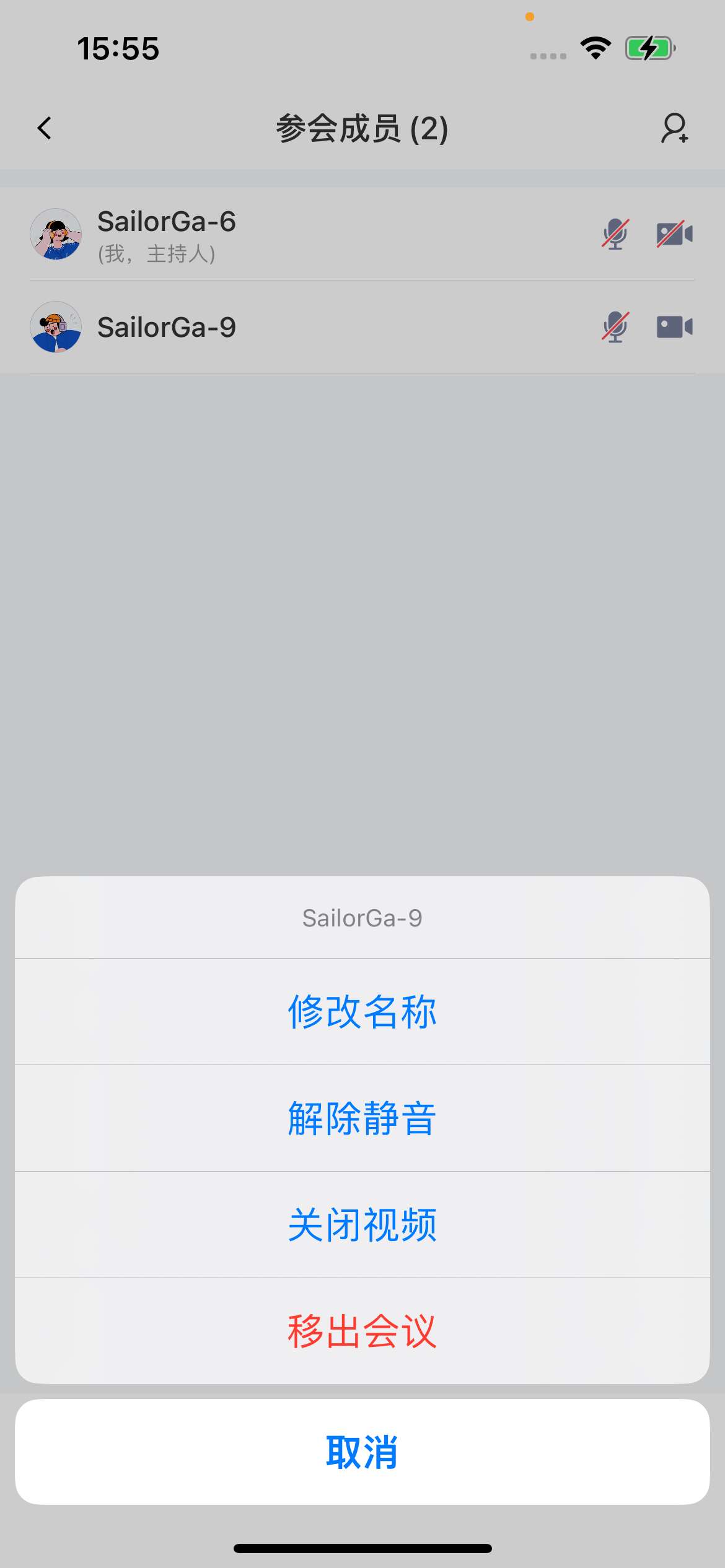 |
### Regular members enter a meeting
Create and navigate to the meeting main screen as in the **Enter a room** example above to enter a meeting.
| **Enter meeting screen** | **In-meeting screen** |
| - | - |
|
|
### Regular members enter a meeting
Create and navigate to the meeting main screen as in the **Enter a room** example above to enter a meeting.
| **Enter meeting screen** | **In-meeting screen** |
| - | - |
| 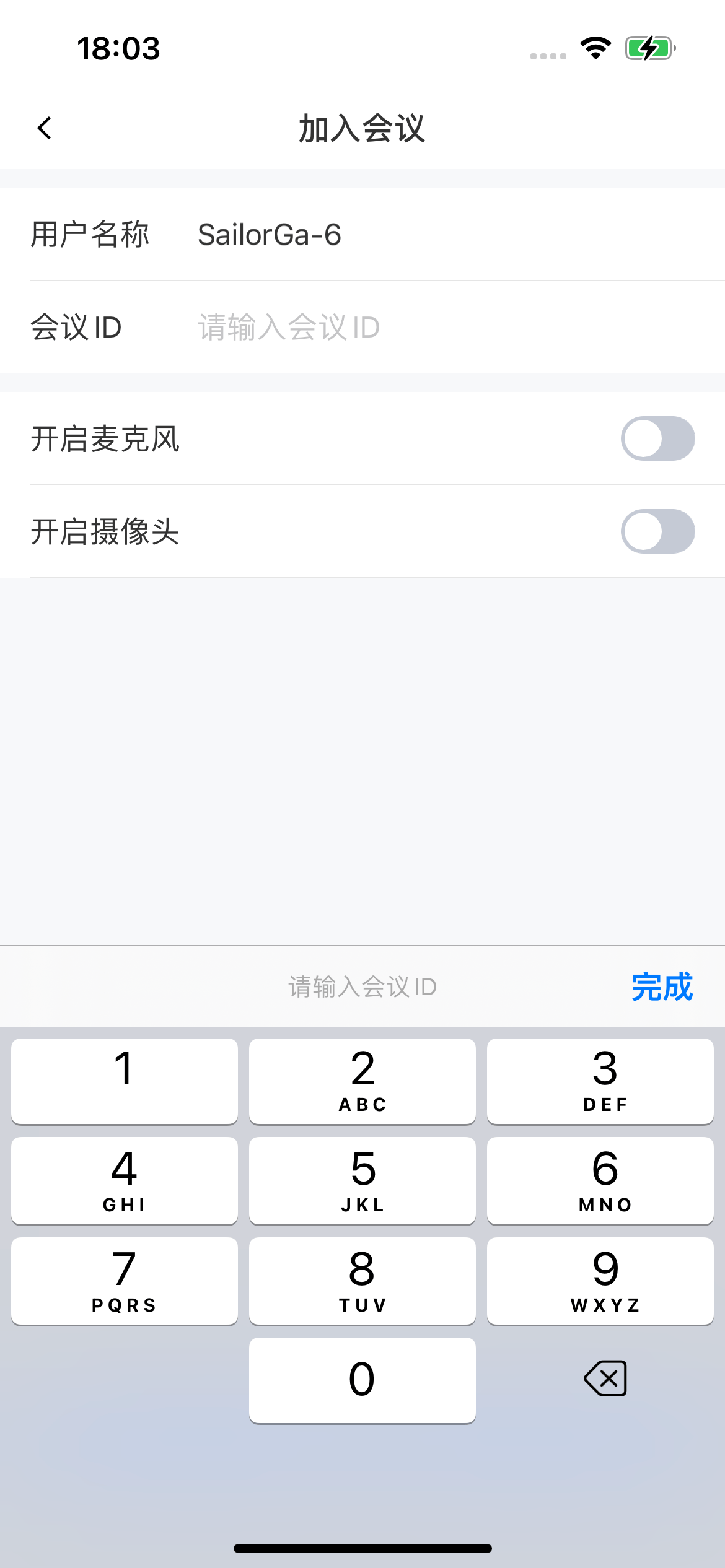 |
| 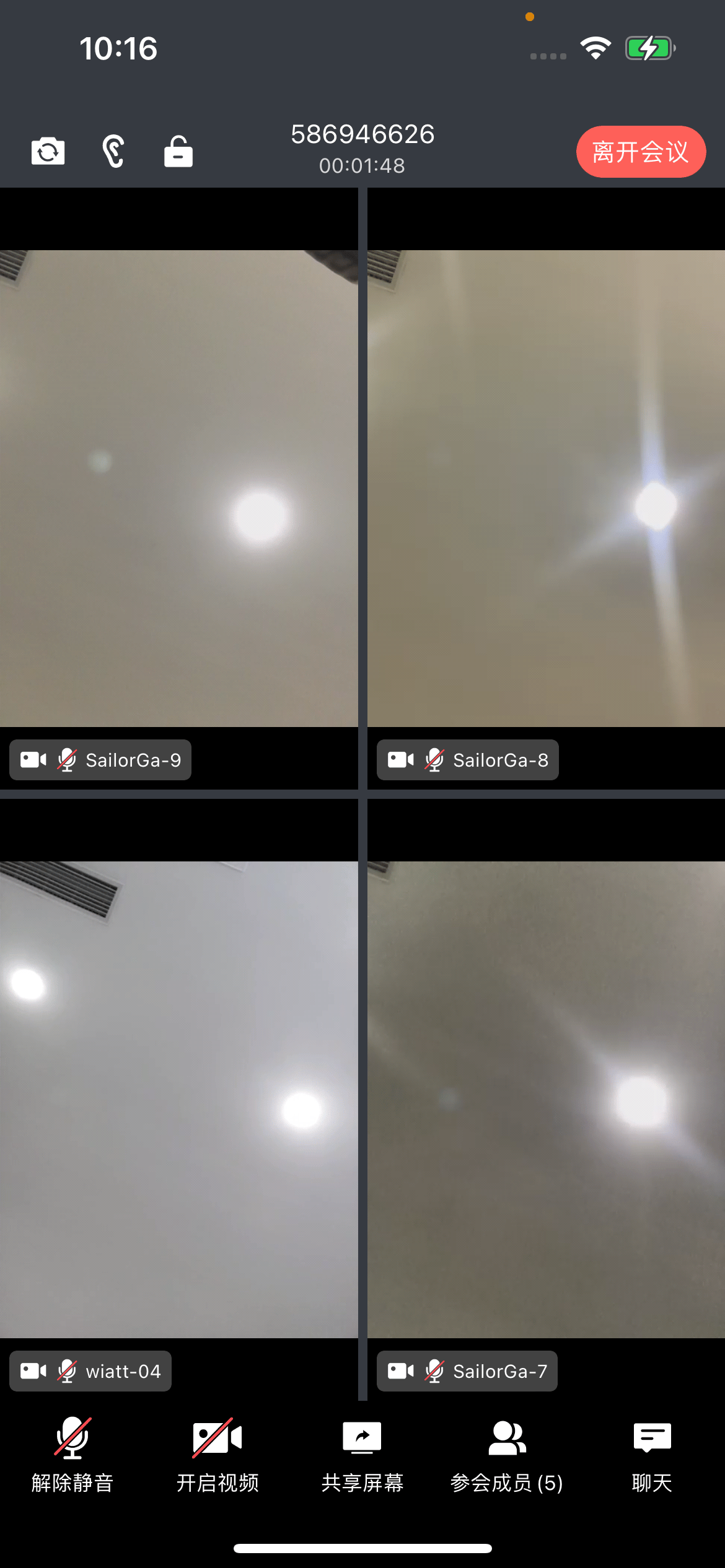 |
## Scheduled meetings
### Overview
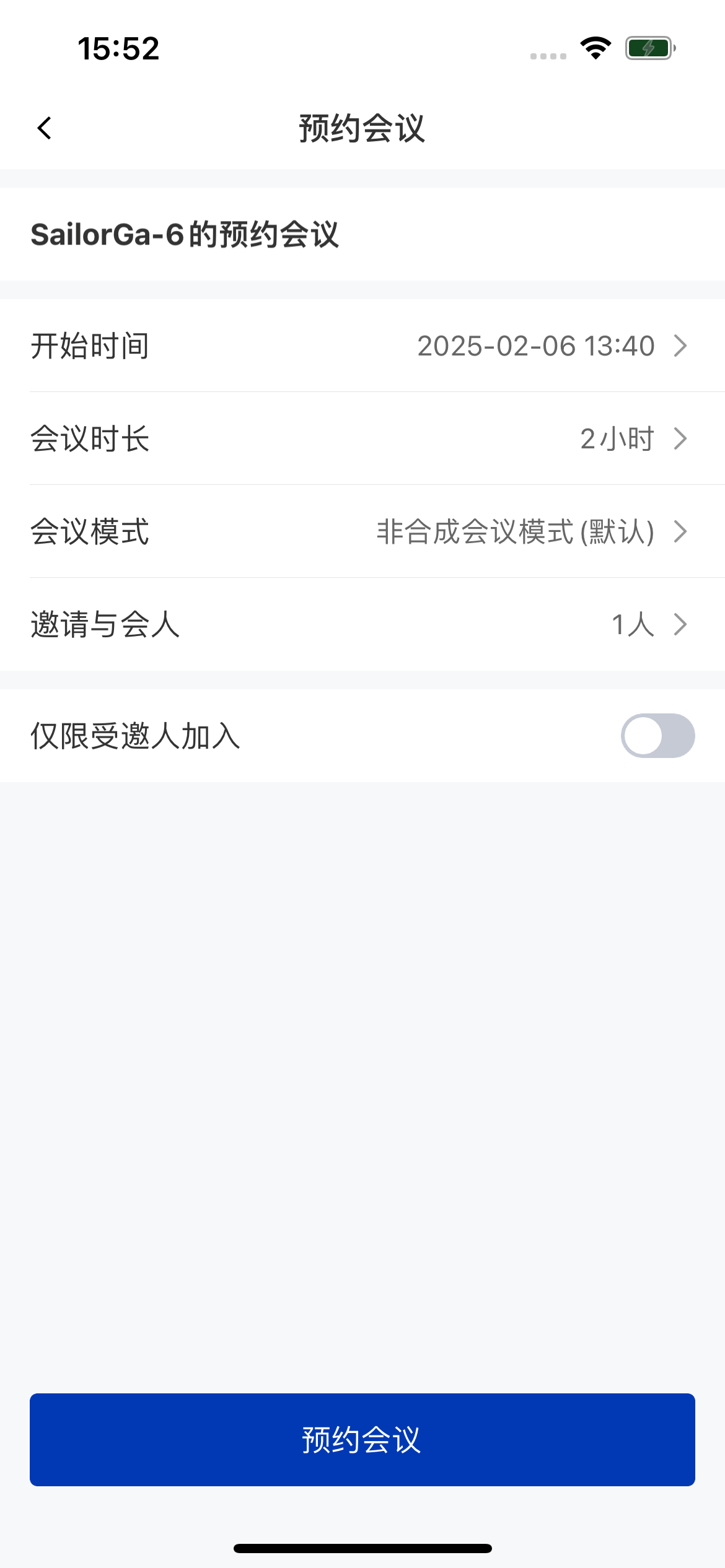
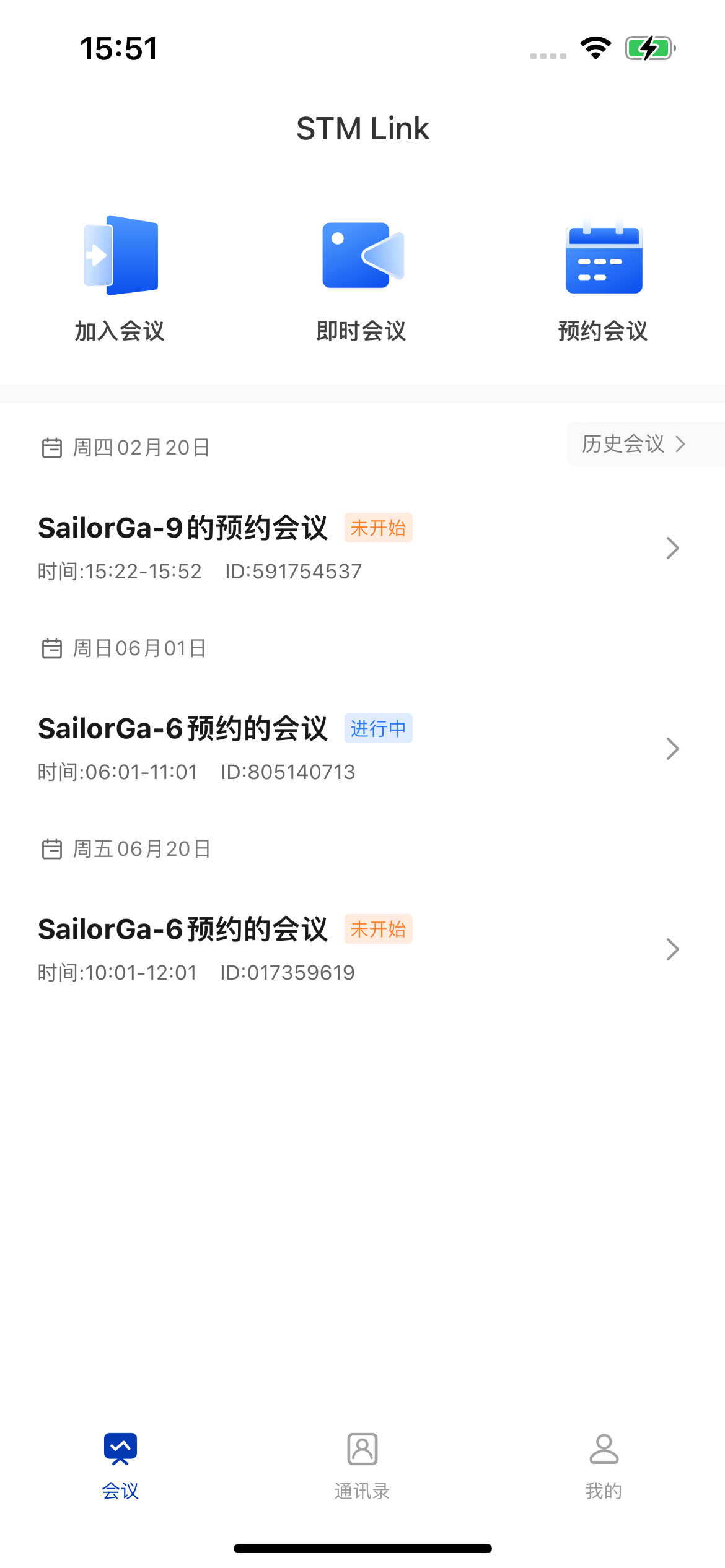
Users can schedule a room and arrange a meeting in their calendar. When the meeting time comes, they can start the meeting with a single tap.
| **Schedule a meeting** | **Meeting list** |
| - | - |
|
|
## Scheduled meetings
### Overview
Users can schedule a room and arrange a meeting in their calendar. When the meeting time comes, they can start the meeting with a single tap.
| **Schedule a meeting** | **Meeting list** |
| - | - |
|  |
|  |
| **Meeting settings** | **Invite members** |
| - | - |
|
|
| **Meeting settings** | **Invite members** |
| - | - |
|  |
|  |
### Integration
#### Schedule a room
To use room scheduling, bring up the room scheduling page provided in the demo:
```objectivec theme={null}
/// Create meeting details
FWMeetingDetailsModel *detailsModel = [[FWMeetingDetailsModel alloc] init];
/// Not currently in the room
detailsModel.isRoom = NO;
/// Mark the current user as the meeting creator
detailsModel.isMeetingAdmin = YES;
/// The meeting has not ended
detailsModel.isMeetingFinish = NO;
/// Set the invitee list data
detailsModel.memberLists = [self.viewModel.memberLists mutableCopy];
/// Navigate to the schedule meeting page
[self push:@"FWMeetingScheduleViewController" info:detailsModel tag:FWMeetingScheduleStateCreate block:nil];
```
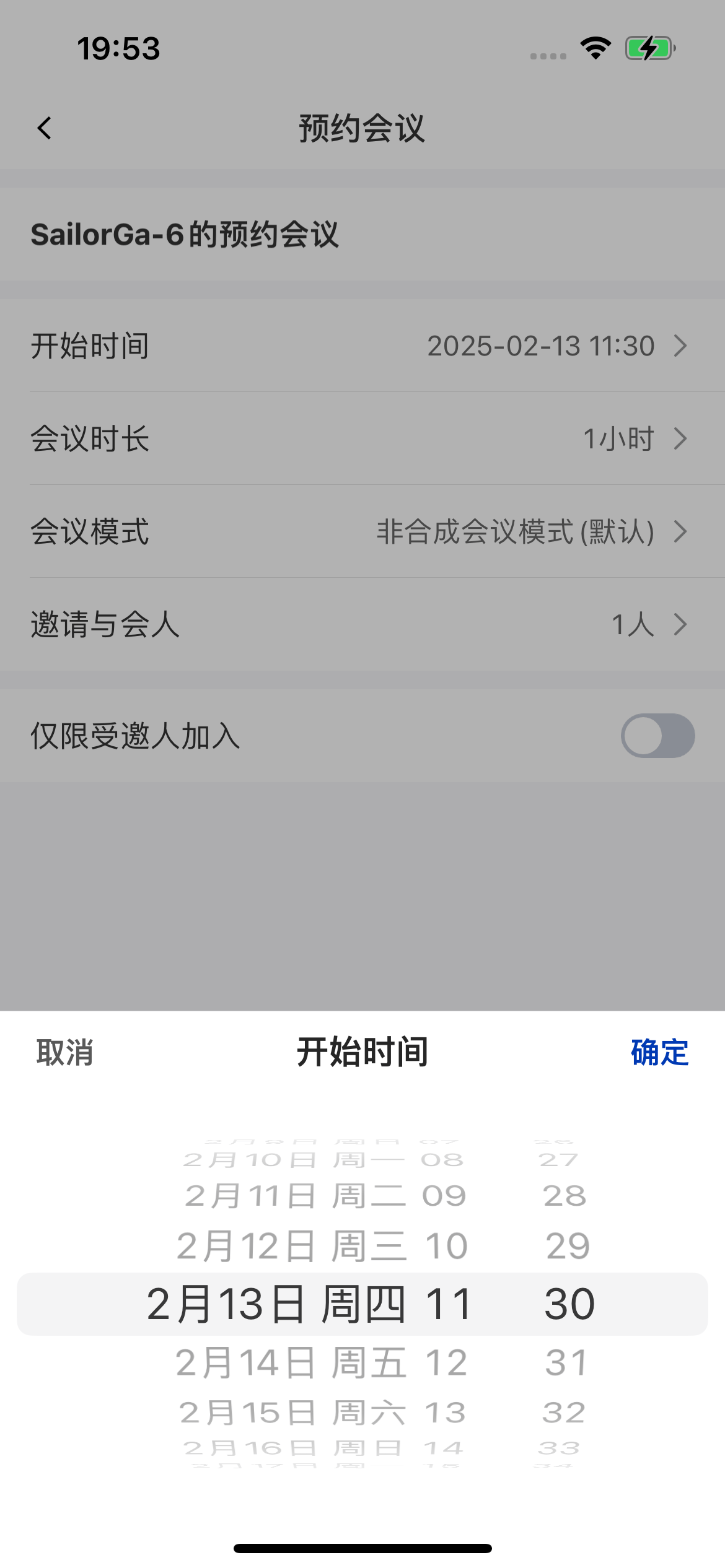
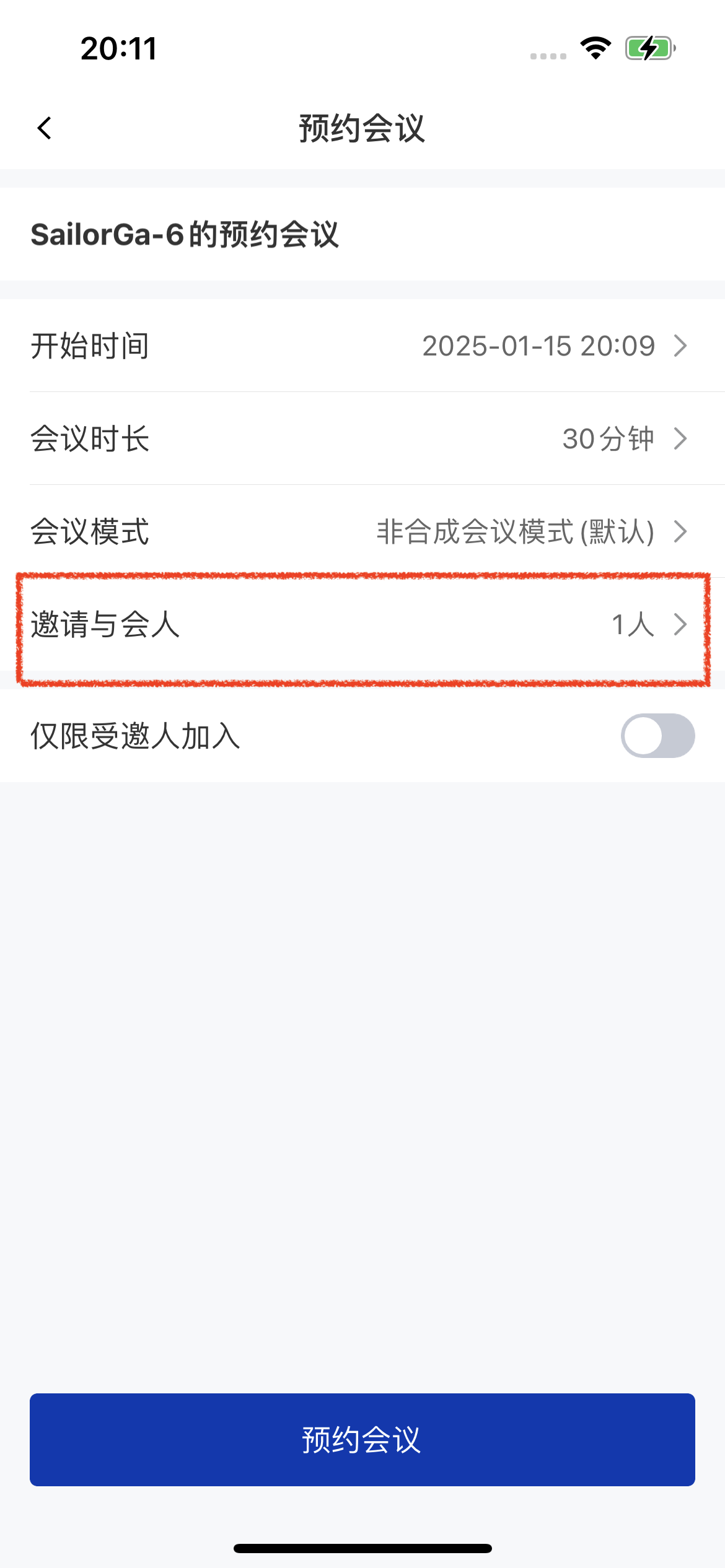
* Properties you can set for a scheduled meeting: meeting name, meeting type, start time, meeting duration, meeting mode, invited members, meeting password, member management, and more.
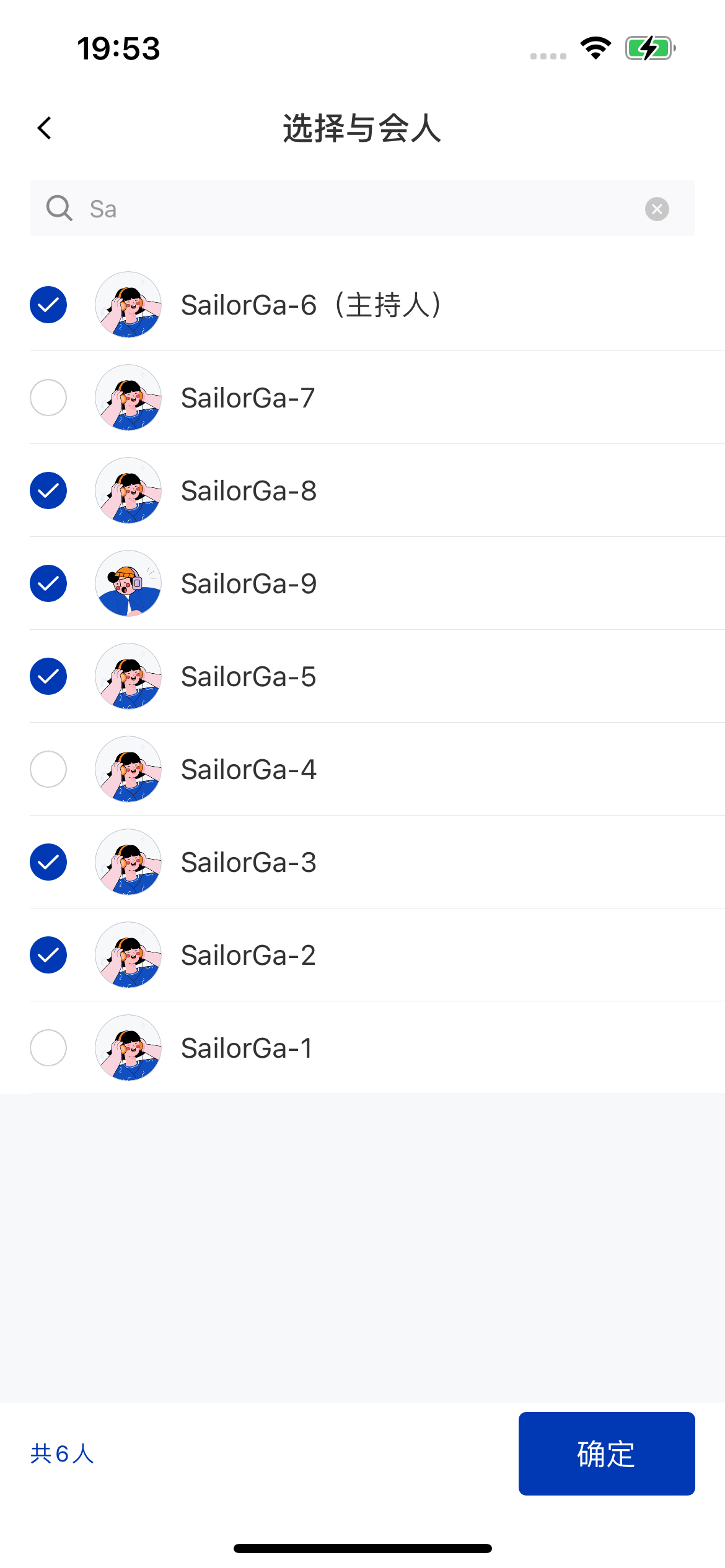
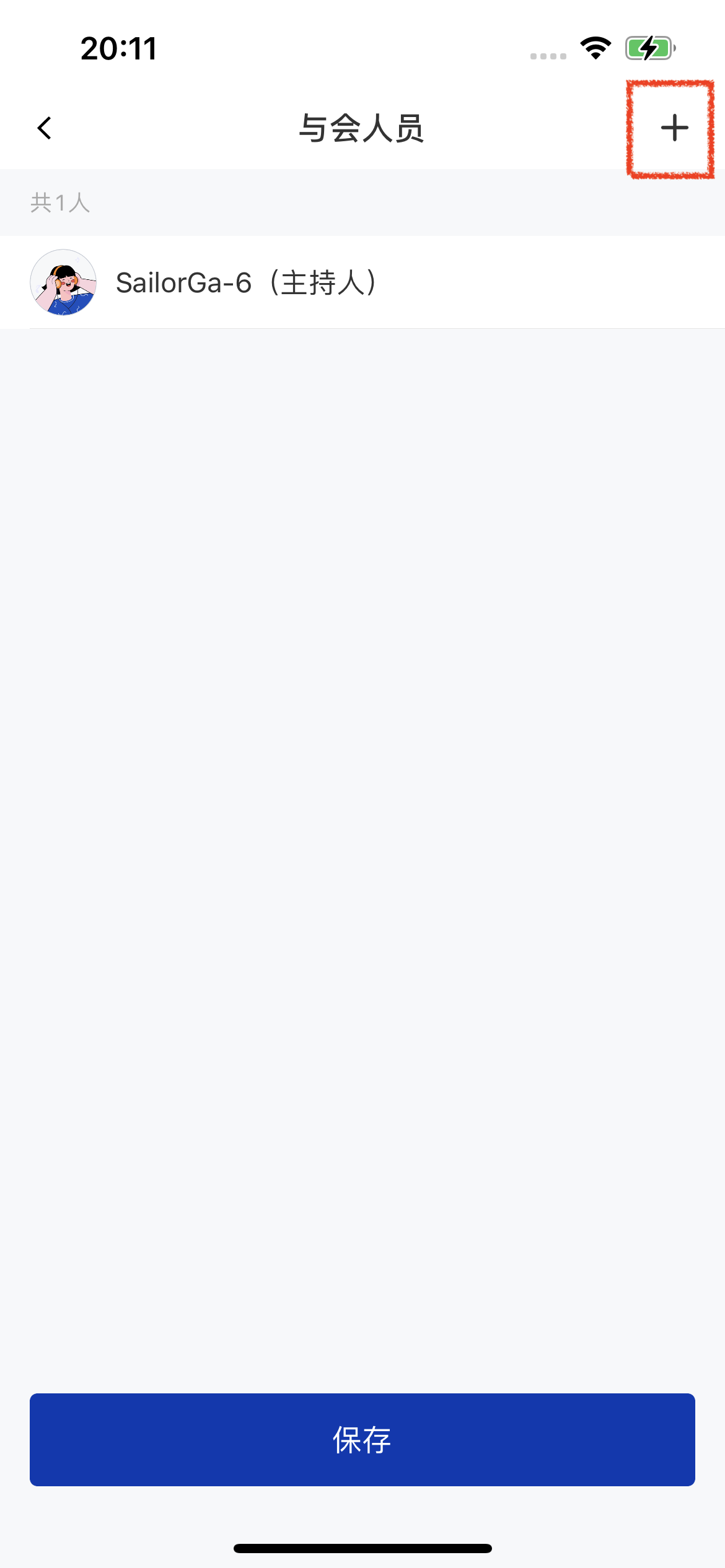
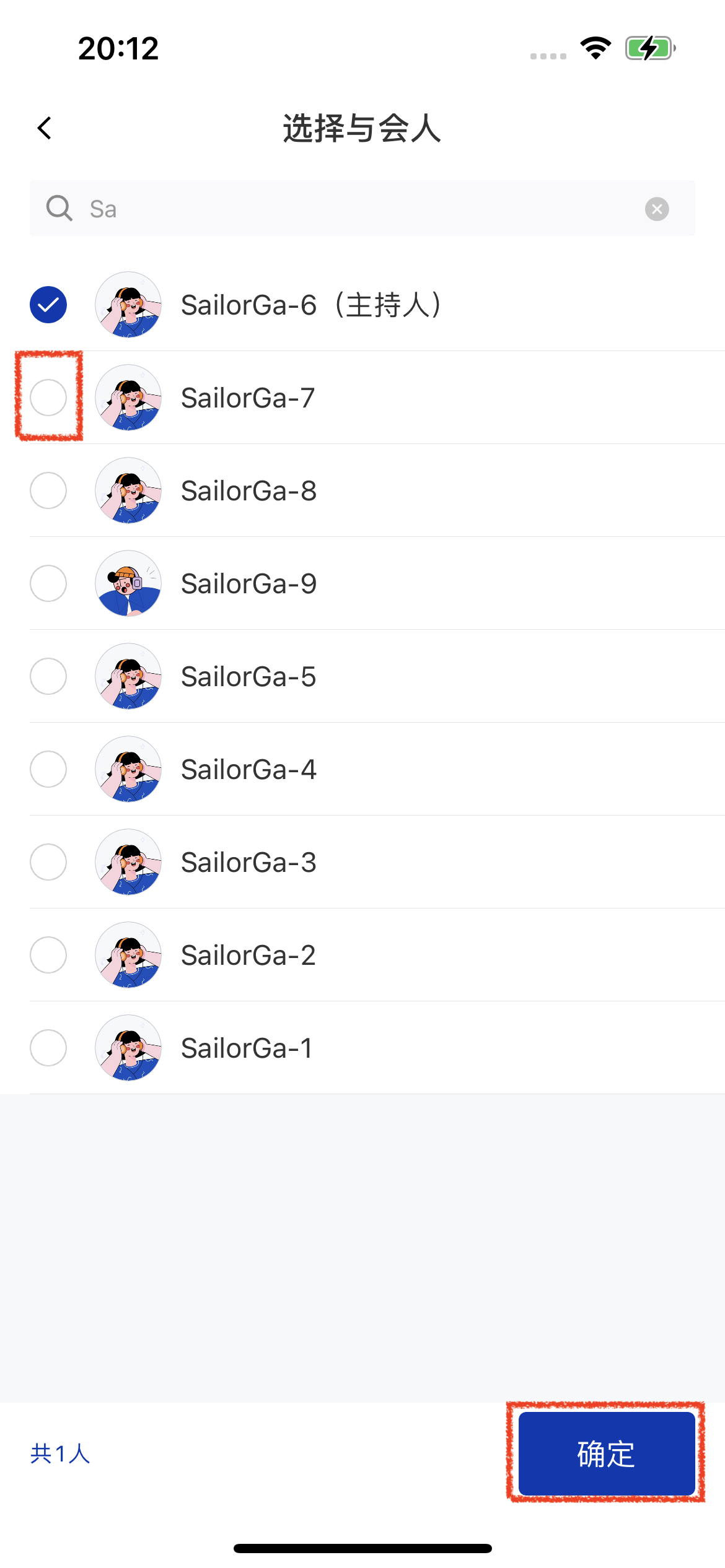
* How to invite members: tap **邀请与会人** (*Invite invitees*) -> **添加** (*Add*) to invite members.
| **Invite invitees** | **Invitee list** | **Select invitees** |
| - | - | - |
|
|
### Integration
#### Schedule a room
To use room scheduling, bring up the room scheduling page provided in the demo:
```objectivec theme={null}
/// Create meeting details
FWMeetingDetailsModel *detailsModel = [[FWMeetingDetailsModel alloc] init];
/// Not currently in the room
detailsModel.isRoom = NO;
/// Mark the current user as the meeting creator
detailsModel.isMeetingAdmin = YES;
/// The meeting has not ended
detailsModel.isMeetingFinish = NO;
/// Set the invitee list data
detailsModel.memberLists = [self.viewModel.memberLists mutableCopy];
/// Navigate to the schedule meeting page
[self push:@"FWMeetingScheduleViewController" info:detailsModel tag:FWMeetingScheduleStateCreate block:nil];
```
* Properties you can set for a scheduled meeting: meeting name, meeting type, start time, meeting duration, meeting mode, invited members, meeting password, member management, and more.
* How to invite members: tap **邀请与会人** (*Invite invitees*) -> **添加** (*Add*) to invite members.
| **Invite invitees** | **Invitee list** | **Select invitees** |
| - | - | - |
|  |
|  |
|  |
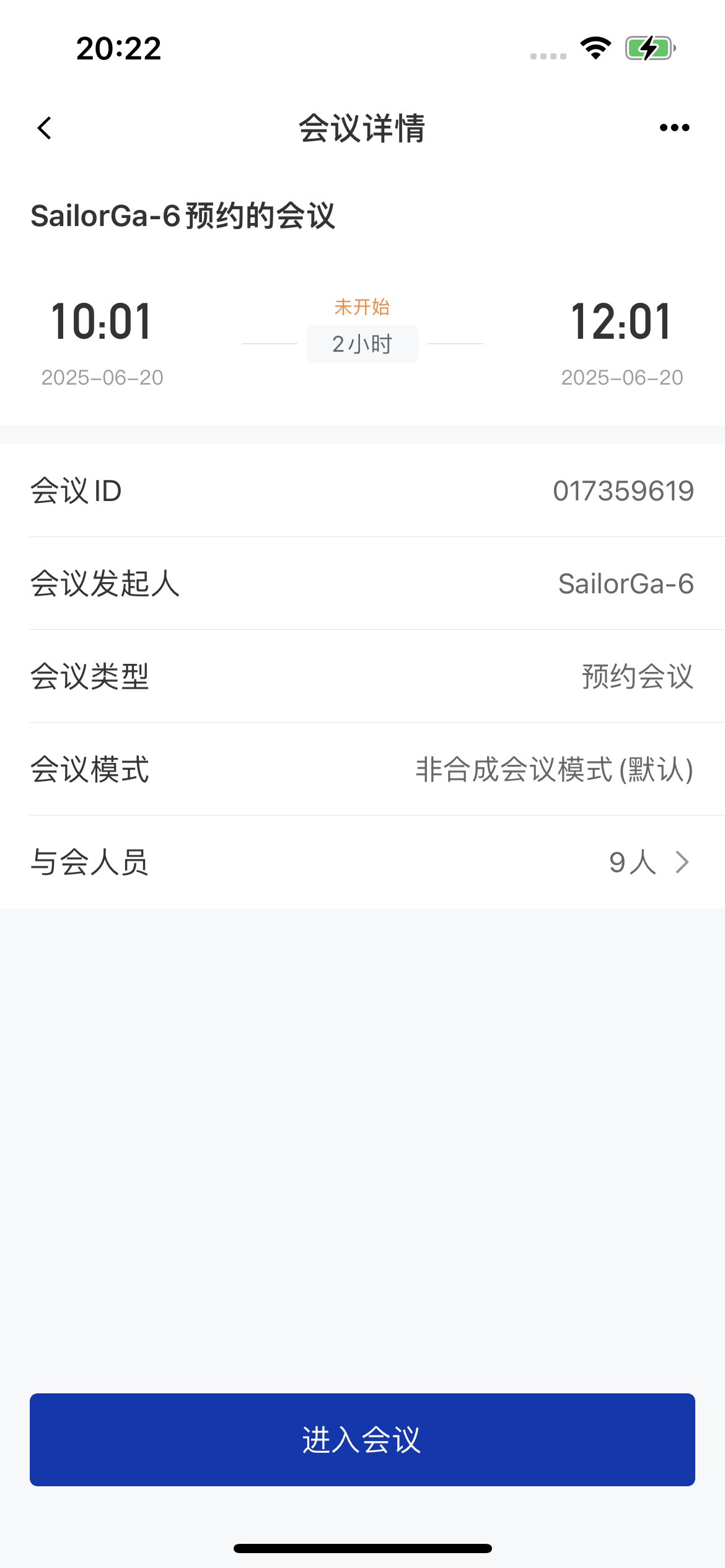
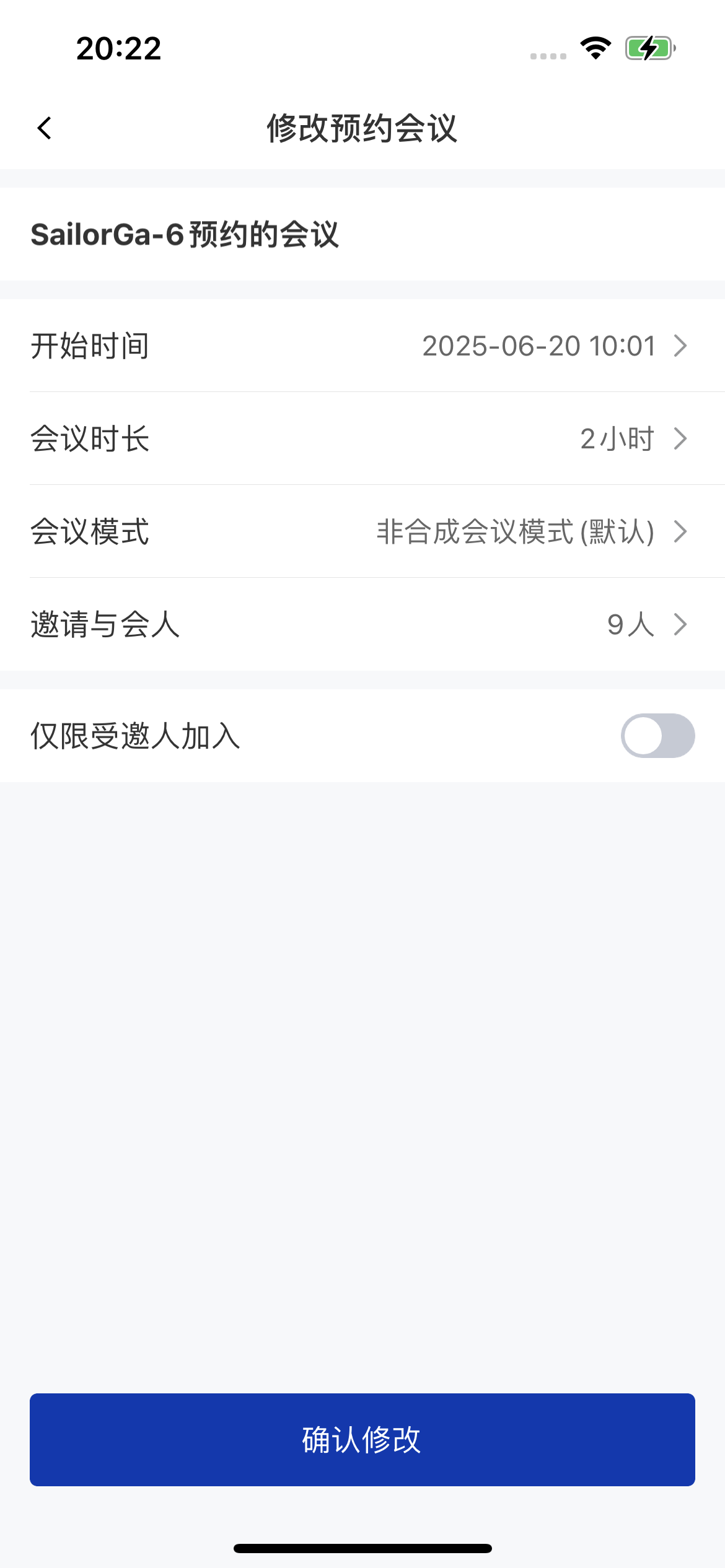
#### View scheduled rooms
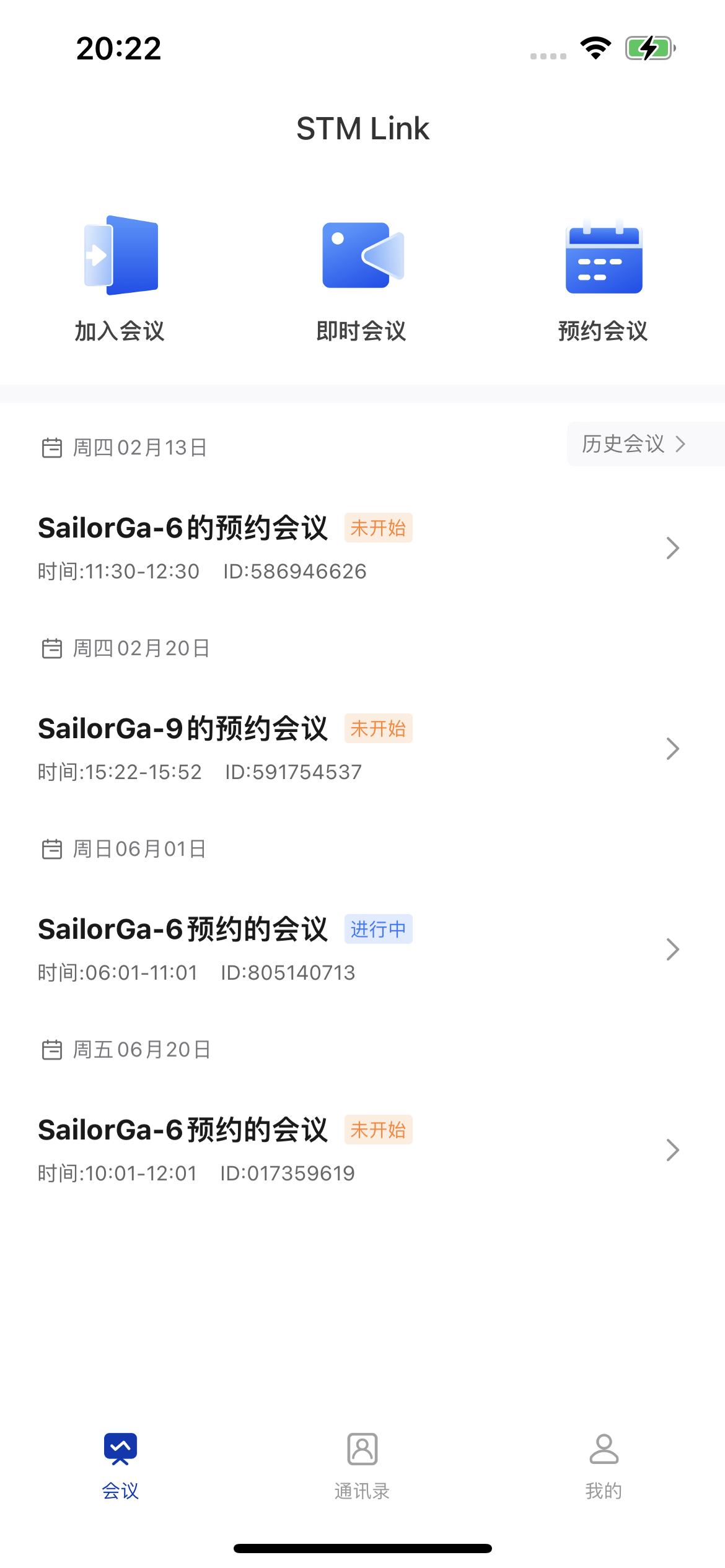
The demo provides a room list UI view, `FWHomeViewController`. The meeting list provides the following features:
* View the meeting list: the list includes meetings you created and meetings you were invited to.
* View meeting details: tap a meeting to view its details.
* Edit meeting information: tap a meeting in the list; if it hasn't started yet and you are the organizer, you can edit its information.
| **Meeting list** | **View meeting details** | **Edit meeting information** |
| - | - | - |
|
|
#### View scheduled rooms
The demo provides a room list UI view, `FWHomeViewController`. The meeting list provides the following features:
* View the meeting list: the list includes meetings you created and meetings you were invited to.
* View meeting details: tap a meeting to view its details.
* Edit meeting information: tap a meeting in the list; if it hasn't started yet and you are the organizer, you can edit its information.
| **Meeting list** | **View meeting details** | **Edit meeting information** |
| - | - | - |
|  |
|  |
|  |
## Meeting controls
### Overview
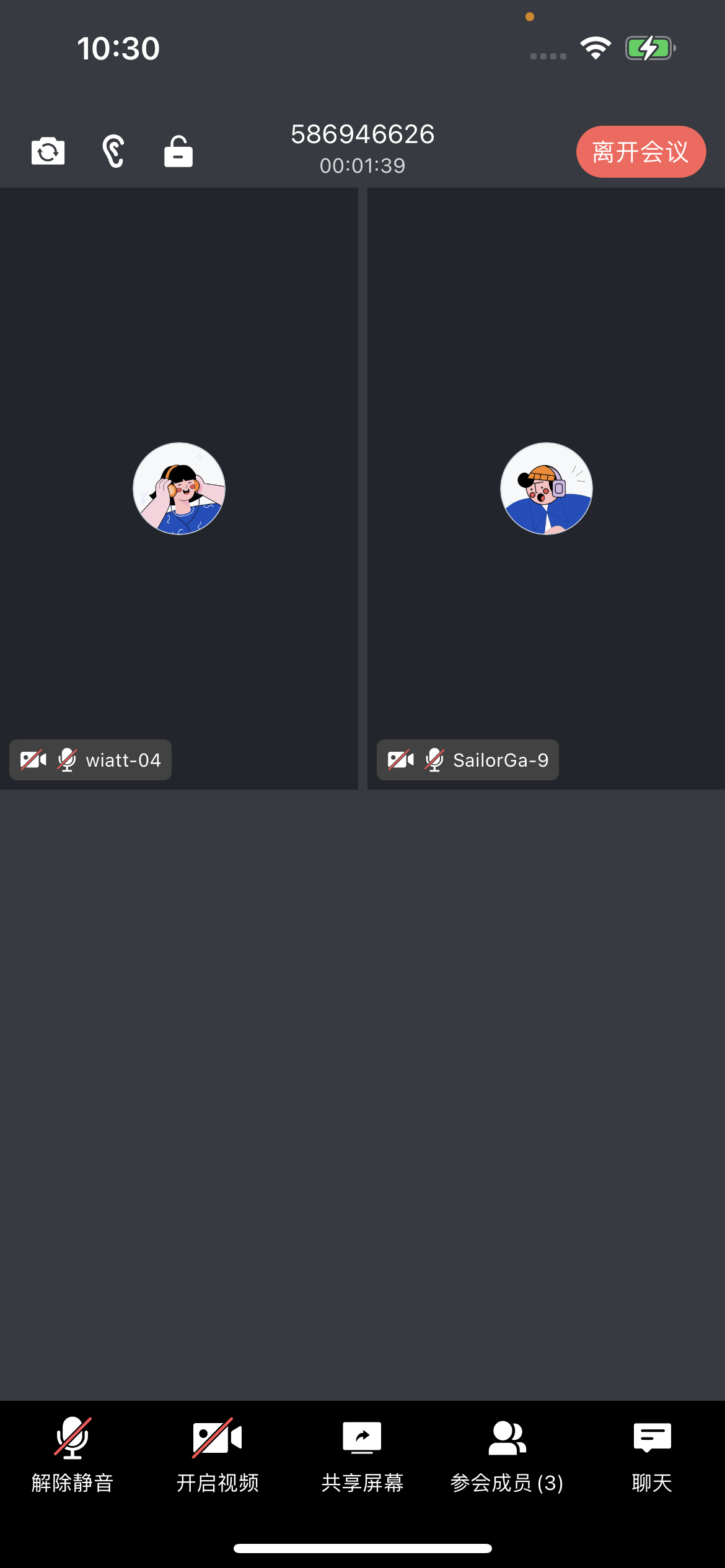
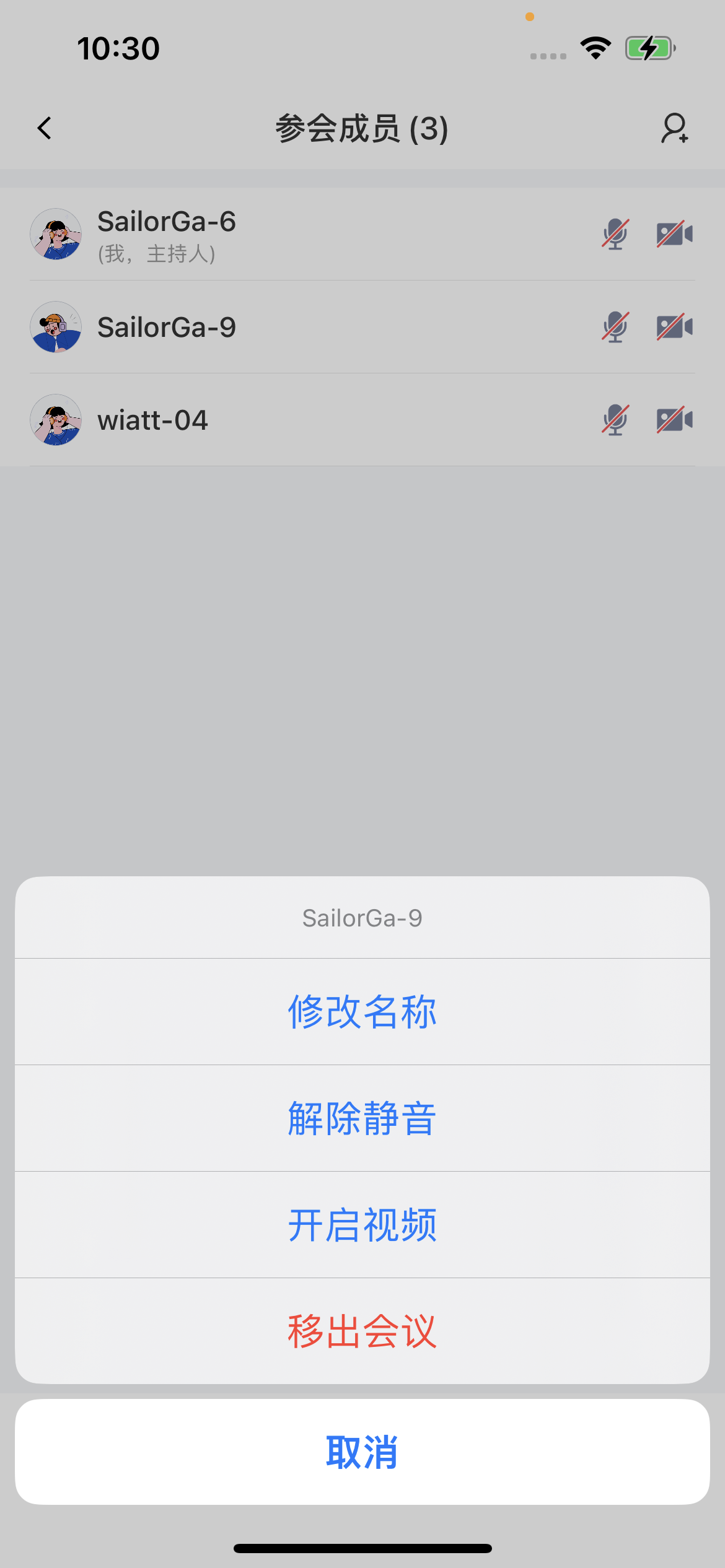
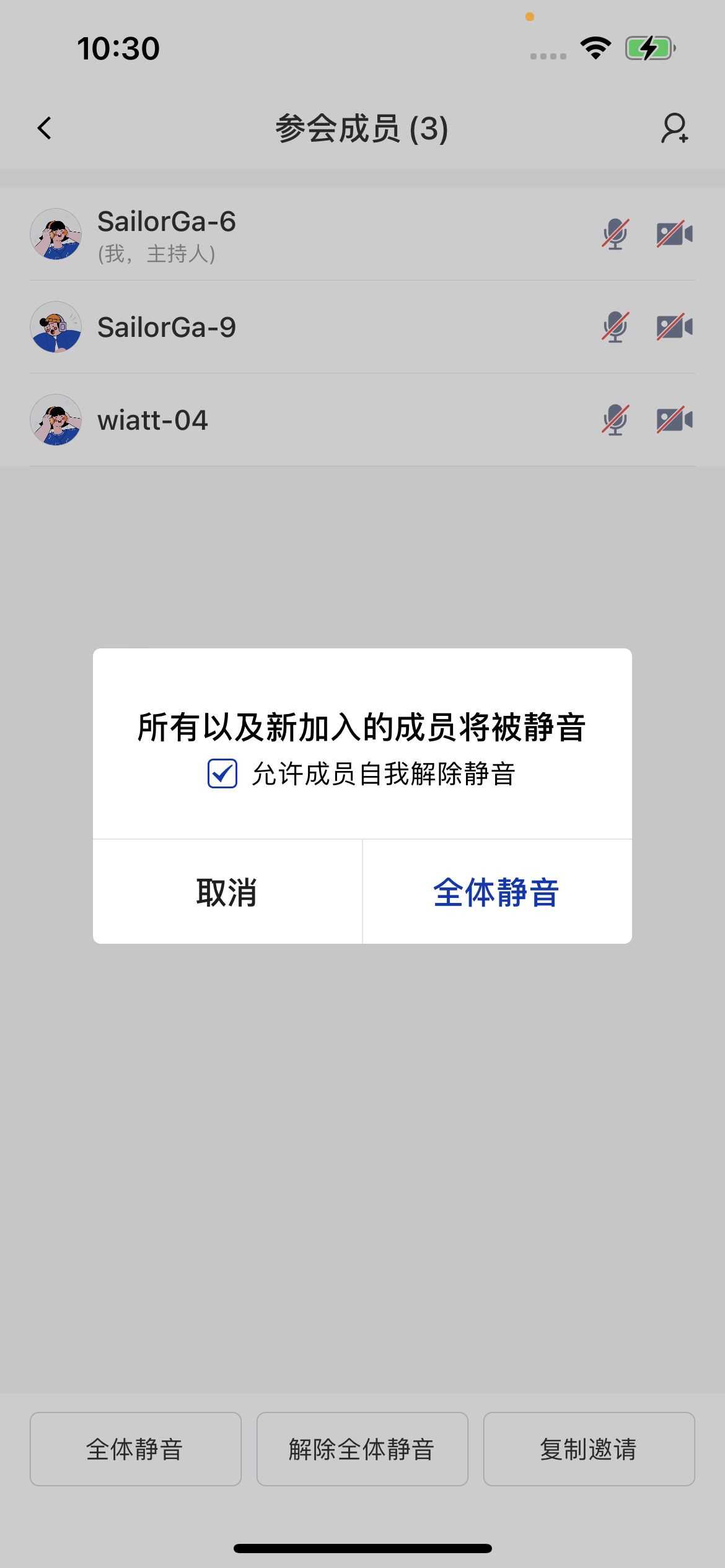
After a user creates and enters a room, the host or a co-host can tap the members button in the bottom toolbar. In the member list that pops up from the bottom, they can select any regular member for meeting control actions such as asking to turn on video/audio, assigning co-hosts, disabling chat, and removing the member from the room, and can also apply meeting control actions such as mute all to all members in the room.
| **In-meeting screen** | **Member management** | **Mute all / camera off for everyone** |
| - | - | - |
|
|
## Meeting controls
### Overview
After a user creates and enters a room, the host or a co-host can tap the members button in the bottom toolbar. In the member list that pops up from the bottom, they can select any regular member for meeting control actions such as asking to turn on video/audio, assigning co-hosts, disabling chat, and removing the member from the room, and can also apply meeting control actions such as mute all to all members in the room.
| **In-meeting screen** | **Member management** | **Mute all / camera off for everyone** |
| - | - | - |
|  |
|  |
|  |
| **Before-the-meeting controls** | |
| - | - |
| Create a room | You can configure the room: turn on the microphone/camera, mute all, camera off for everyone, room password, meeting name, meeting type, entry method, and more. |
| Enter a room | You can configure the room: turn on the microphone/camera. |
| **In-meeting controls** | |
| You are the host or a co-host | You can control the room: mute all / camera off for everyone, invite members, assign co-hosts and transfer host, remove members from the room, turn members' camera/microphone on or off, and more. |
#### Before-the-meeting controls
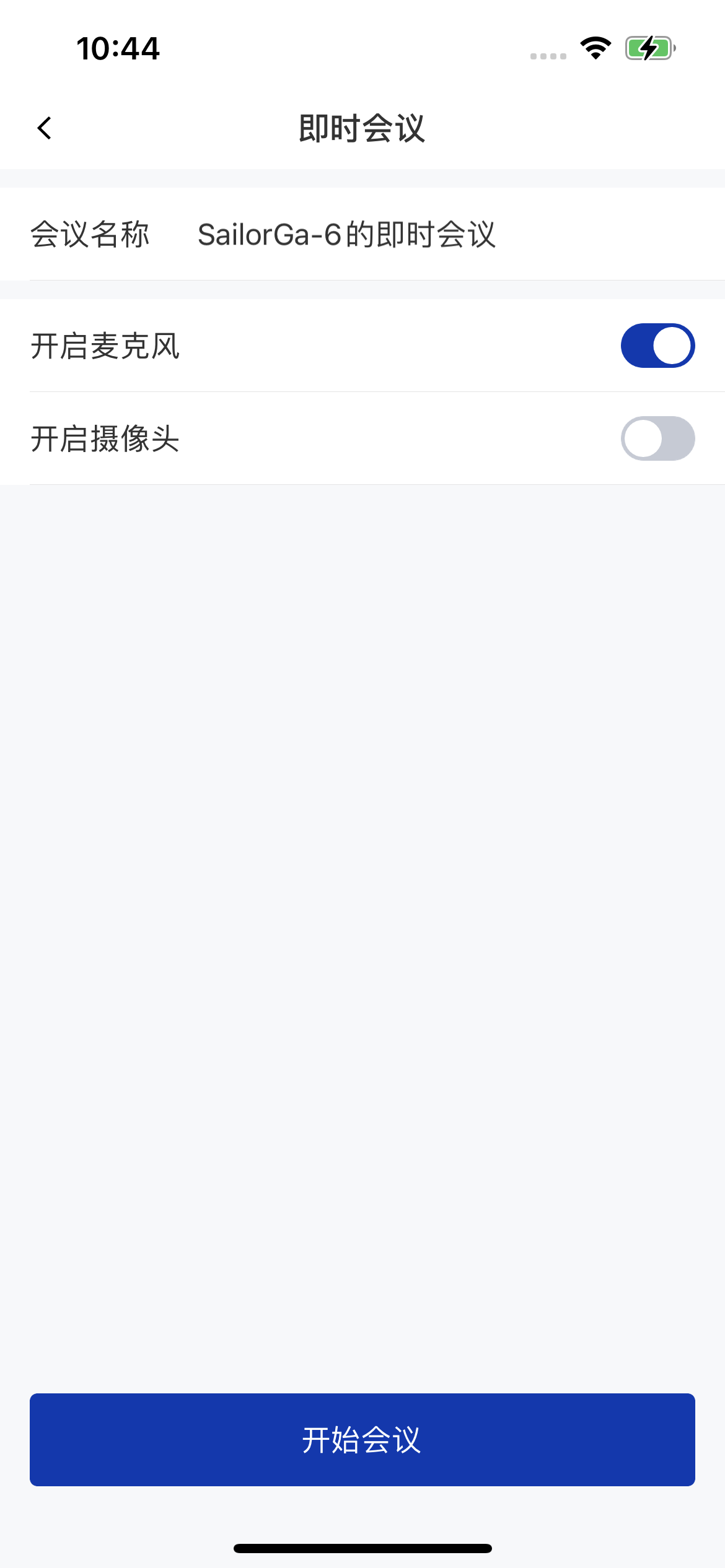
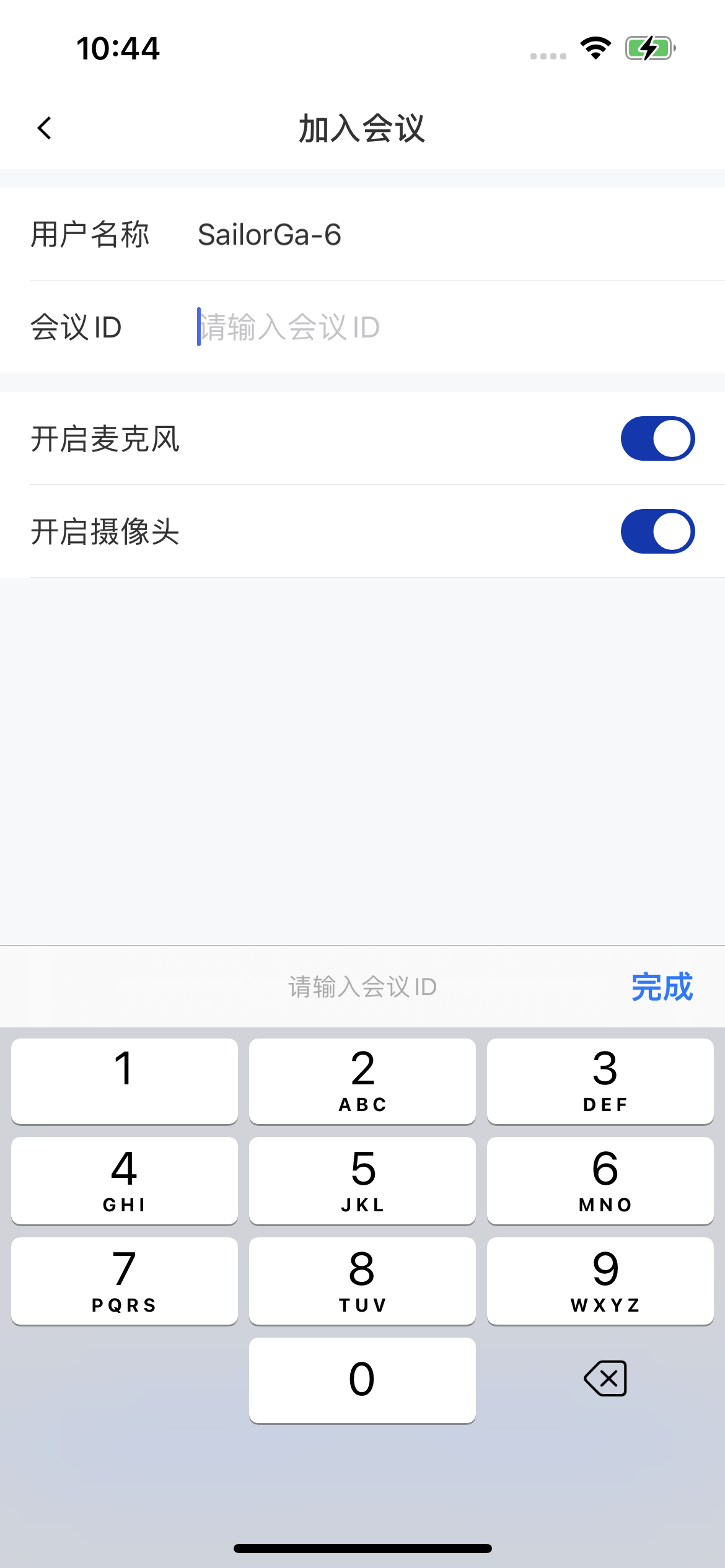
When creating and entering a meeting, you preset the meeting parameters through the before-the-meeting control features of `MeetingKit`.
| **Create a meeting** | **Enter a meeting** |
| - | - |
|
|
| **Before-the-meeting controls** | |
| - | - |
| Create a room | You can configure the room: turn on the microphone/camera, mute all, camera off for everyone, room password, meeting name, meeting type, entry method, and more. |
| Enter a room | You can configure the room: turn on the microphone/camera. |
| **In-meeting controls** | |
| You are the host or a co-host | You can control the room: mute all / camera off for everyone, invite members, assign co-hosts and transfer host, remove members from the room, turn members' camera/microphone on or off, and more. |
#### Before-the-meeting controls
When creating and entering a meeting, you preset the meeting parameters through the before-the-meeting control features of `MeetingKit`.
| **Create a meeting** | **Enter a meeting** |
| - | - |
|  |
|  |
* Create a room as follows to apply before-the-meeting controls:
```objectivec theme={null}
/// Build meeting parameters
SEAMeetingParam *meetingParam = [[SEAMeetingParam alloc] init];
/// Replace with your custom room number; if not set, the system assigns one automatically
meetingParam.roomNo = @"Your room no";
/// Meeting title
meetingParam.title = @"Your title";
/// Meeting password; replace with your custom password
meetingParam.password = @"Your password";
/// Meeting type
meetingParam.meetingType = SEAMeetingTypeInitiate;
/// Meeting mode
meetingParam.meetingMode = SEAMeetingModeNormal;
/// Mute state when entering
meetingParam.entryMutePolicy = SEAMeetingMuteState3;
/// Invited members; replace with the IDs of the members you want to invite
meetingParam.conferee = @[@"target id"];
/// Create the room
[[MeetingKit sharedInstance] createRoom:meetingParam onSuccess:nil onFailed:nil];
```
* Enter a room and set the entry parameters as follows to apply before-the-meeting controls:
```objectivec theme={null}
/// Create the room entry object
FWMeetingEnterModel *enterModel = [[FWMeetingEnterModel alloc] init];
enterModel.roomNo = @"Your room no";
enterModel.nickname = @"User name";
enterModel.audioState = YES;
enterModel.videoState = YES;
enterModel.avatar = @"User avatar";
/// Enter the room screen
[self push:@"FWRoomViewController" info:enterModel block:nil];
```
#### In-meeting controls
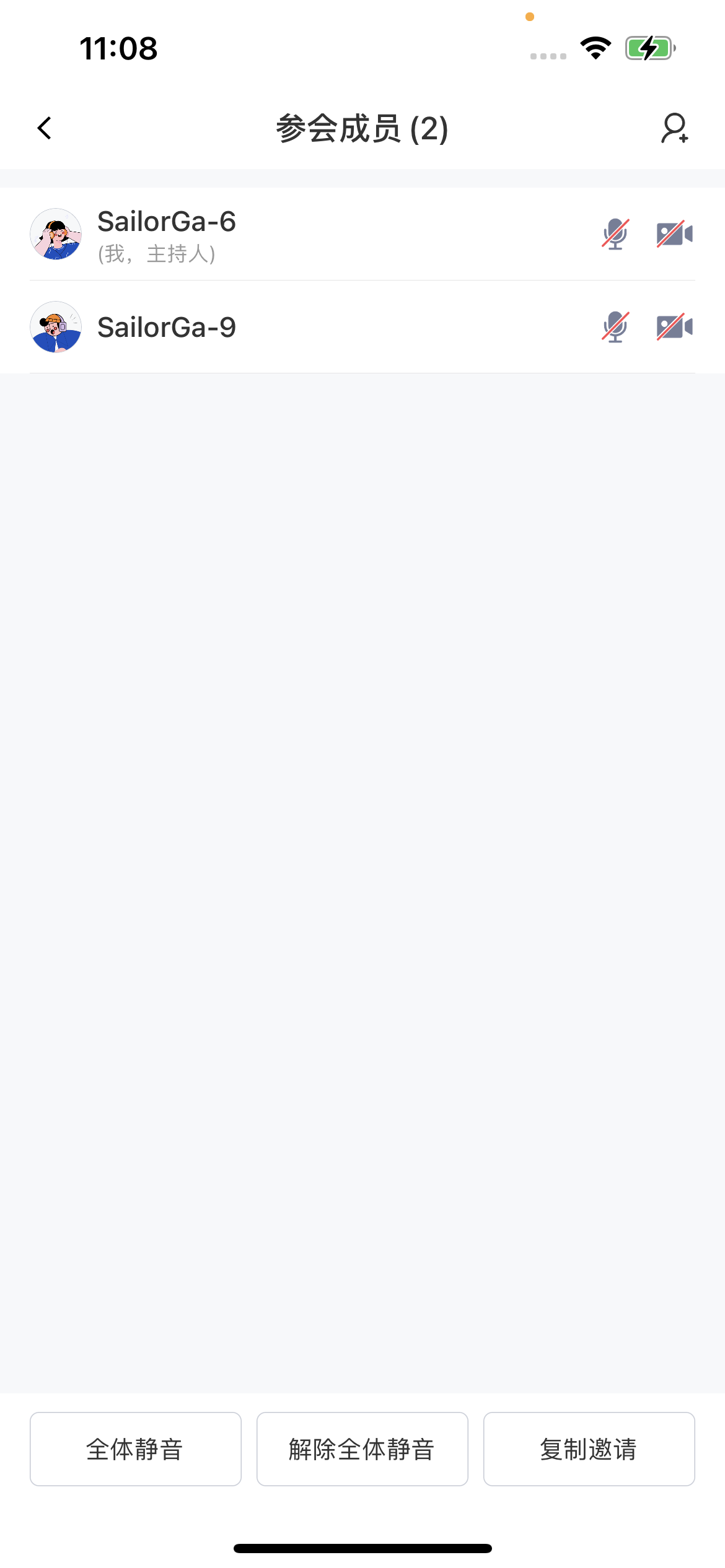
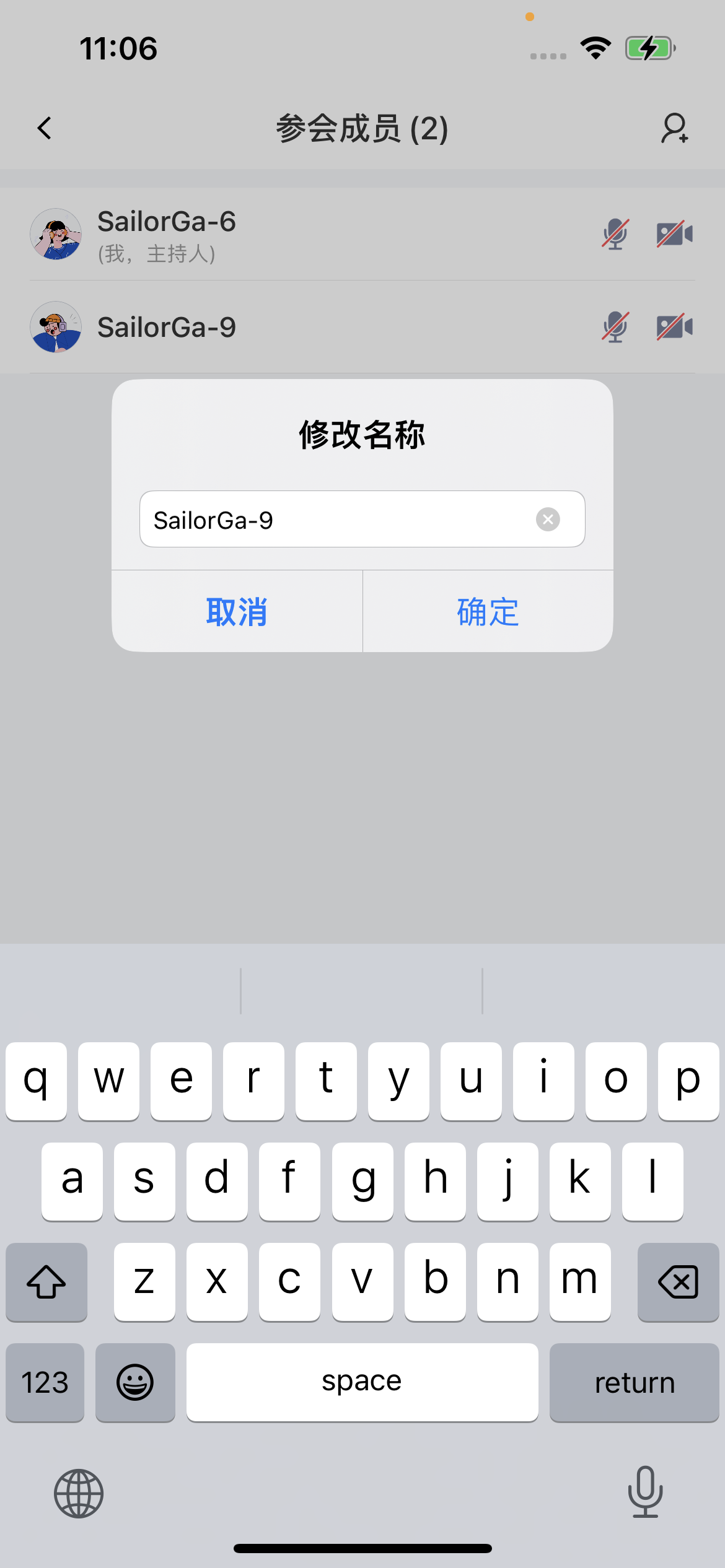
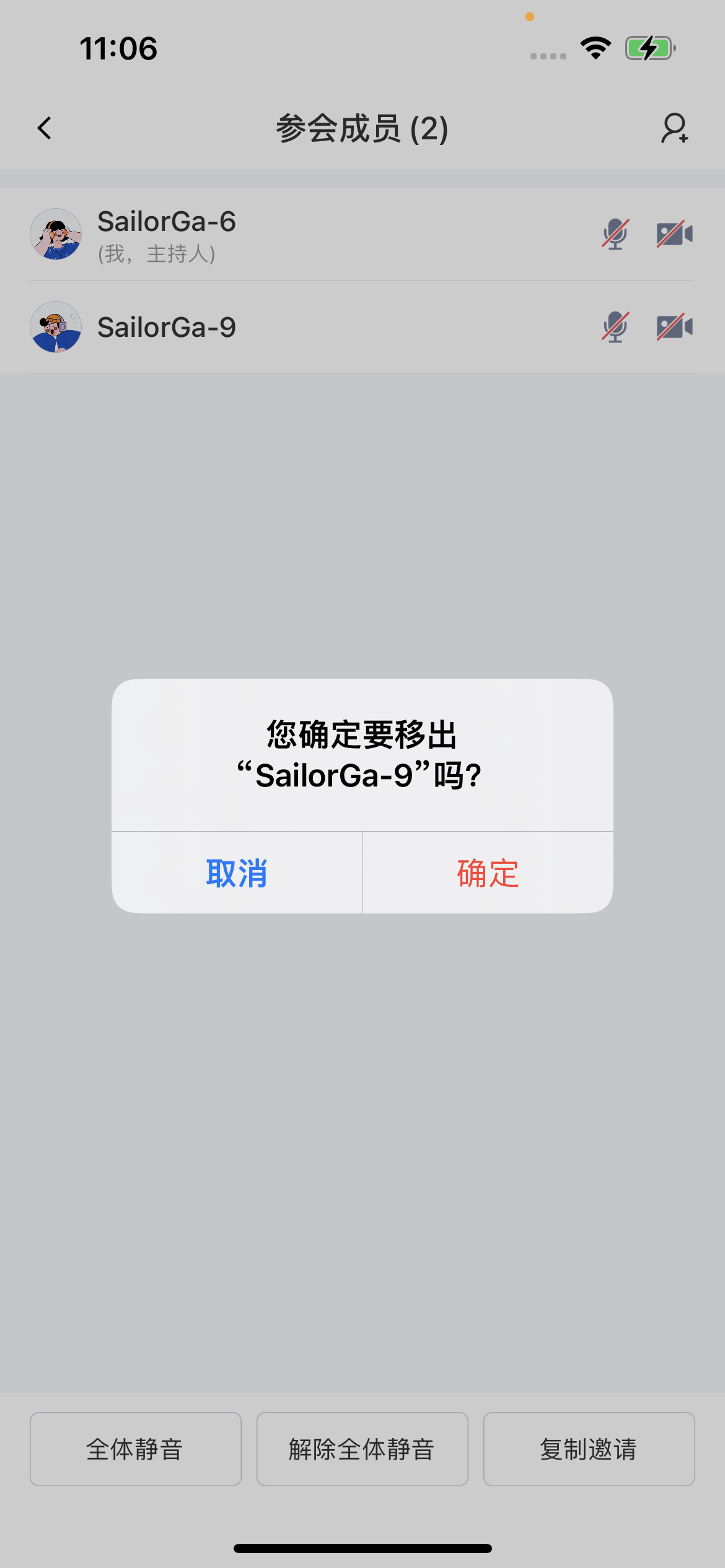
The host or a co-host can manage all members in the meeting under **参会成员** (*Members*) -> **成员列表** (*Member list*).
* The host or a co-host can select any member and control them individually: unmute/mute, turn video on/off, disable/enable chat, rename, remove from the room, and more.
| **Member management** | **Rename** | **Remove from meeting** |
| - | - | - |
|
|
* Create a room as follows to apply before-the-meeting controls:
```objectivec theme={null}
/// Build meeting parameters
SEAMeetingParam *meetingParam = [[SEAMeetingParam alloc] init];
/// Replace with your custom room number; if not set, the system assigns one automatically
meetingParam.roomNo = @"Your room no";
/// Meeting title
meetingParam.title = @"Your title";
/// Meeting password; replace with your custom password
meetingParam.password = @"Your password";
/// Meeting type
meetingParam.meetingType = SEAMeetingTypeInitiate;
/// Meeting mode
meetingParam.meetingMode = SEAMeetingModeNormal;
/// Mute state when entering
meetingParam.entryMutePolicy = SEAMeetingMuteState3;
/// Invited members; replace with the IDs of the members you want to invite
meetingParam.conferee = @[@"target id"];
/// Create the room
[[MeetingKit sharedInstance] createRoom:meetingParam onSuccess:nil onFailed:nil];
```
* Enter a room and set the entry parameters as follows to apply before-the-meeting controls:
```objectivec theme={null}
/// Create the room entry object
FWMeetingEnterModel *enterModel = [[FWMeetingEnterModel alloc] init];
enterModel.roomNo = @"Your room no";
enterModel.nickname = @"User name";
enterModel.audioState = YES;
enterModel.videoState = YES;
enterModel.avatar = @"User avatar";
/// Enter the room screen
[self push:@"FWRoomViewController" info:enterModel block:nil];
```
#### In-meeting controls
The host or a co-host can manage all members in the meeting under **参会成员** (*Members*) -> **成员列表** (*Member list*).
* The host or a co-host can select any member and control them individually: unmute/mute, turn video on/off, disable/enable chat, rename, remove from the room, and more.
| **Member management** | **Rename** | **Remove from meeting** |
| - | - | - |
|  |
|  |
|  |
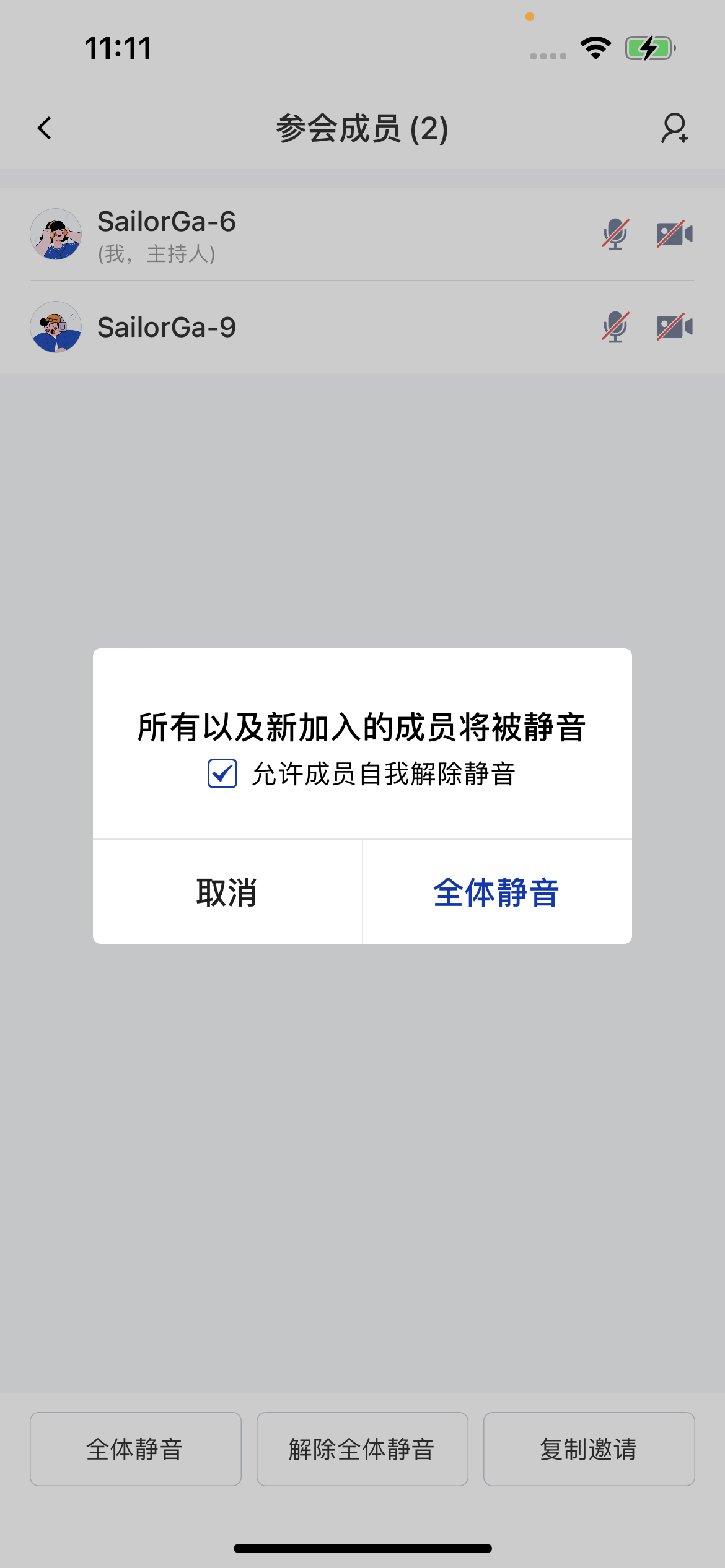
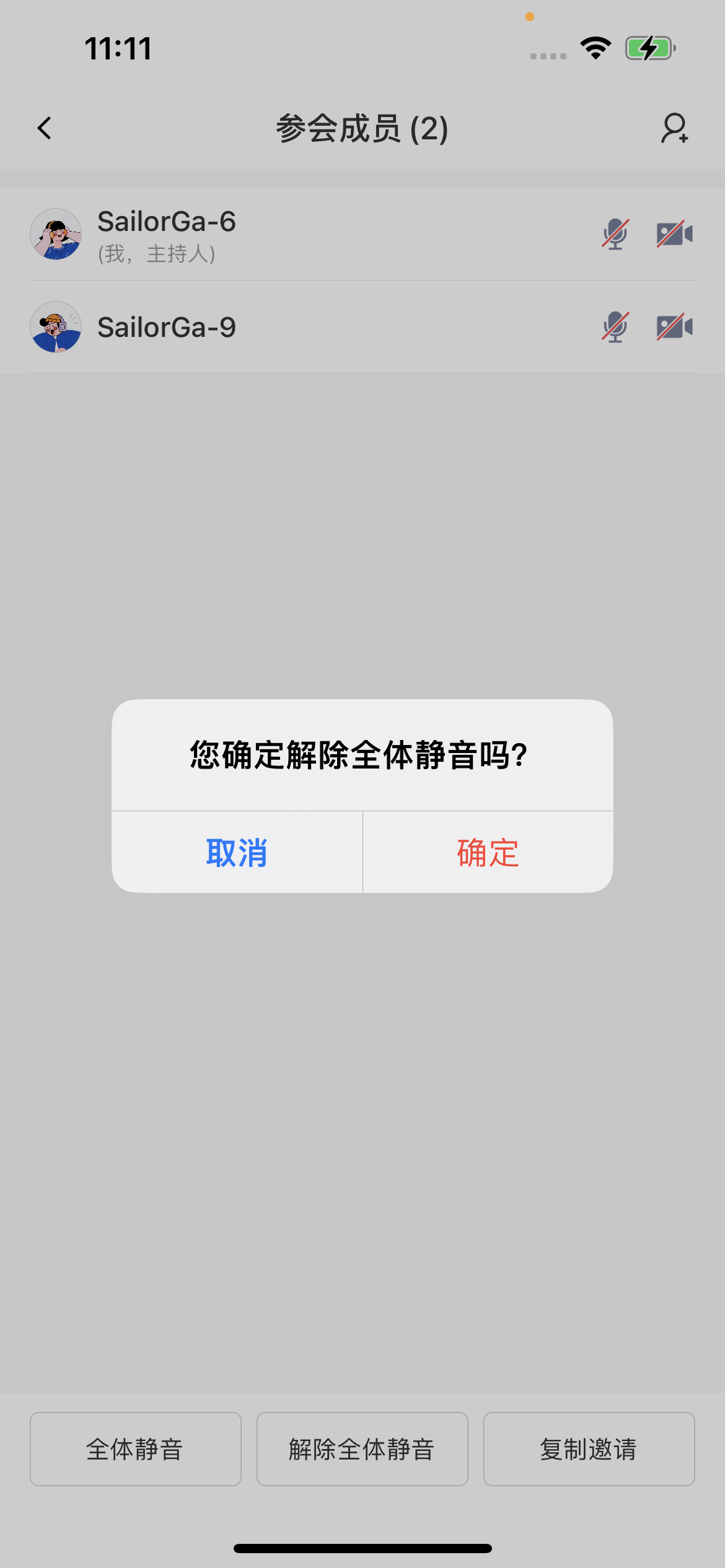
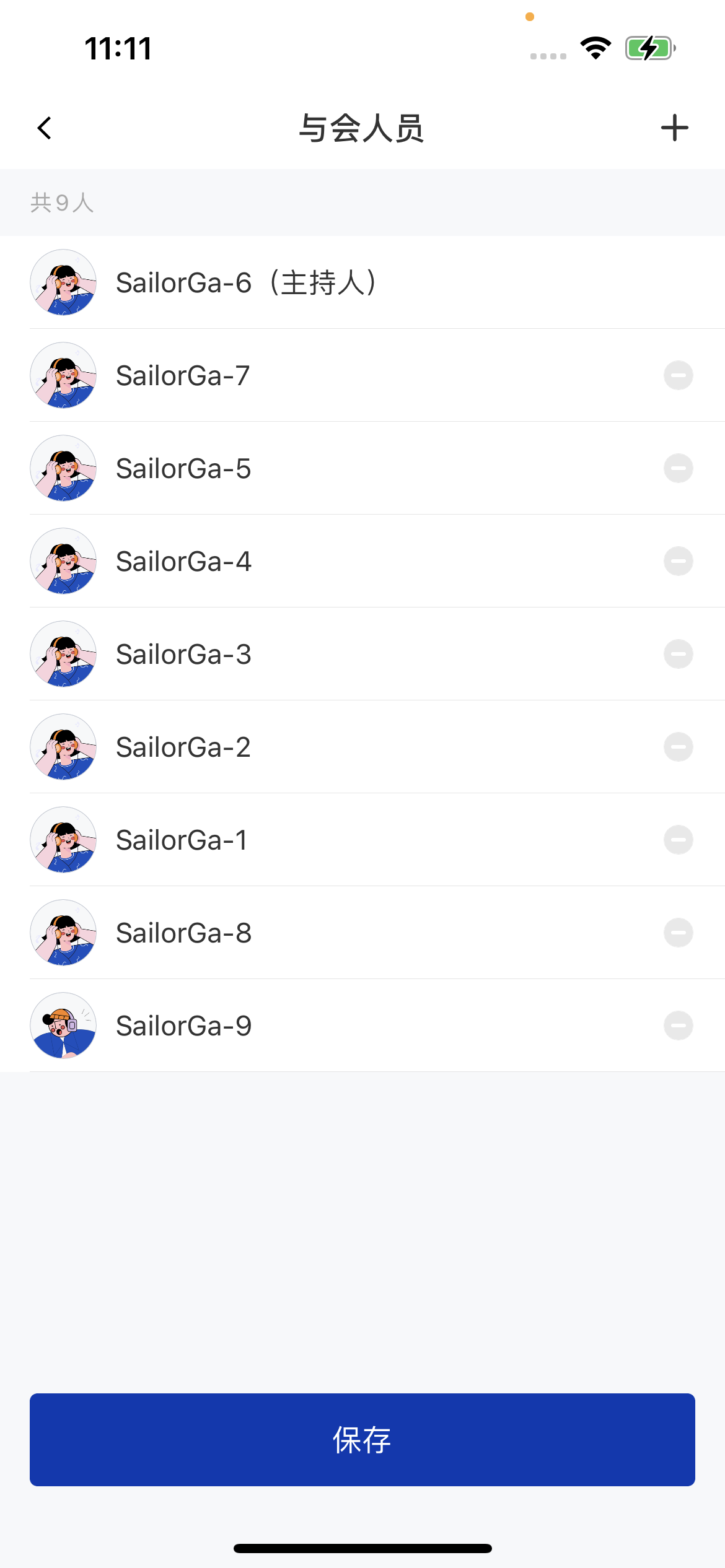
* The host or a co-host can control all members in the room at once: mute all / unmute all, camera off for everyone / lift camera off for everyone, invite members, and more.
| **Mute all** | **Unmute all** | **Invite members** |
| - | - | - |
|
|
* The host or a co-host can control all members in the room at once: mute all / unmute all, camera off for everyone / lift camera off for everyone, invite members, and more.
| **Mute all** | **Unmute all** | **Invite members** |
| - | - | - |
|  |
|  |
|  |
## Screen sharing
### Overview
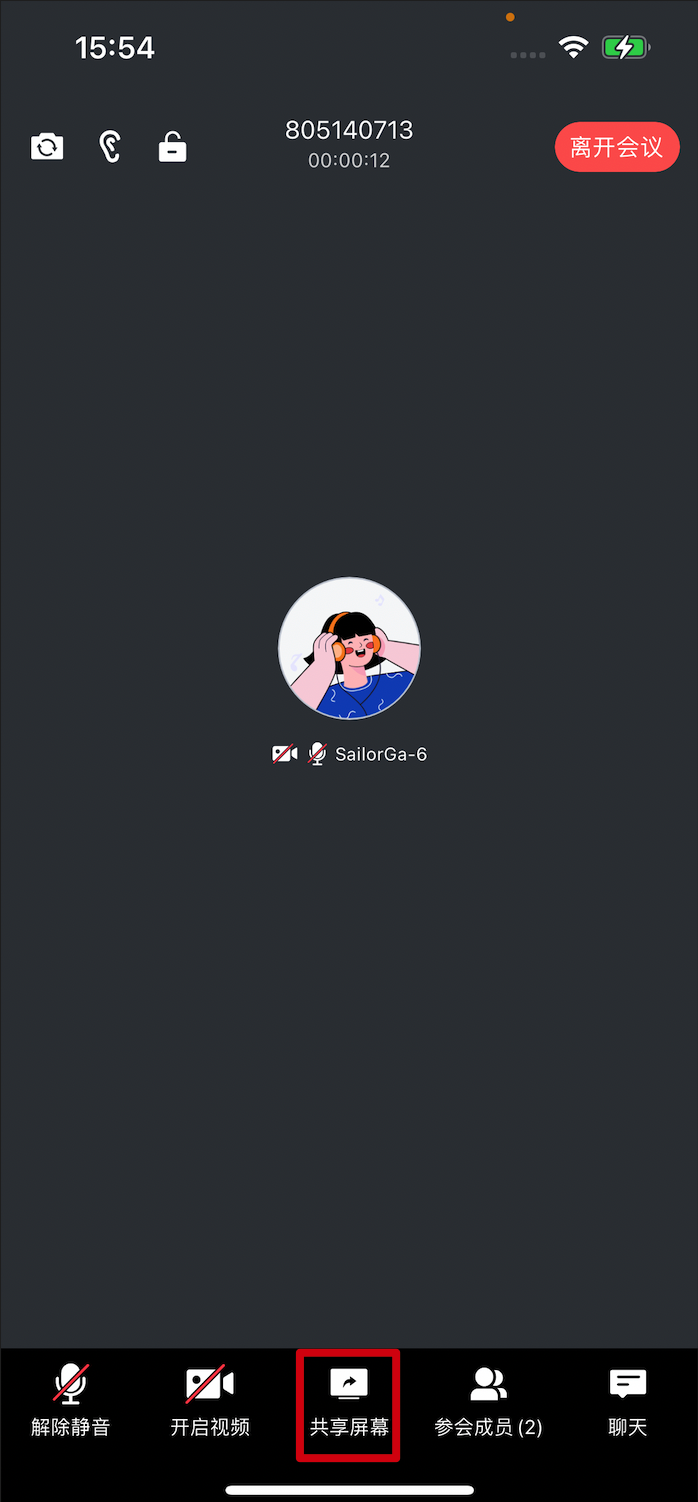
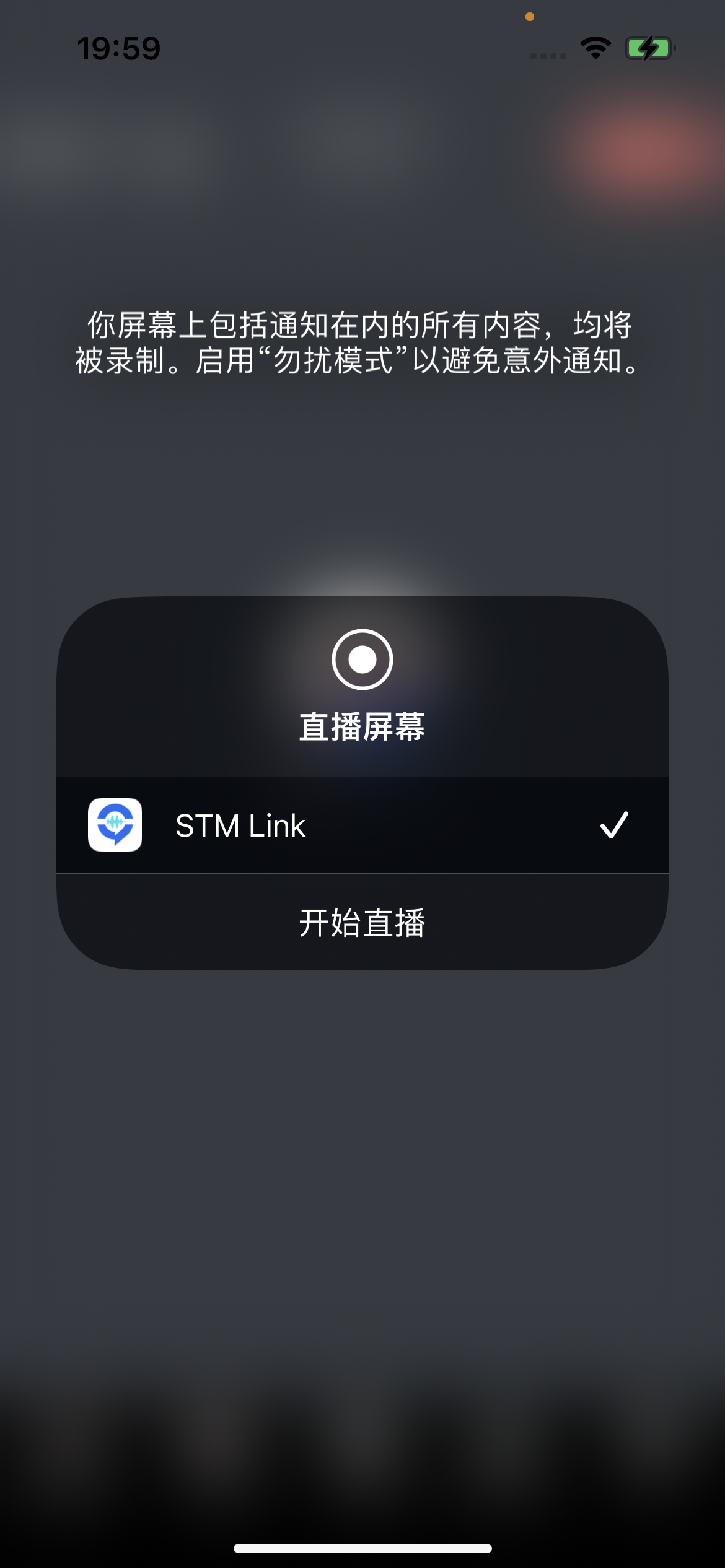
After entering a room, users can share their screen by tapping the share button in the bottom toolbar.
| **Screen sharing** | **Start screen capture** |
| :-: | :-: |
|
|
## Screen sharing
### Overview
After entering a room, users can share their screen by tapping the share button in the bottom toolbar.
| **Screen sharing** | **Start screen capture** |
| :-: | :-: |
|  |
|  |
### Integration
Cross-app screen sharing on iOS requires iOS 12 or later and a **Broadcast Upload Extension** screen recording process that works with the host app process to publish the stream. The system creates the extension's recording process when screen recording is needed, and it receives the screen images captured by the system. So you need to:
1. Create an **App Group** and configure it in Xcode (required). This lets the extension's recording process communicate with the host app process across processes;
2. In your project, create a new **Broadcast Upload Extension** target and integrate the **`MeetingKit.framework`** customized for extension modules in the SDK;
3. Implement the receiving logic on the host app side, so that the host app waits for the screen recording data from the **Broadcast Upload Extension**.
#### 1. Create an App Group
Log in to [https://developer.apple.com/](https://developer.apple.com/) with your developer account and do the following. Note that you need to download the corresponding **Provisioning Profile** again afterward.
1. Click **Identifiers**
2. Click the plus button on the right
3. Select **App Groups** and click **Continue**
4. Fill in **Description** and **Identifier** in the form. The **Identifier** is what you pass as the corresponding **AppGroup** parameter of the API. Then click **Continue**
|
### Integration
Cross-app screen sharing on iOS requires iOS 12 or later and a **Broadcast Upload Extension** screen recording process that works with the host app process to publish the stream. The system creates the extension's recording process when screen recording is needed, and it receives the screen images captured by the system. So you need to:
1. Create an **App Group** and configure it in Xcode (required). This lets the extension's recording process communicate with the host app process across processes;
2. In your project, create a new **Broadcast Upload Extension** target and integrate the **`MeetingKit.framework`** customized for extension modules in the SDK;
3. Implement the receiving logic on the host app side, so that the host app waits for the screen recording data from the **Broadcast Upload Extension**.
#### 1. Create an App Group
Log in to [https://developer.apple.com/](https://developer.apple.com/) with your developer account and do the following. Note that you need to download the corresponding **Provisioning Profile** again afterward.
1. Click **Identifiers**
2. Click the plus button on the right
3. Select **App Groups** and click **Continue**
4. Fill in **Description** and **Identifier** in the form. The **Identifier** is what you pass as the corresponding **AppGroup** parameter of the API. Then click **Continue**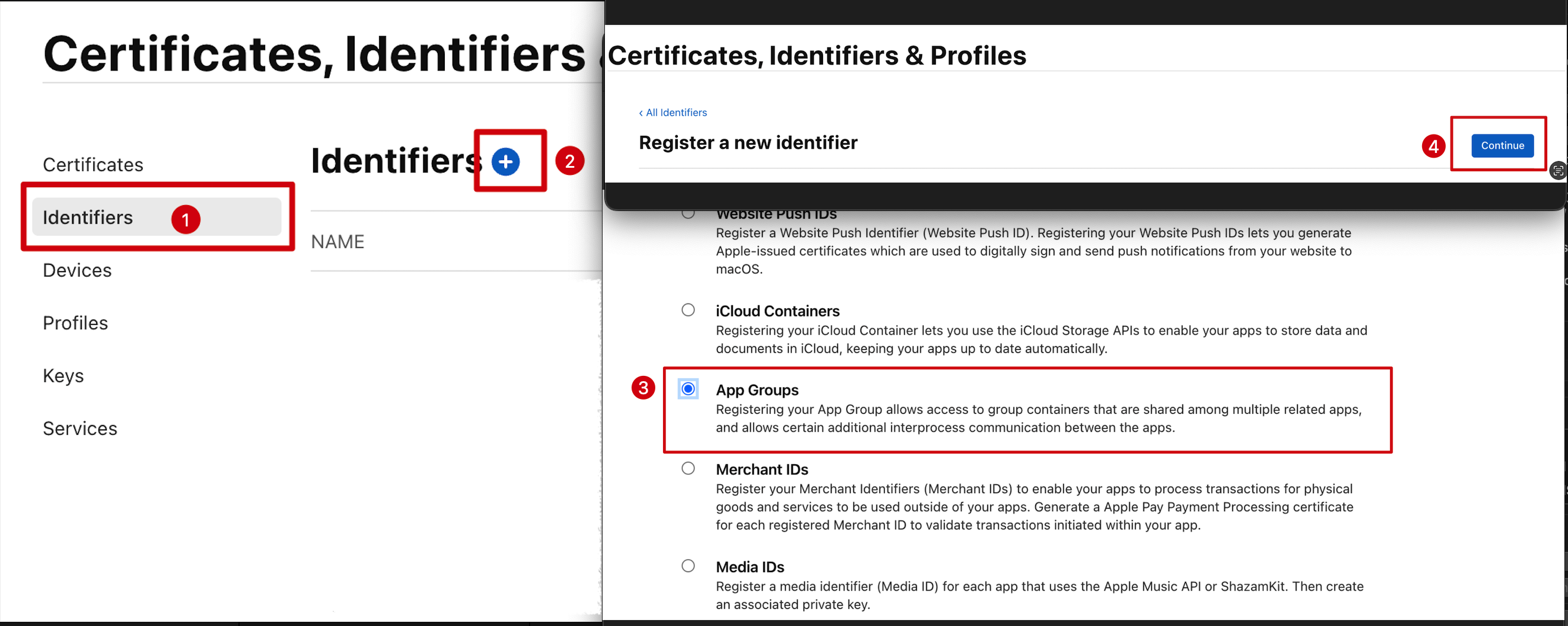
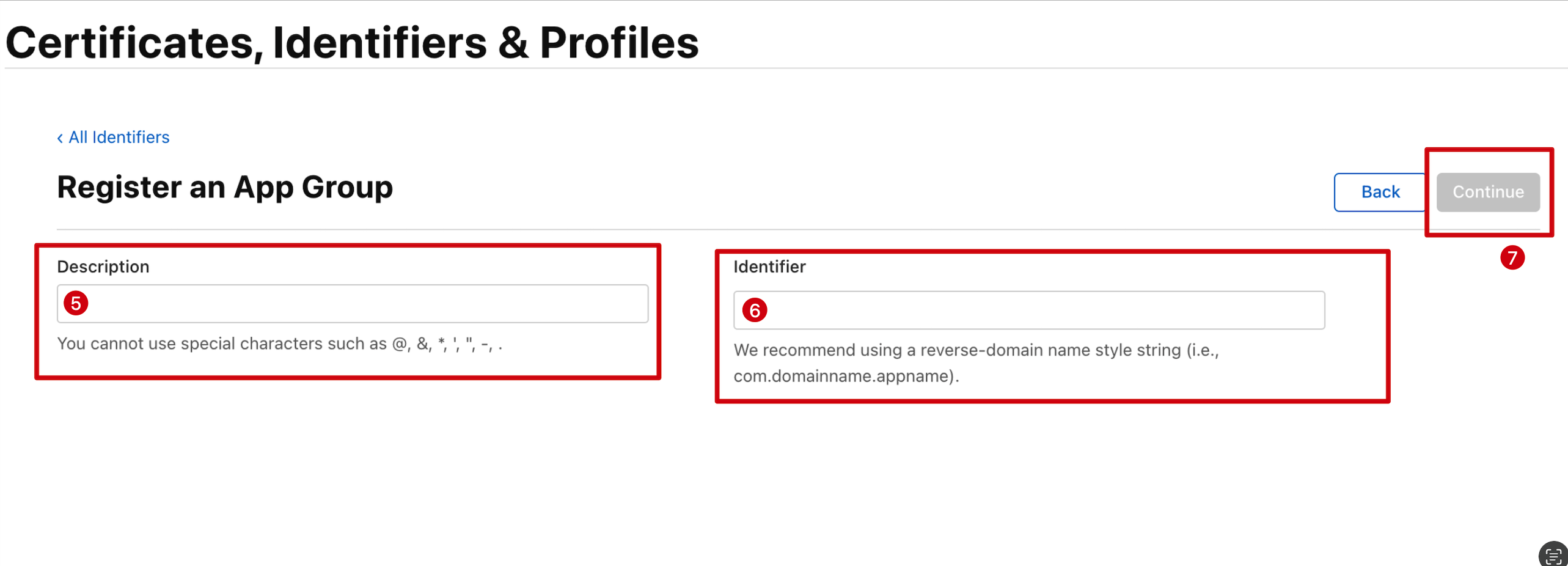 5. Back on the **Identifier** page, select **App IDs** from the menu in the upper right, then click your **App ID** (the host **App** and the **Extension** **AppID** need the same configuration)
6. Select **App Groups** and click **Edit**
7. In the form, select the **App Group** you created earlier, click **Continue** to return to the edit page, and click **Save**
5. Back on the **Identifier** page, select **App IDs** from the menu in the upper right, then click your **App ID** (the host **App** and the **Extension** **AppID** need the same configuration)
6. Select **App Groups** and click **Edit**
7. In the form, select the **App Group** you created earlier, click **Continue** to return to the edit page, and click **Save**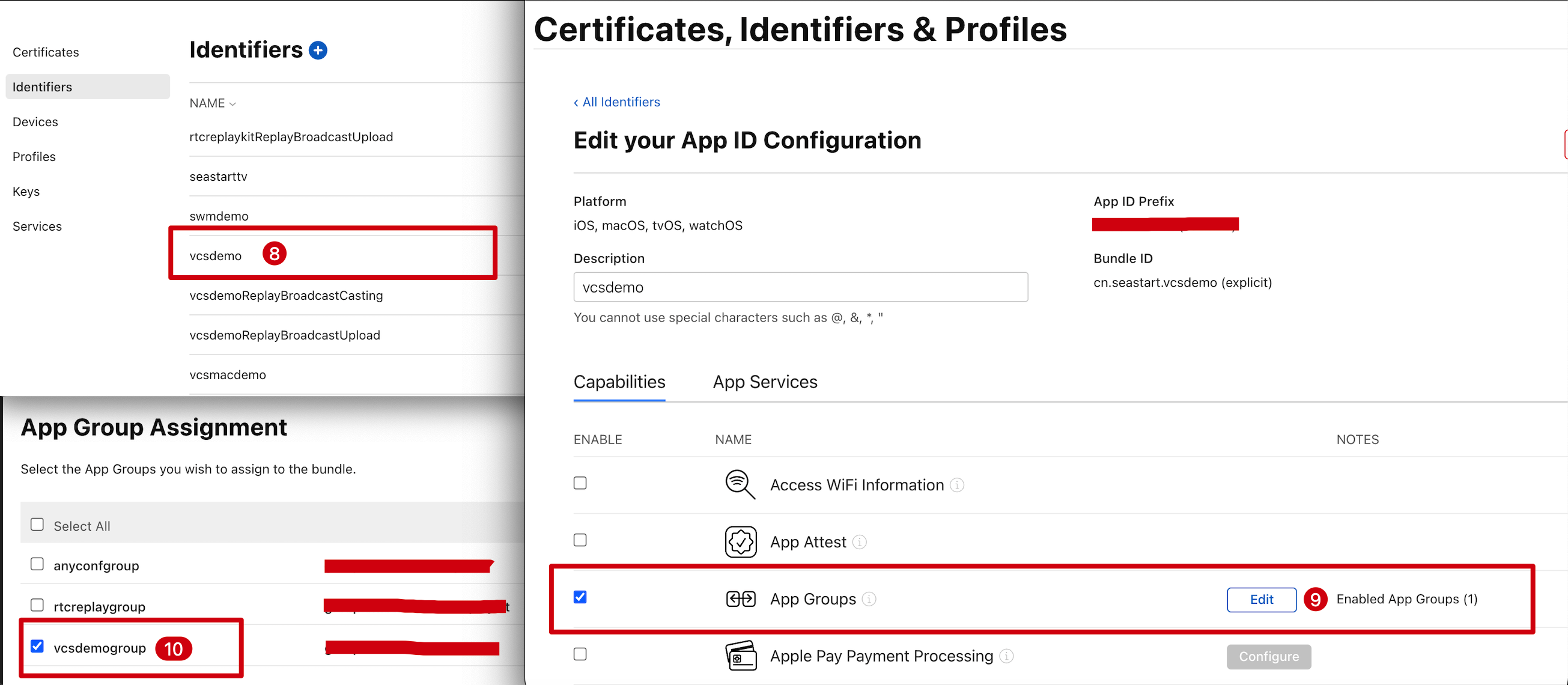 8. Download the **Provisioning Profile** again and configure it in **Xcode**
#### 2. Create a Broadcast Upload Extension
In your existing project, choose \[New] -> \[Target…] and select \[Broadcast Upload Extension], as shown:
8. Download the **Provisioning Profile** again and configure it in **Xcode**
#### 2. Create a Broadcast Upload Extension
In your existing project, choose \[New] -> \[Target…] and select \[Broadcast Upload Extension], as shown:
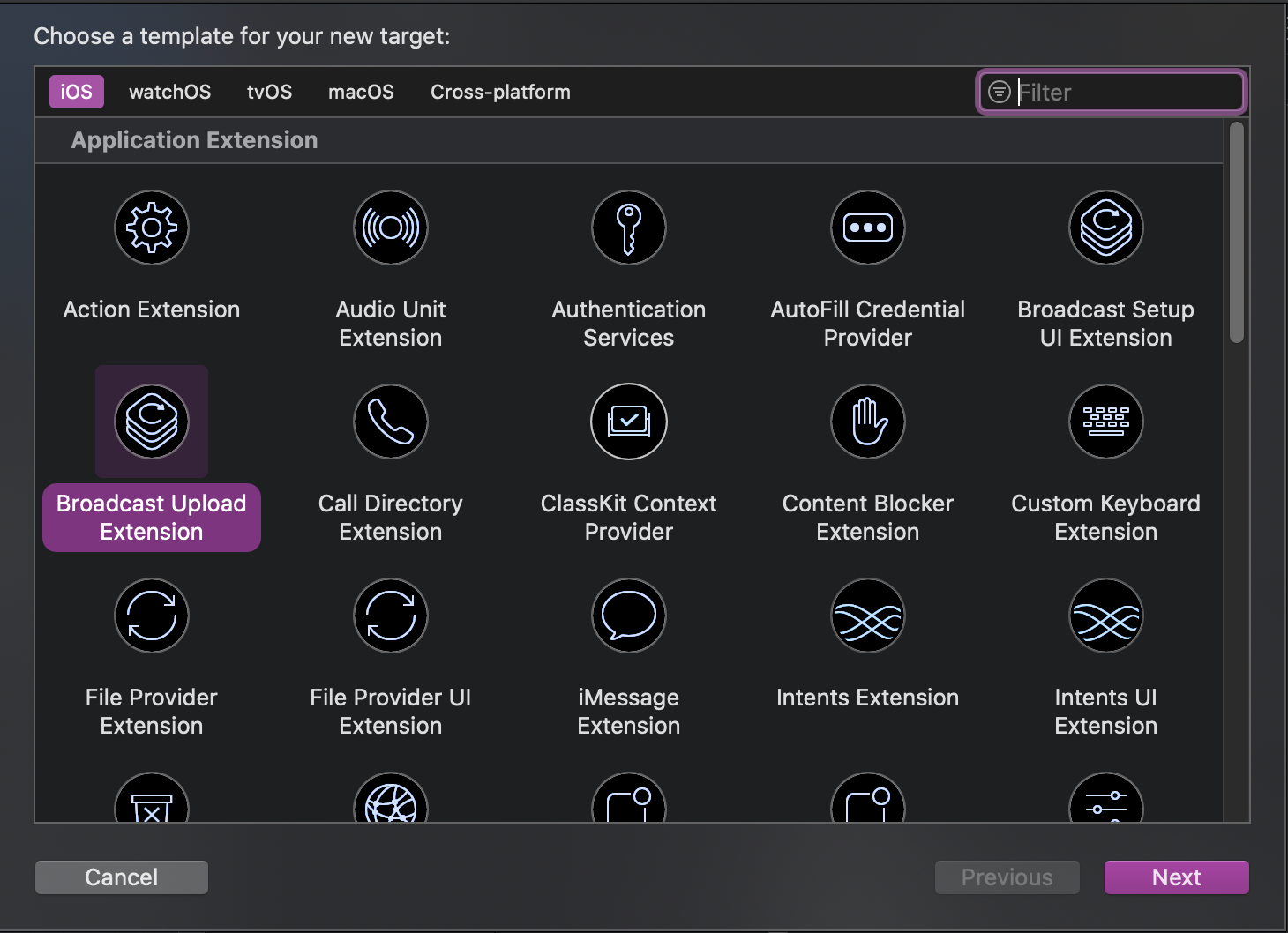 Set the Product Name. After you click \[Finish], the project has a new directory named after the Product Name you entered, containing a system-generated `SampleHandler` class that handles screen recording.
#### 3. Add the SDK dependency to the extension
1. For manual integration, import **`MeetingKit.framework`** into the project directory of the Product Name above and configure the required system libraries;
2. For automatic integration, update the `Podfile` and run `pod install`, as shown:
Set the Product Name. After you click \[Finish], the project has a new directory named after the Product Name you entered, containing a system-generated `SampleHandler` class that handles screen recording.
#### 3. Add the SDK dependency to the extension
1. For manual integration, import **`MeetingKit.framework`** into the project directory of the Product Name above and configure the required system libraries;
2. For automatic integration, update the `Podfile` and run `pod install`, as shown:
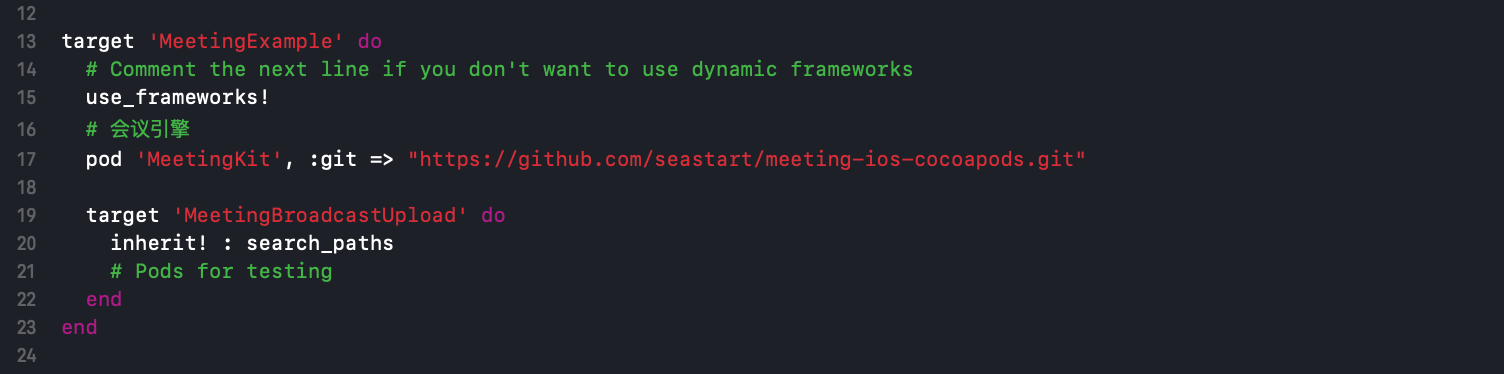 #### 4. Add background permissions to the host project
In the host project, go to \[TARGETS] -> \[Signing & Capabilities] -> \[Capability] and select \[Background Modes], as shown:
#### 4. Add background permissions to the host project
In the host project, go to \[TARGETS] -> \[Signing & Capabilities] -> \[Capability] and select \[Background Modes], as shown:
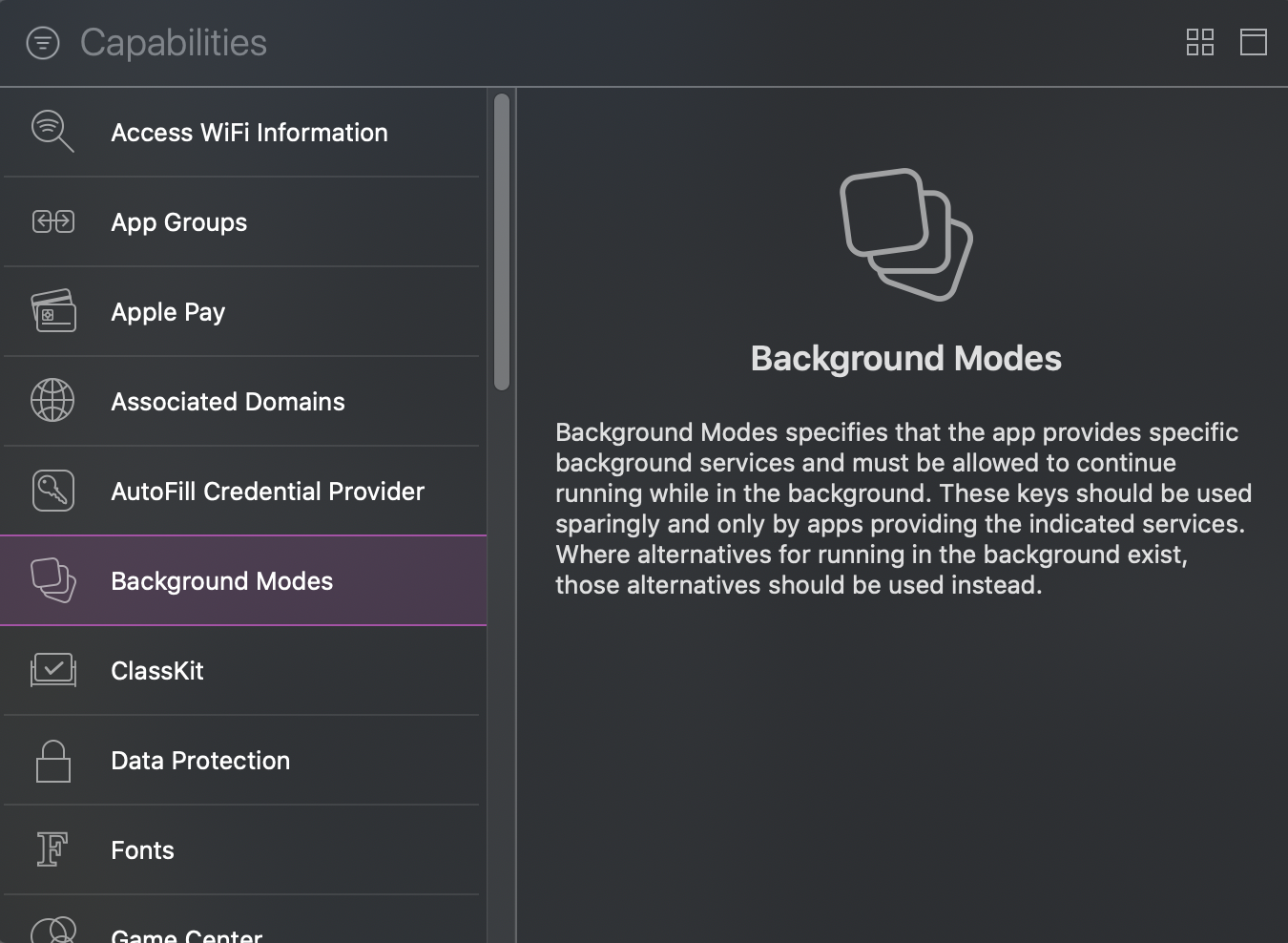 Double-click to add it, then check \[Audio, AirPlay, and Picture in Picture], as shown:
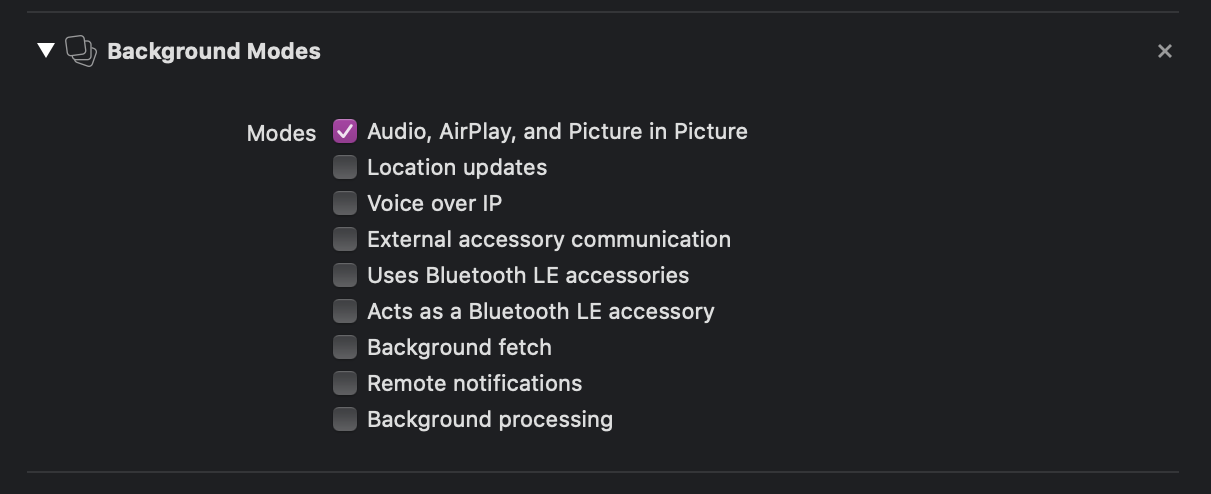 #### 5. Add the App Group to the extension project
Select the new target, click + Capability, and double-click App Groups, as shown:
#### 5. Add the App Group to the extension project
Select the new target, click + Capability, and double-click App Groups, as shown:
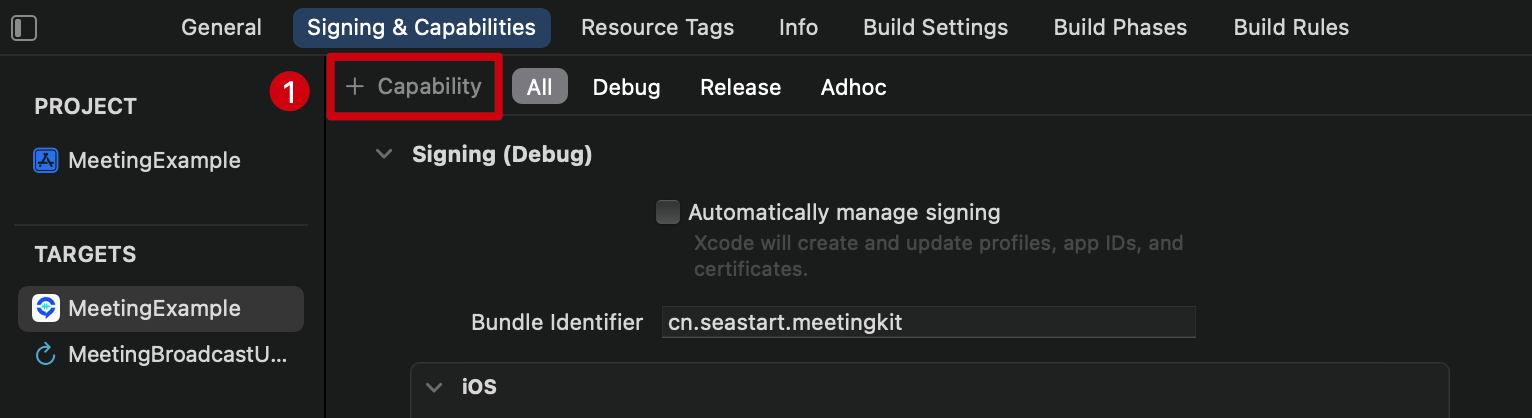
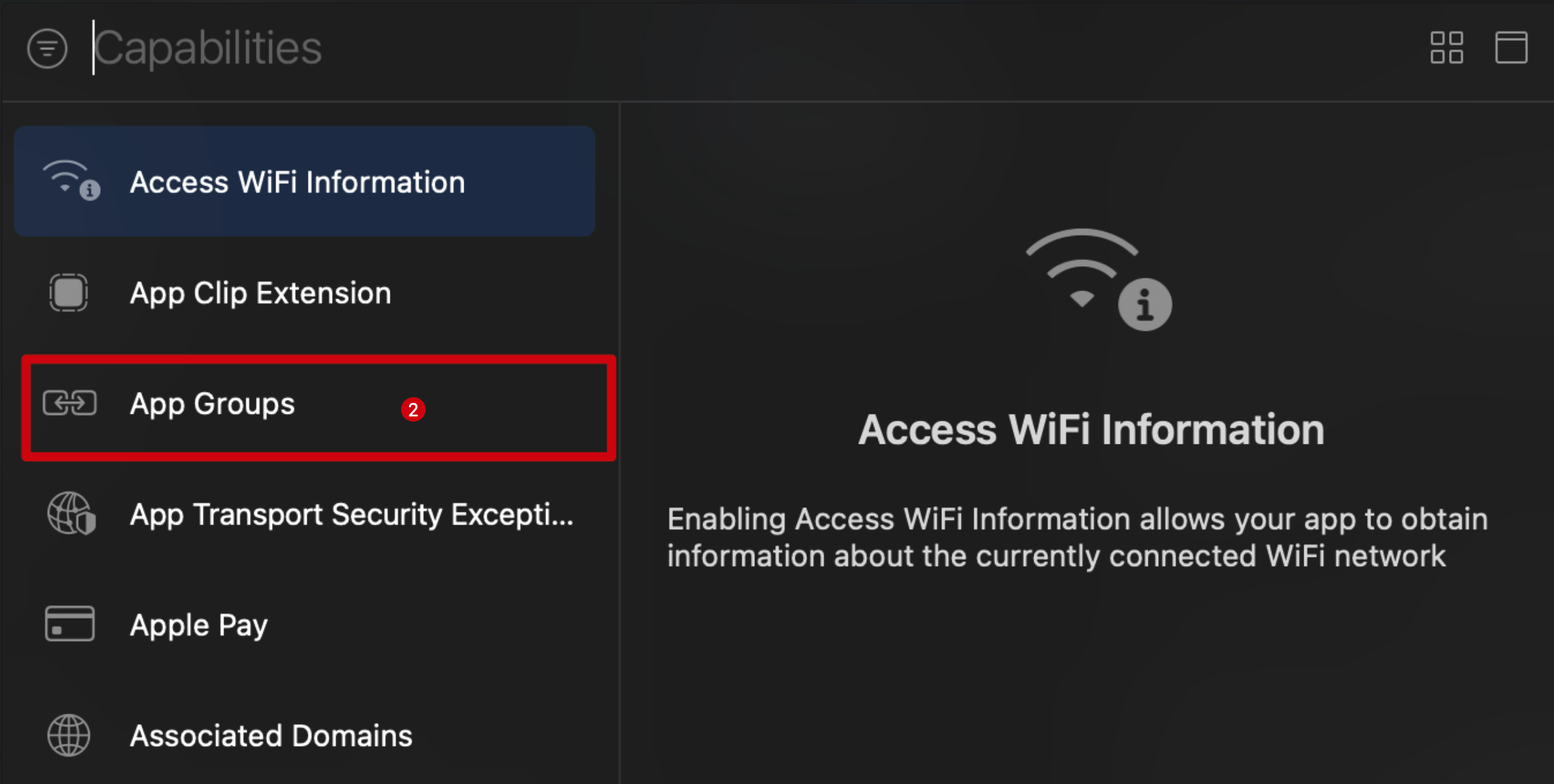 When done, a file named `.entitlements` appears in the file list, as shown below. Select it, click +, and enter the App Group from the steps above.
 In the new target, Xcode automatically creates a file named `SampleHandler.h`. Replace it with the following code, changing `kAppGroup` to the App Group Identifier you created above.
```objectivec theme={null}
#import "SampleHandler.h"
/// Application Group Identifier
#define kAppGroup @"Application Group Identifier"
@interface SampleHandler()
@end
@implementation SampleHandler
#pragma mark - Broadcast started
- (void)broadcastStartedWithSetupInfo:(NSDictionary *)setupInfo {
/// User has requested to start the broadcast. Setup info from the UI extension can be supplied but optional.
[[MeetingKit sharedInstance] broadcastStartedWithAppGroup:kAppGroup delegate:self];
}
#pragma mark - Broadcast paused
- (void)broadcastPaused {
/// User has requested to pause the broadcast. Samples will stop being delivered.
}
#pragma mark - Broadcast resumed
- (void)broadcastResumed {
/// User has requested to resume the broadcast. Samples delivery will resume.
}
#pragma mark - Broadcast finished
- (void)broadcastFinished {
/// User has requested to finish the broadcast.
}
#pragma mark - Media data (audio and video)
/// Media data (audio and video)
/// - Parameters:
/// - sampleBuffer: video or audio frame
/// - sampleBufferType: media type
- (void)processSampleBuffer:(CMSampleBufferRef)sampleBuffer withType:(RPSampleBufferType)sampleBufferType {
/// Send media data (audio and video)
[[MeetingKit sharedInstance] sendSampleBuffer:sampleBuffer withType:sampleBufferType];
}
#pragma mark - ----- MeetingKitScreenDelegate methods -----
#pragma mark Screen recording finished callback
/// Screen recording finished callback
/// @param engine callback instance
/// @param reason reason for finishing
- (void)broadcastFinished:(MeetingKit *)engine reason:(NSString *)reason {
/// Description
NSString *describe = @"Screen recording has ended";
/// Build the error
NSError *error = [NSError errorWithDomain:NSStringFromClass(self.class) code:0 userInfo:@{NSLocalizedFailureReasonErrorKey : describe}];
/// Finish screen recording
[self finishBroadcastWithError:error];
}
```
### Integration steps
1\. Where you need the recording service, import `#import ` and create an `RPSystemBroadcastPickerView` object, as shown:
In the new target, Xcode automatically creates a file named `SampleHandler.h`. Replace it with the following code, changing `kAppGroup` to the App Group Identifier you created above.
```objectivec theme={null}
#import "SampleHandler.h"
/// Application Group Identifier
#define kAppGroup @"Application Group Identifier"
@interface SampleHandler()
@end
@implementation SampleHandler
#pragma mark - Broadcast started
- (void)broadcastStartedWithSetupInfo:(NSDictionary *)setupInfo {
/// User has requested to start the broadcast. Setup info from the UI extension can be supplied but optional.
[[MeetingKit sharedInstance] broadcastStartedWithAppGroup:kAppGroup delegate:self];
}
#pragma mark - Broadcast paused
- (void)broadcastPaused {
/// User has requested to pause the broadcast. Samples will stop being delivered.
}
#pragma mark - Broadcast resumed
- (void)broadcastResumed {
/// User has requested to resume the broadcast. Samples delivery will resume.
}
#pragma mark - Broadcast finished
- (void)broadcastFinished {
/// User has requested to finish the broadcast.
}
#pragma mark - Media data (audio and video)
/// Media data (audio and video)
/// - Parameters:
/// - sampleBuffer: video or audio frame
/// - sampleBufferType: media type
- (void)processSampleBuffer:(CMSampleBufferRef)sampleBuffer withType:(RPSampleBufferType)sampleBufferType {
/// Send media data (audio and video)
[[MeetingKit sharedInstance] sendSampleBuffer:sampleBuffer withType:sampleBufferType];
}
#pragma mark - ----- MeetingKitScreenDelegate methods -----
#pragma mark Screen recording finished callback
/// Screen recording finished callback
/// @param engine callback instance
/// @param reason reason for finishing
- (void)broadcastFinished:(MeetingKit *)engine reason:(NSString *)reason {
/// Description
NSString *describe = @"Screen recording has ended";
/// Build the error
NSError *error = [NSError errorWithDomain:NSStringFromClass(self.class) code:0 userInfo:@{NSLocalizedFailureReasonErrorKey : describe}];
/// Finish screen recording
[self finishBroadcastWithError:error];
}
```
### Integration steps
1\. Where you need the recording service, import `#import ` and create an `RPSystemBroadcastPickerView` object, as shown:
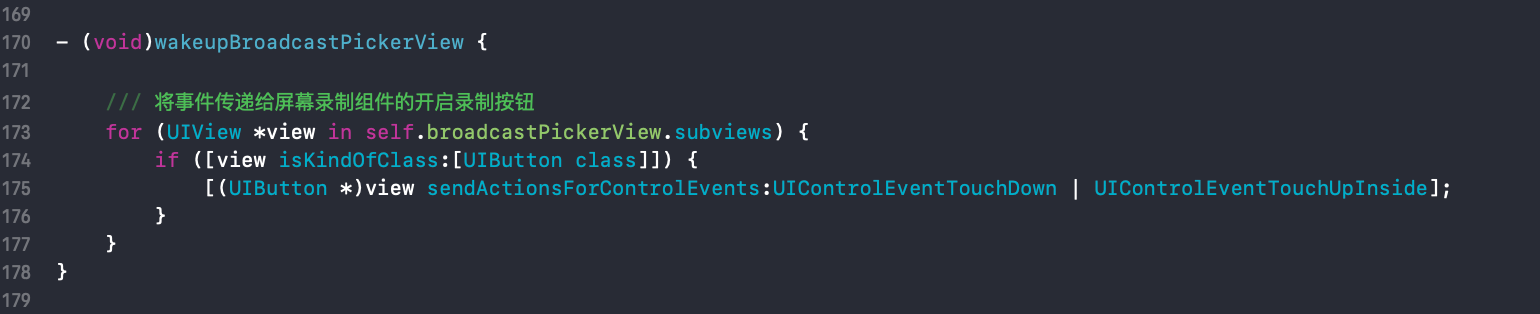
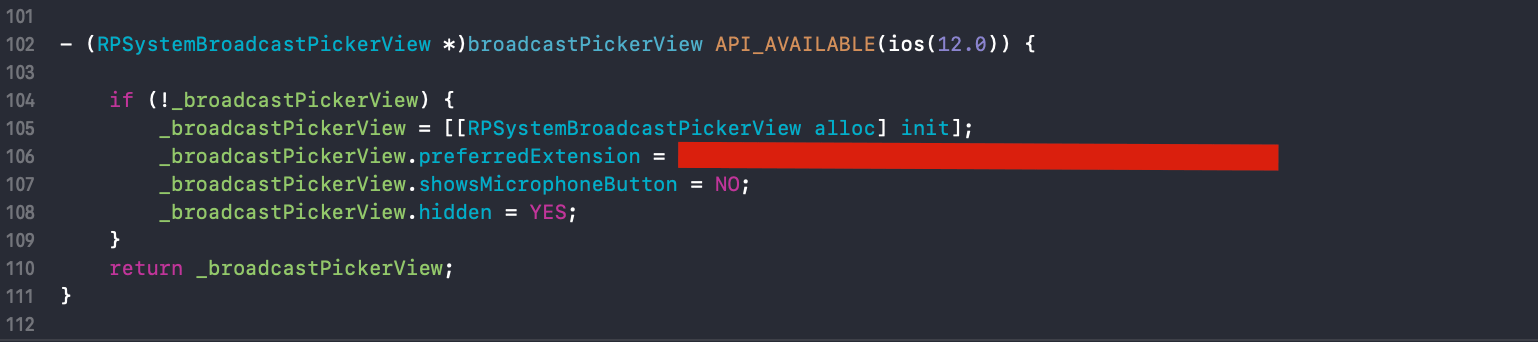 2\. To implement your business details, replace the `RPSystemBroadcastPickerView` button as follows. If the following page appears after the `broadcastButton` event, the extension is integrated successfully:
 3\. In the host project, after initializing `MeetingKit`, implement the screen sharing status callback:
```objectivec theme={null}
/// Screen capture status callback
/// @param status status code
- (void)onScreenRecordStatus:(SEAScreenRecordStatus)status {
SGLOG(@"Screen sharing status notification, status = %ld", status);
switch (status) {
case SEAScreenRecordStatusError:
/// Screen capture connection error
break;
case SEAScreenRecordStatusStop:
/// Screen capture has stopped
break;
case SEAScreenRecordStatusStart:
/// Screen capture has started
break;
default:
break;
}
}
```
4\. Implement the `RTCScreenDelegate` delegate in the screen extension's `SampleHandler`:
```objectivec theme={null}
@interface SampleHandler : NSObject
/// Add any of the following callbacks here as needed.
```
```objectivec theme={null}
/// Screen recording finished callback
/// @param engine callback instance
/// @param reason reason for finishing
- (void)broadcastFinished:(MeetingKit *)engine reason:(NSString *)reason {
/// Description
NSString *describe = @"Screen recording has ended";
/// Build the error
NSError *error = [NSError errorWithDomain:NSStringFromClass(self.class) code:0 userInfo:@{NSLocalizedFailureReasonErrorKey : describe}];
/// Finish screen recording
[self finishBroadcastWithError:error];
}
```
5\. Implement starting screen recording in the screen extension's `SampleHandler`:
```objectivec theme={null}
- (void)broadcastStartedWithSetupInfo:(NSDictionary *)setupInfo {
/// User has requested to start the broadcast. Setup info from the UI extension can be supplied but optional.
[[MeetingKit sharedInstance] broadcastStartedWithAppGroup:@"Application Group Identifier" delegate:self];
}
```
6\. Implement sending shared screen frames in the screen extension's `SampleHandler`:
```objectivec theme={null}
- (void)processSampleBuffer:(CMSampleBufferRef)sampleBuffer withType:(RPSampleBufferType)sampleBufferType {
/// Send media data (audio and video)
[[MeetingKit sharedInstance] sendSampleBuffer:sampleBuffer withType:sampleBufferType];
}
```
## Meeting chat
### Overview
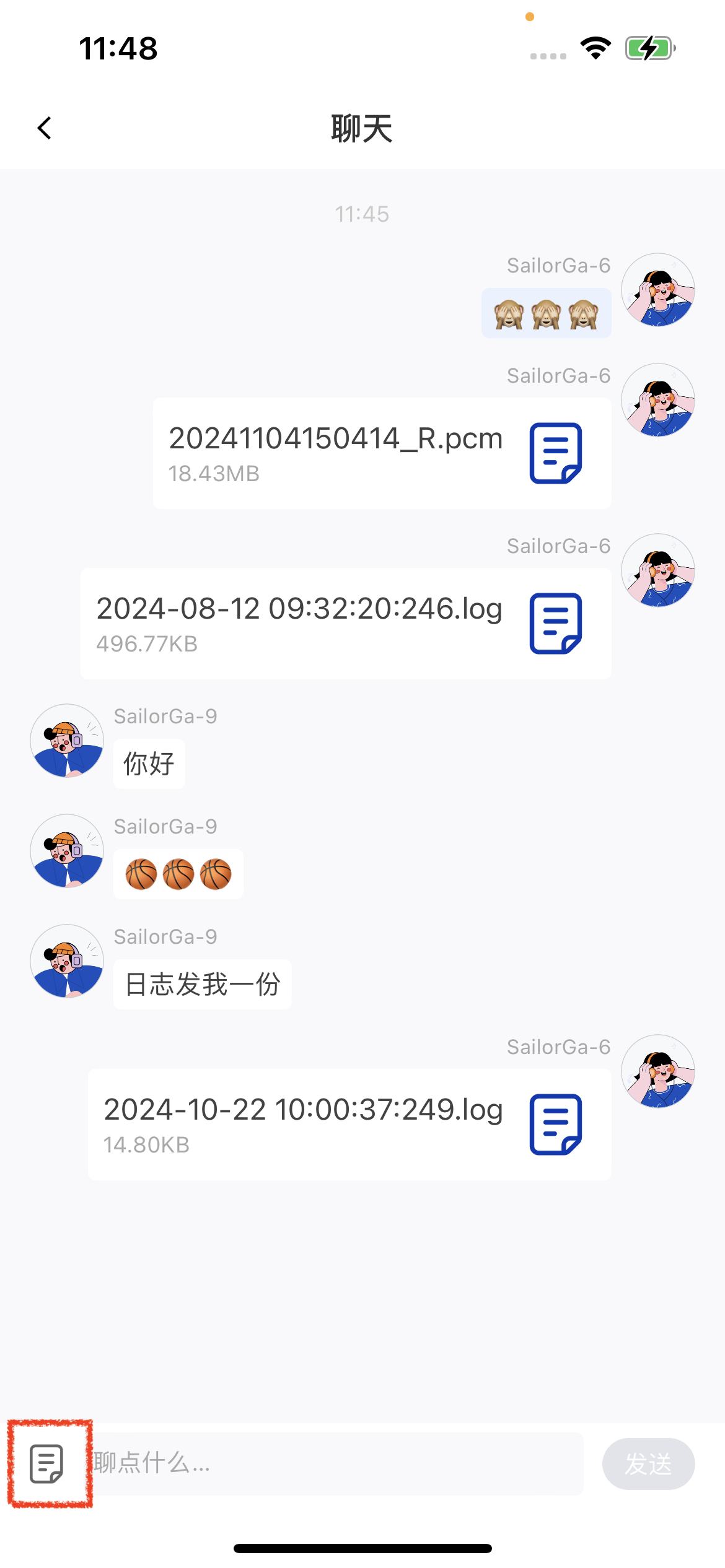
After entering a room, users can send text and emoji messages and transfer and view files under **聊天** (*Chat*) -> **聊天窗口** (*Chat window*).
| **In-meeting screen** | **Chat screen** | **Upload files** |
| - | - | - |
|
3\. In the host project, after initializing `MeetingKit`, implement the screen sharing status callback:
```objectivec theme={null}
/// Screen capture status callback
/// @param status status code
- (void)onScreenRecordStatus:(SEAScreenRecordStatus)status {
SGLOG(@"Screen sharing status notification, status = %ld", status);
switch (status) {
case SEAScreenRecordStatusError:
/// Screen capture connection error
break;
case SEAScreenRecordStatusStop:
/// Screen capture has stopped
break;
case SEAScreenRecordStatusStart:
/// Screen capture has started
break;
default:
break;
}
}
```
4\. Implement the `RTCScreenDelegate` delegate in the screen extension's `SampleHandler`:
```objectivec theme={null}
@interface SampleHandler : NSObject
/// Add any of the following callbacks here as needed.
```
```objectivec theme={null}
/// Screen recording finished callback
/// @param engine callback instance
/// @param reason reason for finishing
- (void)broadcastFinished:(MeetingKit *)engine reason:(NSString *)reason {
/// Description
NSString *describe = @"Screen recording has ended";
/// Build the error
NSError *error = [NSError errorWithDomain:NSStringFromClass(self.class) code:0 userInfo:@{NSLocalizedFailureReasonErrorKey : describe}];
/// Finish screen recording
[self finishBroadcastWithError:error];
}
```
5\. Implement starting screen recording in the screen extension's `SampleHandler`:
```objectivec theme={null}
- (void)broadcastStartedWithSetupInfo:(NSDictionary *)setupInfo {
/// User has requested to start the broadcast. Setup info from the UI extension can be supplied but optional.
[[MeetingKit sharedInstance] broadcastStartedWithAppGroup:@"Application Group Identifier" delegate:self];
}
```
6\. Implement sending shared screen frames in the screen extension's `SampleHandler`:
```objectivec theme={null}
- (void)processSampleBuffer:(CMSampleBufferRef)sampleBuffer withType:(RPSampleBufferType)sampleBufferType {
/// Send media data (audio and video)
[[MeetingKit sharedInstance] sendSampleBuffer:sampleBuffer withType:sampleBufferType];
}
```
## Meeting chat
### Overview
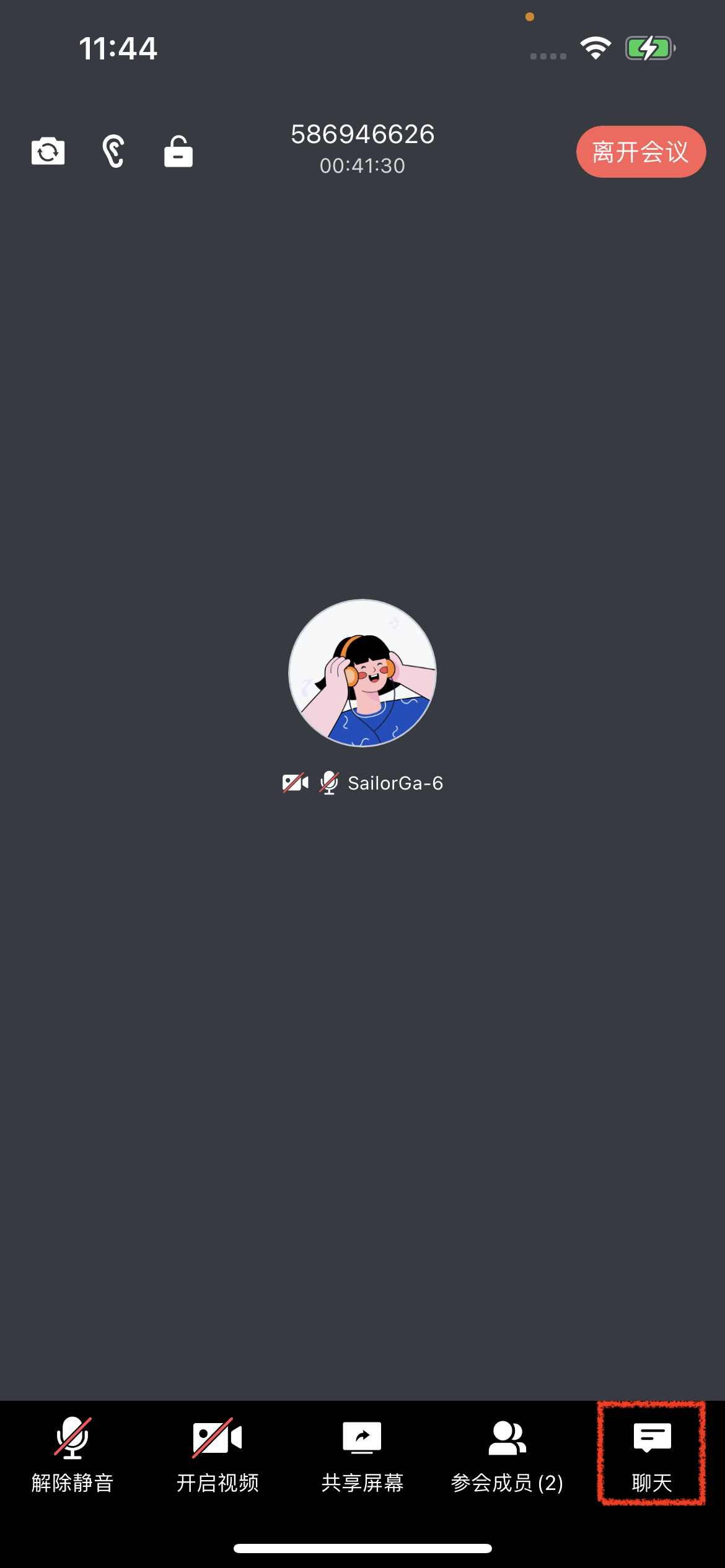
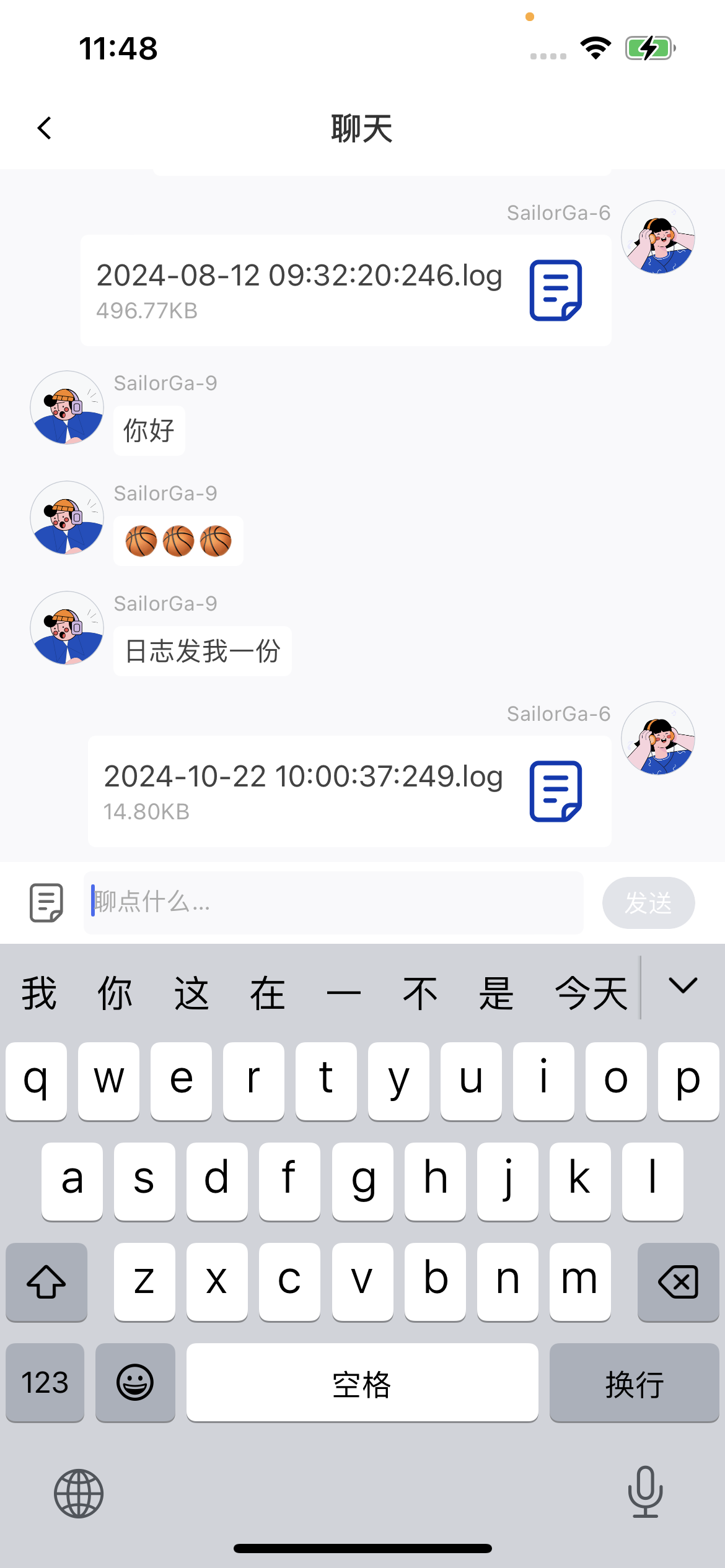
After entering a room, users can send text and emoji messages and transfer and view files under **聊天** (*Chat*) -> **聊天窗口** (*Chat window*).
| **In-meeting screen** | **Chat screen** | **Upload files** |
| - | - | - |
|  |
|  |
|  |
### Customization
If the current UI doesn't meet your needs, you can modify the source code to get the UI you want. For reference:
```objectivec theme={null}
You can modify the source code under the MeetingExample/Classes/Room/View/Message directory to get the UI you want.
Message
└── FWRoomMessageViewController.h // Chat screen controller
└── FWRoomMessageTableSectionHeaderView.h // Chat screen section header
└── FWRoomMessageMineTableViewCell.h // Own text chat message cell
└── FWRoomMessageMineFileTableViewCell.h // Own file chat message cell
└── FWRoomMessageTableViewCell.h // Member text chat message cell
└── FWRoomMessageFileTableViewCell.h // Member file chat message cell
```
|
### Customization
If the current UI doesn't meet your needs, you can modify the source code to get the UI you want. For reference:
```objectivec theme={null}
You can modify the source code under the MeetingExample/Classes/Room/View/Message directory to get the UI you want.
Message
└── FWRoomMessageViewController.h // Chat screen controller
└── FWRoomMessageTableSectionHeaderView.h // Chat screen section header
└── FWRoomMessageMineTableViewCell.h // Own text chat message cell
└── FWRoomMessageMineFileTableViewCell.h // Own file chat message cell
└── FWRoomMessageTableViewCell.h // Member text chat message cell
└── FWRoomMessageFileTableViewCell.h // Member file chat message cell
```