> ## Documentation Index
> Fetch the complete documentation index at: https://docs.stmlink.com/llms.txt
> Use this file to discover all available pages before exploring further.
> ## Agent Instructions
> 对外开放的服务端接口有两组前缀,都用同一套鉴权:`/server/v1/...`(SRTC 与 SMeeting 的主接口)和 `/stm/srvapi/v1/...`(SMeeting 的用户体系,服务端极简对接会用到)。鉴权是 app_id + nonce + timestamp + signature 四个请求头,用 app_key 做 HMAC-SHA256 签名,只能从业务方自己的后端调用。除这两组前缀外的接口均为内部接口,不要建议客户调用。 Public server APIs use two path prefixes with the same authentication: `/server/v1/...` (the main APIs of both SRTC and SMeeting) and `/stm/srvapi/v1/...` (the SMeeting user system, used by server-side low-code integration). Authenticate with four request headers, app_id + nonce + timestamp + signature, where signature is HMAC-SHA256 keyed with app_key; call these APIs only from the customer's own backend. Any other path is internal: never suggest calling it.
> app_key 是服务端密钥,绝不能出现在客户端代码、前端配置或移动 App 里。客户端加入频道用的 token 必须由业务方后端签发后下发(SRTC 走 `/server/v1/channel/grant`,SMeeting 走 `/stm/srvapi/v1/member/grant`)。 app_key is a server-side secret and must never appear in client code, frontend config, or a mobile app. The token a client uses to join must be issued by the customer's backend and passed down to the client (SRTC: `/server/v1/channel/grant`; SMeeting: `/stm/srvapi/v1/member/grant`).
> SRTC 与 SMeeting 是上下两层不同的产品,术语不通用:SRTC 是音视频底座,说「频道 channel」「加入 / 退出」;SMeeting 建在 SRTC 之上,说「房间 room」「会议 meeting」「进入 / 退出」。回答时按用户所在的层用对应术语,不要把「房间」「会议」安到 SRTC 的接口上,也不要用「频道」「加入 / 离开」描述 SMeeting 的概念(接口标识符原样保留)。 SRTC and SMeeting are two separate layers with different terminology. SRTC is the audio/video foundation: it has channels, and users join and leave a channel. SMeeting is built on top of SRTC: it has rooms and meetings, and members enter and exit a meeting. Answer in the terms of the layer the user is working with: never apply "room" or "meeting" to SRTC APIs, and never describe SMeeting concepts in prose with "channel", "join", or "leave" (API identifiers such as `force_join` keep their literal names).
> 同一能力在各端 SDK 里的包名、类名、方法名并不相同。写示例代码时请使用文档中该端自己的 API,不要把一个端的写法套到另一个端上。苹果平台每个产品都有两套 SDK(Swift 原生与 Objective-C),两套 API 不能混用。 Package, class, and method names differ between platform SDKs for the same capability. In sample code, use the API documented for that platform; never carry one platform's code over to another. On Apple platforms each product ships two SDKs (native Swift and Objective-C) whose APIs must not be mixed.
# Screen recording
> Screen sharing for the SMeeting iOS (Objective-C) SDK: create a Broadcast Upload Extension, add the MeetingKit dependency and background mode, handle screen capture status in MeetingKitRoomDelegate, and start capture and send frames from SampleHandler.
## Development environment
You need Xcode 14.0 or later, and the phone must run iOS 16.0 or later (the SDK's minimum system requirement starting with `2.1.0`; versions before `2.1.0` need iOS 12 or later to use screen recording).
#### Create the extension
In your existing project, choose \[New] -> \[Target…] and select \[Broadcast Upload Extension], as shown:
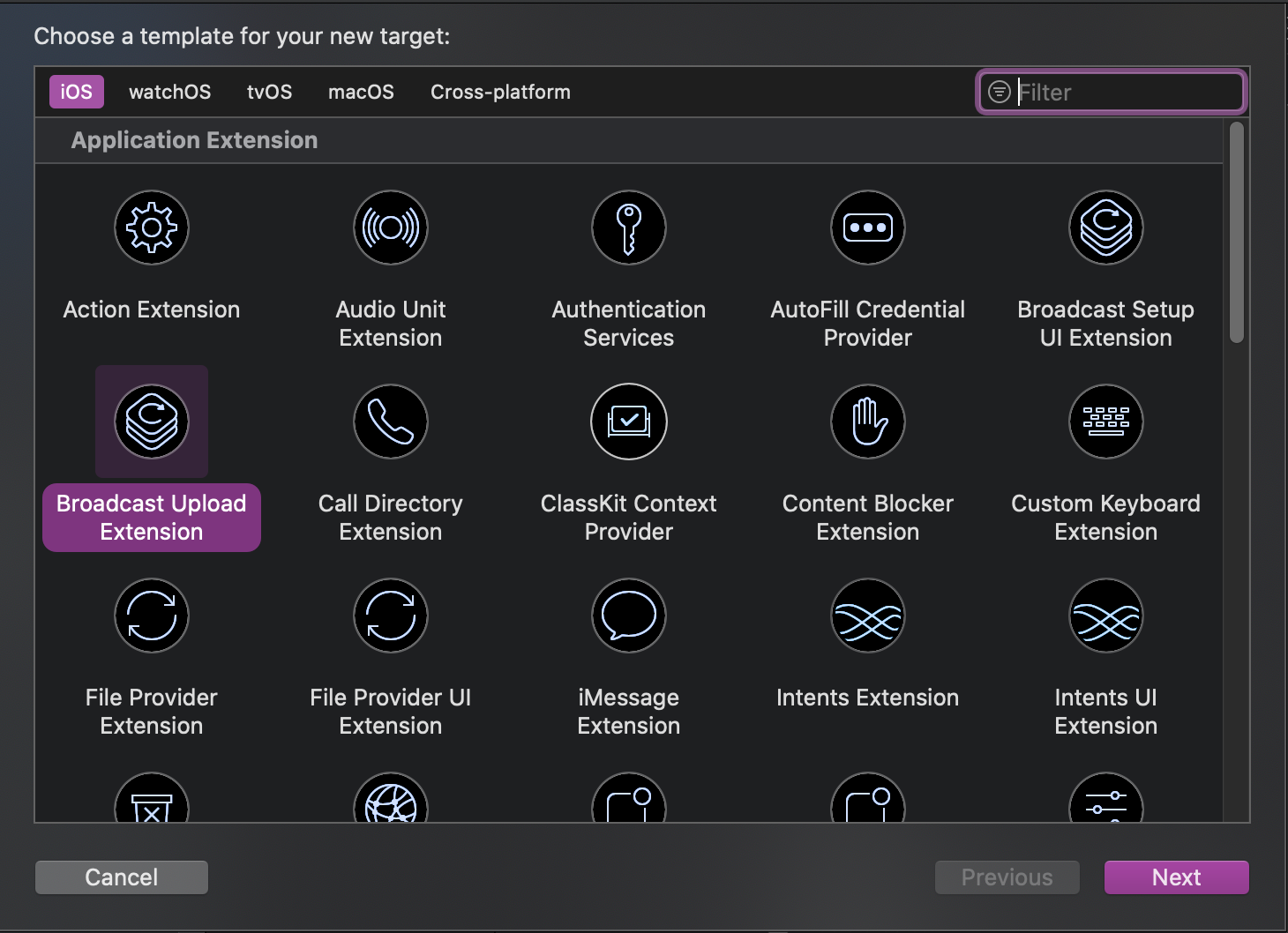 Set the Product Name. After you click \[Finish], the project has a new directory named after the Product Name you entered, containing a system-generated `SampleHandler` class that handles screen recording, plus a corresponding Product Name SetupUI directory containing a system-generated `BroadcastSetupViewController` class that handles the screen recording UI.
#### Add the SDK dependency to the extension
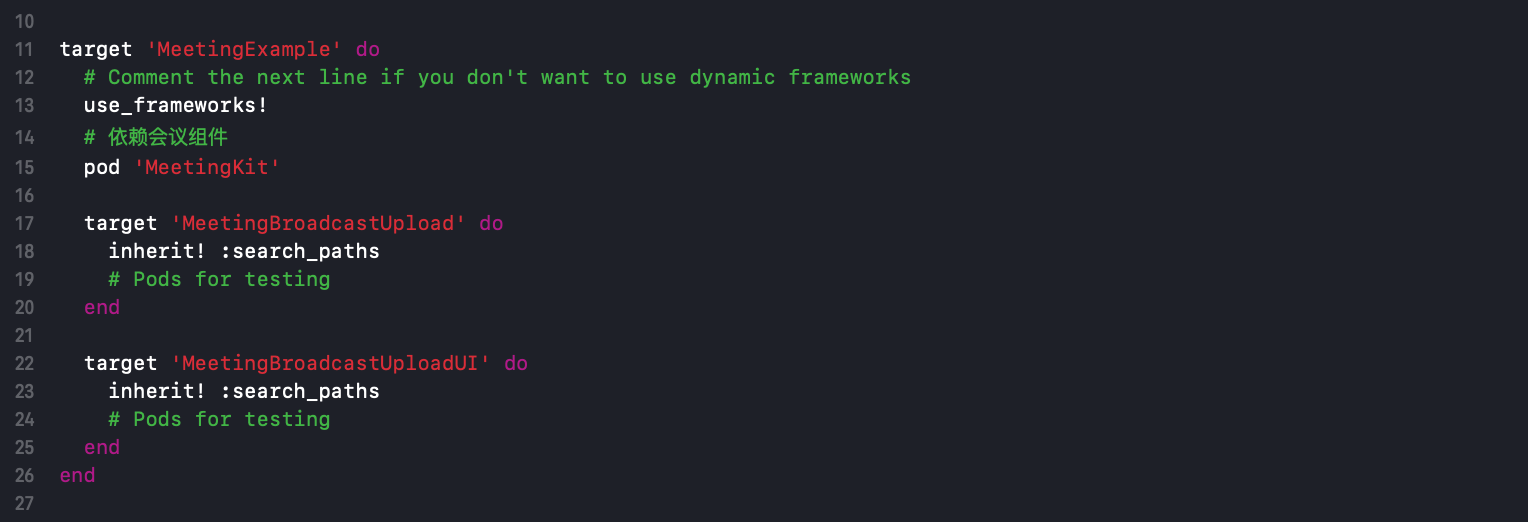
To integrate `MeetingKit.framework` into the screen recording extension, update the `Podfile` and run `pod install`, as shown:
Set the Product Name. After you click \[Finish], the project has a new directory named after the Product Name you entered, containing a system-generated `SampleHandler` class that handles screen recording, plus a corresponding Product Name SetupUI directory containing a system-generated `BroadcastSetupViewController` class that handles the screen recording UI.
#### Add the SDK dependency to the extension
To integrate `MeetingKit.framework` into the screen recording extension, update the `Podfile` and run `pod install`, as shown:
 #### Add background permissions to the host app
In the host project, go to \[TARGETS] -> \[Signing & Capabilities] -> \[Capability] and select \[Background Modes], as shown:
#### Add background permissions to the host app
In the host project, go to \[TARGETS] -> \[Signing & Capabilities] -> \[Capability] and select \[Background Modes], as shown:
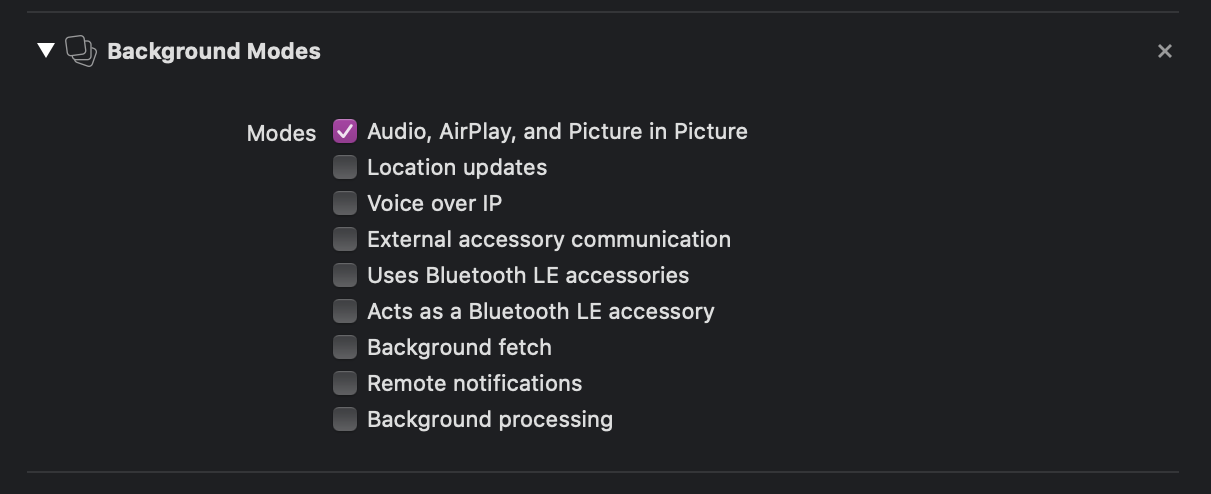
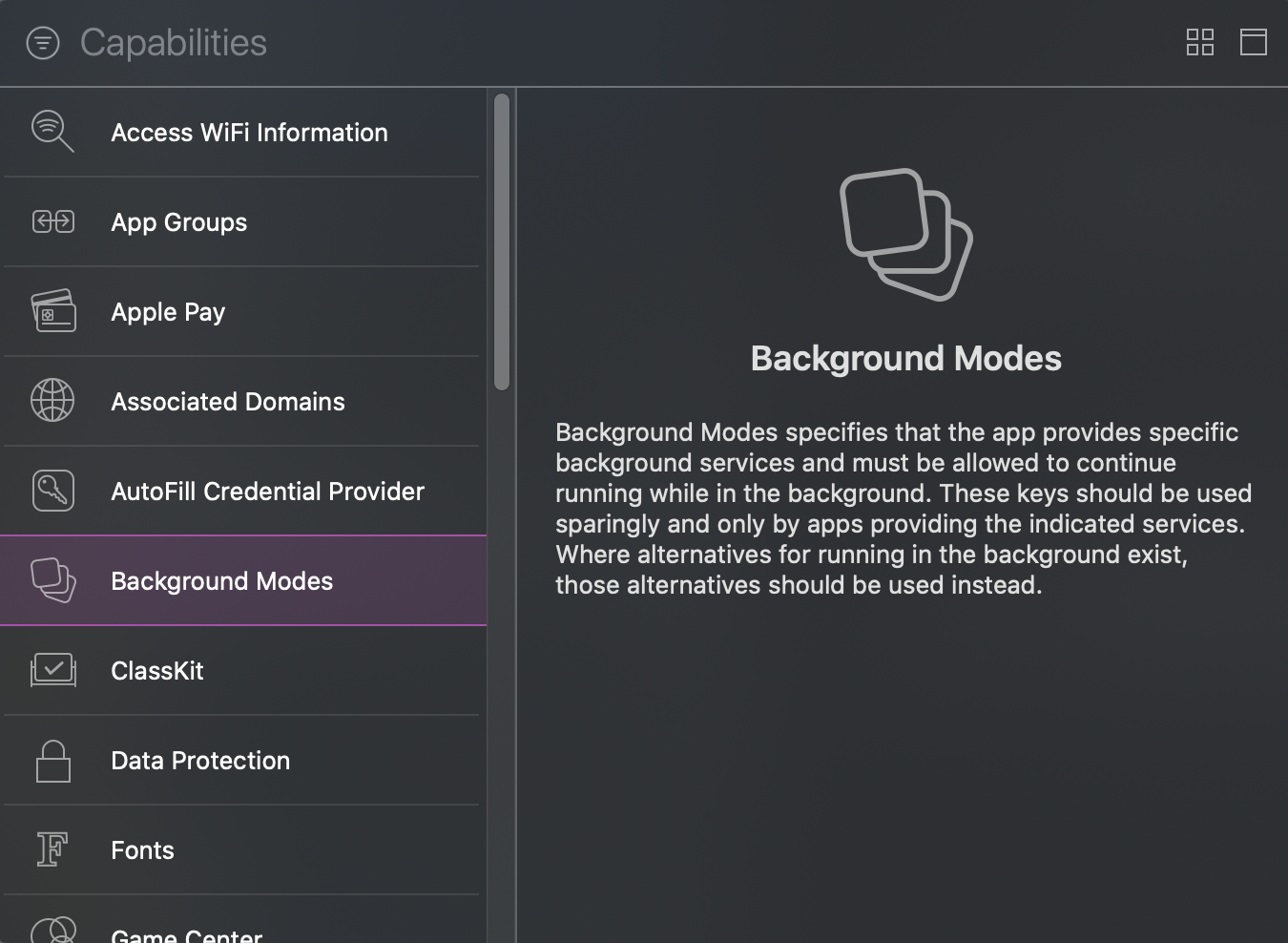 Double-click to add it, then check \[Audio, AirPlay, and Picture in Picture], as shown:
 ## Integration steps
1\. Where you need the recording service, import `#import ` and create an `RPSystemBroadcastPickerView` object, as shown:
## Integration steps
1\. Where you need the recording service, import `#import ` and create an `RPSystemBroadcastPickerView` object, as shown:
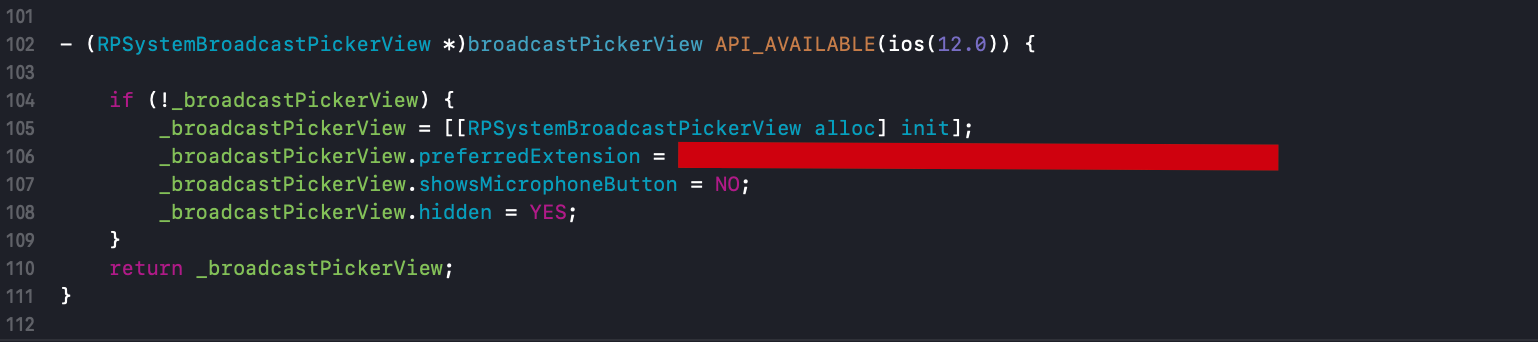 2\. To customize the button, replace the `RPSystemBroadcastPickerView` button as follows. If the page below appears after the `broadcastButton` event fires, the extension is integrated successfully:
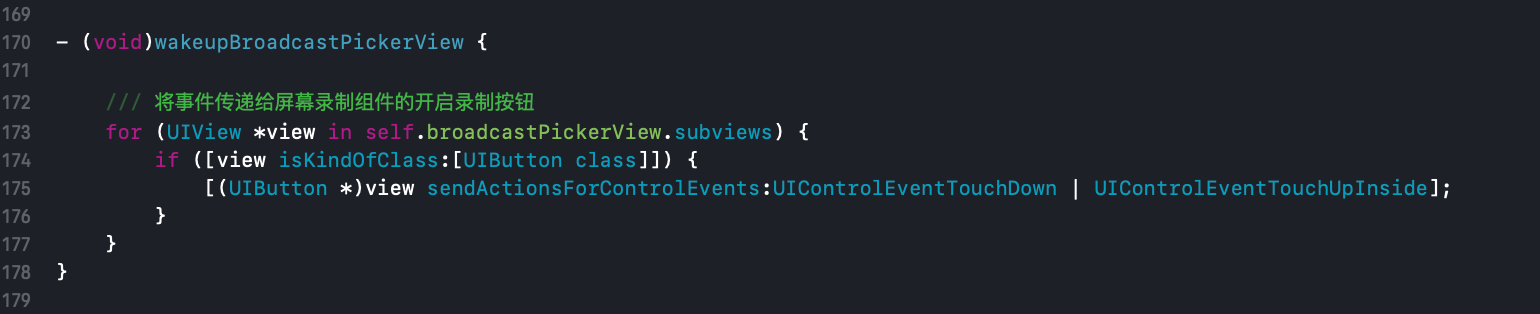 3\. In the host project, pass in `MeetingKitRoomDelegate` when creating the room instance, and implement the screen sharing status callback:
Starting with `2.0.0`, the process-side screen capture integration (`broadcastStartedWithAppGroup:delegate:`, `sendSampleBuffer:withType:`) stays on the `MeetingKit` singleton, while the screen sharing status callback has moved to `MeetingKitRoomDelegate` along with the other in-meeting events, and carries the room instance the event came from. To stop sharing, call `stopScreenRecord` on the room instance.
```objectivec theme={null}
/// Screen capture status callback
/// @param room Room instance the event came from
/// @param status Status code
- (void)meetingRoom:(MeetingKitRoom *)room onScreenRecordStatus:(SEAScreenRecordStatus)status {
SGLOG(@"Screen sharing status notification, status = %ld", status);
switch (status) {
case SEAScreenRecordStatusError:
/// Screen capture connection error
break;
case SEAScreenRecordStatusStop:
/// Screen capture has stopped
break;
case SEAScreenRecordStatusStart:
/// Screen capture has started
break;
default:
break;
}
}
```
4\. Implement the `RTCScreenDelegate` delegate in the screen extension's `SampleHandler`:
```objectivec theme={null}
@interface SampleHandler : NSObject
/// Add any of the following callbacks here as needed.
```
```objectivec theme={null}
/// Screen recording finished callback
/// @param engine Callback instance
/// @param reason Reason for finishing
- (void)broadcastFinished:(MeetingKit *)engine reason:(NSString *)reason {
/// Description
NSString *describe = @"Screen recording has ended";
/// Build the error
NSError *error = [NSError errorWithDomain:NSStringFromClass(self.class) code:0 userInfo:@{NSLocalizedFailureReasonErrorKey : describe}];
/// Finish screen recording
[self finishBroadcastWithError:error];
}
```
5\. Start screen recording in the screen extension's `SampleHandler`:
```objectivec theme={null}
- (void)broadcastStartedWithSetupInfo:(NSDictionary *)setupInfo {
/// User has requested to start the broadcast. Setup info from the UI extension can be supplied but optional.
[[MeetingKit sharedInstance] broadcastStartedWithAppGroup:@"Application Group Identifier" delegate:self];
}
```
6\. Send shared screen frames in the screen extension's `SampleHandler`:
```objectivec theme={null}
- (void)processSampleBuffer:(CMSampleBufferRef)sampleBuffer withType:(RPSampleBufferType)sampleBufferType {
/// Send media data (audio and video)
[[MeetingKit sharedInstance] sendSampleBuffer:sampleBuffer withType:sampleBufferType];
}
```
3\. In the host project, pass in `MeetingKitRoomDelegate` when creating the room instance, and implement the screen sharing status callback:
Starting with `2.0.0`, the process-side screen capture integration (`broadcastStartedWithAppGroup:delegate:`, `sendSampleBuffer:withType:`) stays on the `MeetingKit` singleton, while the screen sharing status callback has moved to `MeetingKitRoomDelegate` along with the other in-meeting events, and carries the room instance the event came from. To stop sharing, call `stopScreenRecord` on the room instance.
```objectivec theme={null}
/// Screen capture status callback
/// @param room Room instance the event came from
/// @param status Status code
- (void)meetingRoom:(MeetingKitRoom *)room onScreenRecordStatus:(SEAScreenRecordStatus)status {
SGLOG(@"Screen sharing status notification, status = %ld", status);
switch (status) {
case SEAScreenRecordStatusError:
/// Screen capture connection error
break;
case SEAScreenRecordStatusStop:
/// Screen capture has stopped
break;
case SEAScreenRecordStatusStart:
/// Screen capture has started
break;
default:
break;
}
}
```
4\. Implement the `RTCScreenDelegate` delegate in the screen extension's `SampleHandler`:
```objectivec theme={null}
@interface SampleHandler : NSObject
/// Add any of the following callbacks here as needed.
```
```objectivec theme={null}
/// Screen recording finished callback
/// @param engine Callback instance
/// @param reason Reason for finishing
- (void)broadcastFinished:(MeetingKit *)engine reason:(NSString *)reason {
/// Description
NSString *describe = @"Screen recording has ended";
/// Build the error
NSError *error = [NSError errorWithDomain:NSStringFromClass(self.class) code:0 userInfo:@{NSLocalizedFailureReasonErrorKey : describe}];
/// Finish screen recording
[self finishBroadcastWithError:error];
}
```
5\. Start screen recording in the screen extension's `SampleHandler`:
```objectivec theme={null}
- (void)broadcastStartedWithSetupInfo:(NSDictionary *)setupInfo {
/// User has requested to start the broadcast. Setup info from the UI extension can be supplied but optional.
[[MeetingKit sharedInstance] broadcastStartedWithAppGroup:@"Application Group Identifier" delegate:self];
}
```
6\. Send shared screen frames in the screen extension's `SampleHandler`:
```objectivec theme={null}
- (void)processSampleBuffer:(CMSampleBufferRef)sampleBuffer withType:(RPSampleBufferType)sampleBufferType {
/// Send media data (audio and video)
[[MeetingKit sharedInstance] sendSampleBuffer:sampleBuffer withType:sampleBufferType];
}
```